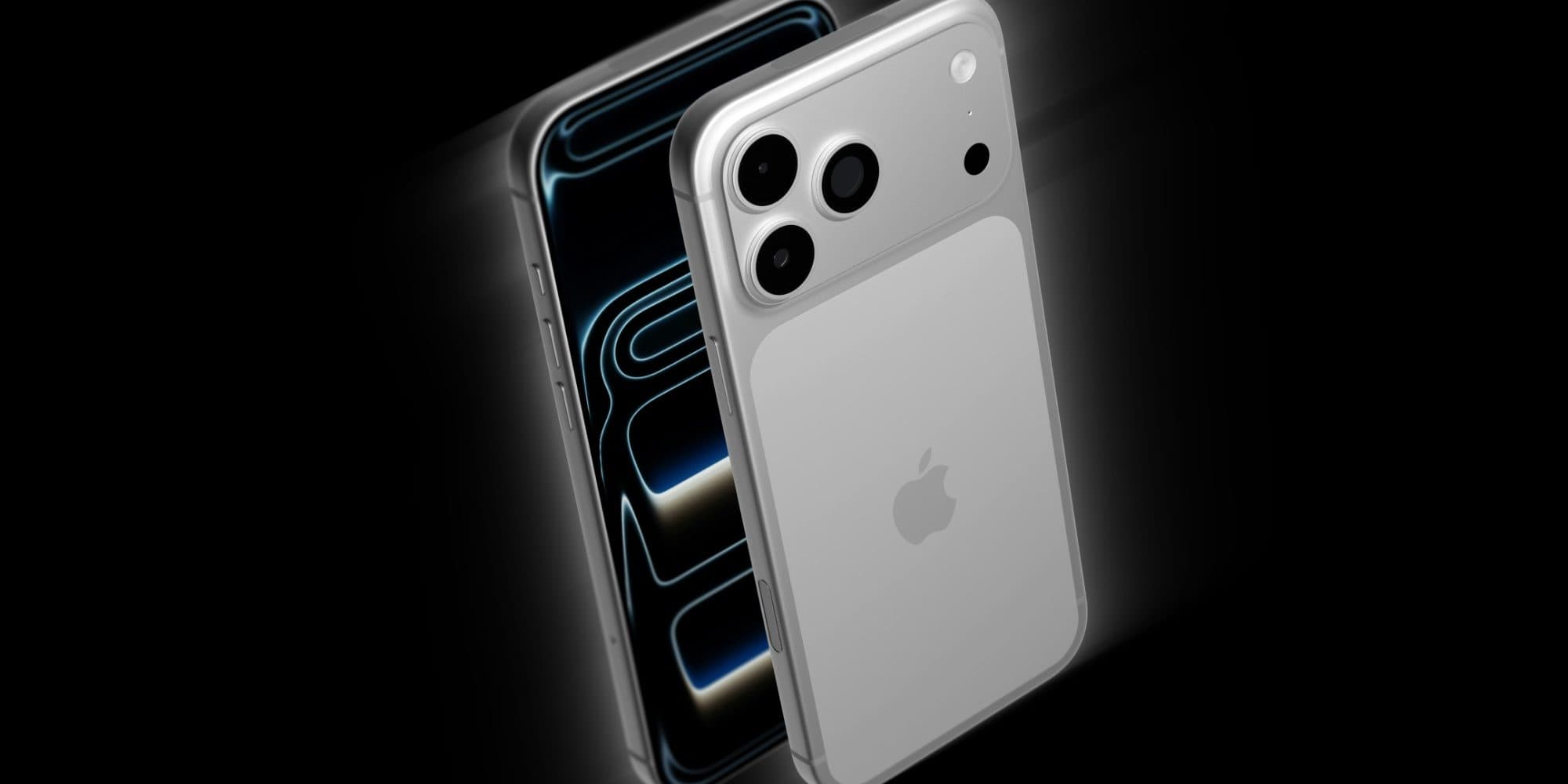
macOS 27 comes packed with features that will make your daily life on the Mac all the better. From an enhanced user interface to super-charged search, the new operating system delivers upgrades that should please every Mac user.
While Apple Intelligence and Siri AI dominated Apple’s WWDC26 keynote last week, and much of the fervor focused on improvements coming to iOS 27, the Mac is getting some great new features as well.
Here are the 10 best “hidden” features coming to macOS Golden Gate 27.
10 features in macOS Golden Gate that Apple didn’t talk about
The headline feature of macOS 27 — and every other Apple platform — is Siri AI. On the Mac, Apple integrated it into Spotlight. (If you want to try it out right now, you can download the macOS 27 developer beta and enable Siri AI from Terminal, skipping the waitlist.)
Aside from that, Apple didn’t talk much about specific new features for the Mac during its WWDC26 keynote. We pored over the giant list of improvements briefly shown on screen and picked out the top features coming to your Mac this fall.
The first developer macOS 27 beta is out right now, and a public beta should follow in July. Apple should release macOS Golden Gate 27 to everyone this fall (in September, if the pattern holds).
Table of contents: macOS Golden Gate hidden features
- Improved user interface design
- Drawing in Notes, Freeform and Messages
- Better speed and performance
- Better external display support
- Improvements to iPhone Mirroring
- Search in Mail that actually works
- Video podcasts on the Mac
- Copy as Markdown in Notes
- Smarter Shortcuts automations
- Ethernet status in the menu bar
1. Improved user interface design
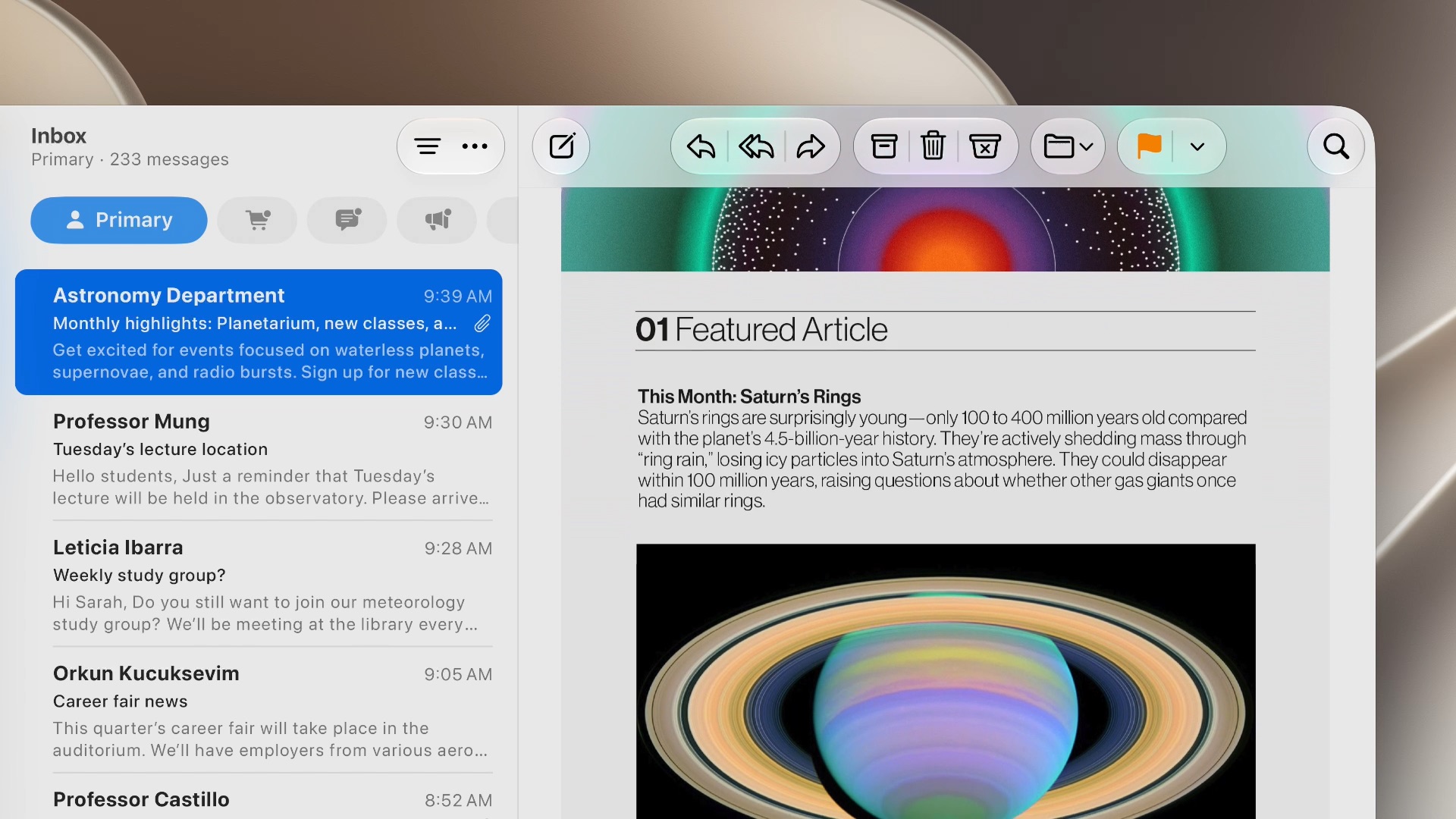
Image: Apple
Apple highlighted a few design changes to macOS 27 in the keynote: consistent window corners, glassier-looking icons, solid toolbars and a return to the old, colorful sidebar design. But there are even more little tweaks that you’ll appreciate:
- The text label for the active tab in a sidebar uses bold text.
- Most of the annoying menu bar icons from macOS Tahoe have been removed.
- Swipe to refresh comes to more apps, including Safari, Mail and Calendar.
- Animations in Mission Control and Spaces come to a smooth stop rather than a sudden, linear animation.
- Support for HDR user interface elements.
Drawing in Notes, Freeform and Messages

Photo: Pavel Danilyuk/Pexels
Apple previously limited drawing in Notes and Freeform to iPhone and iPad. But now, you can doodle on your Mac, too.
You can draw in Messages as well. The new Drawing app inside iMessage replaces the old handwriting feature that debuted with the iPhone 6.
These seem like even more clues about an upcoming touchscreen MacBook.
Better speed and performance
You’ll see performance improvements across the board after updating to macOS 27. Apps will launch faster, AirDrop is faster, and you can create a new user account much more quickly.
Apple paid special attention to Safari:
- Safari
is snappieroffers smoother scrolling, animations and graphics, with better web app performance. - JavaScript performance is improved.
- The Start page loads more quickly and handles resizing better.
Better external display support
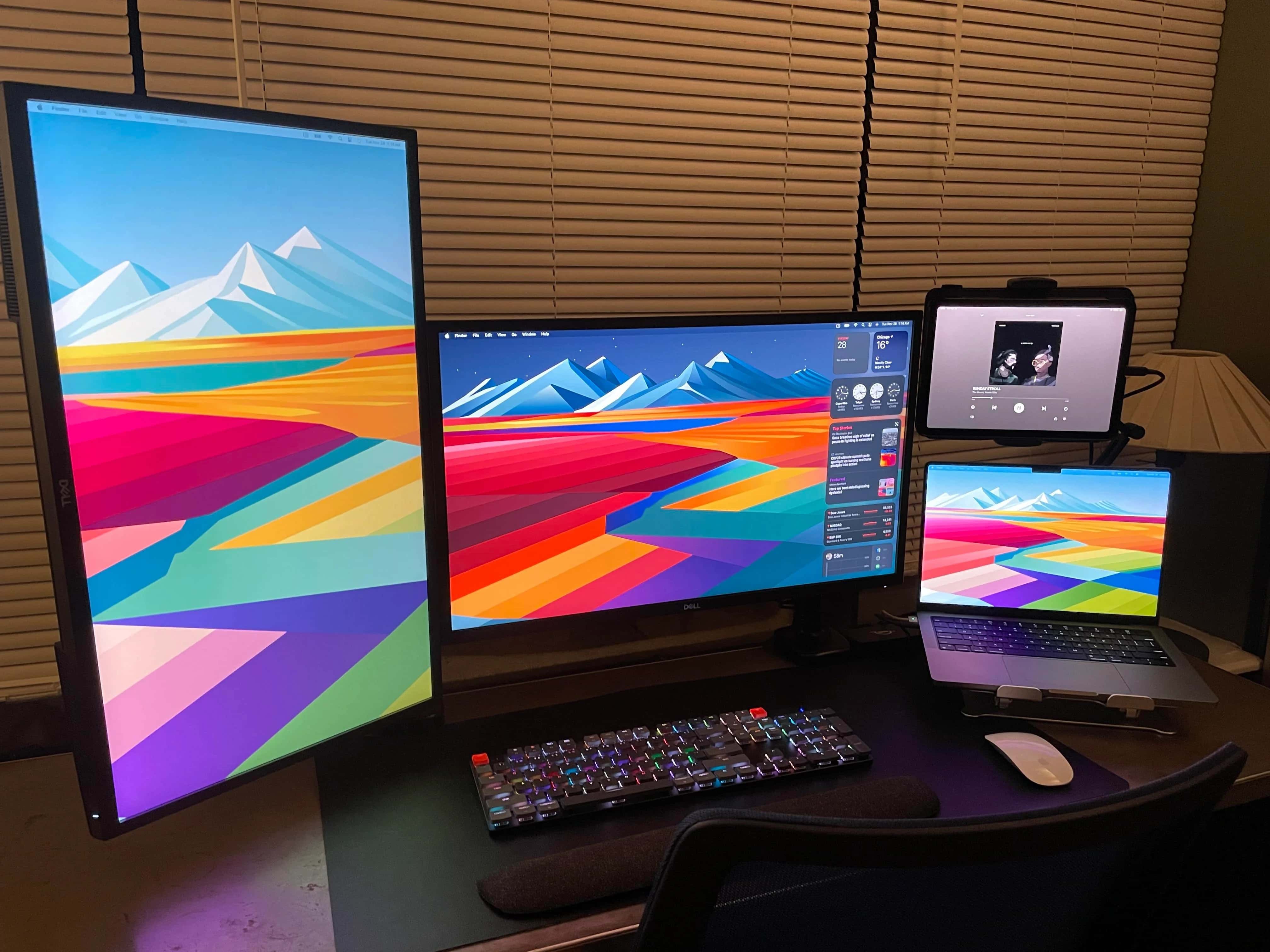
Photo: [email protected]
Great news for everyone who loves surrounding themselves with screens: macOS Golden Gate will better remember where windows are positioned across multiple displays.
Those with ultrawide screens will enjoy support for higher resolutions and frame rates — Apple specifically calls out 5K at 120 Hz.
Improvements to iPhone Mirroring
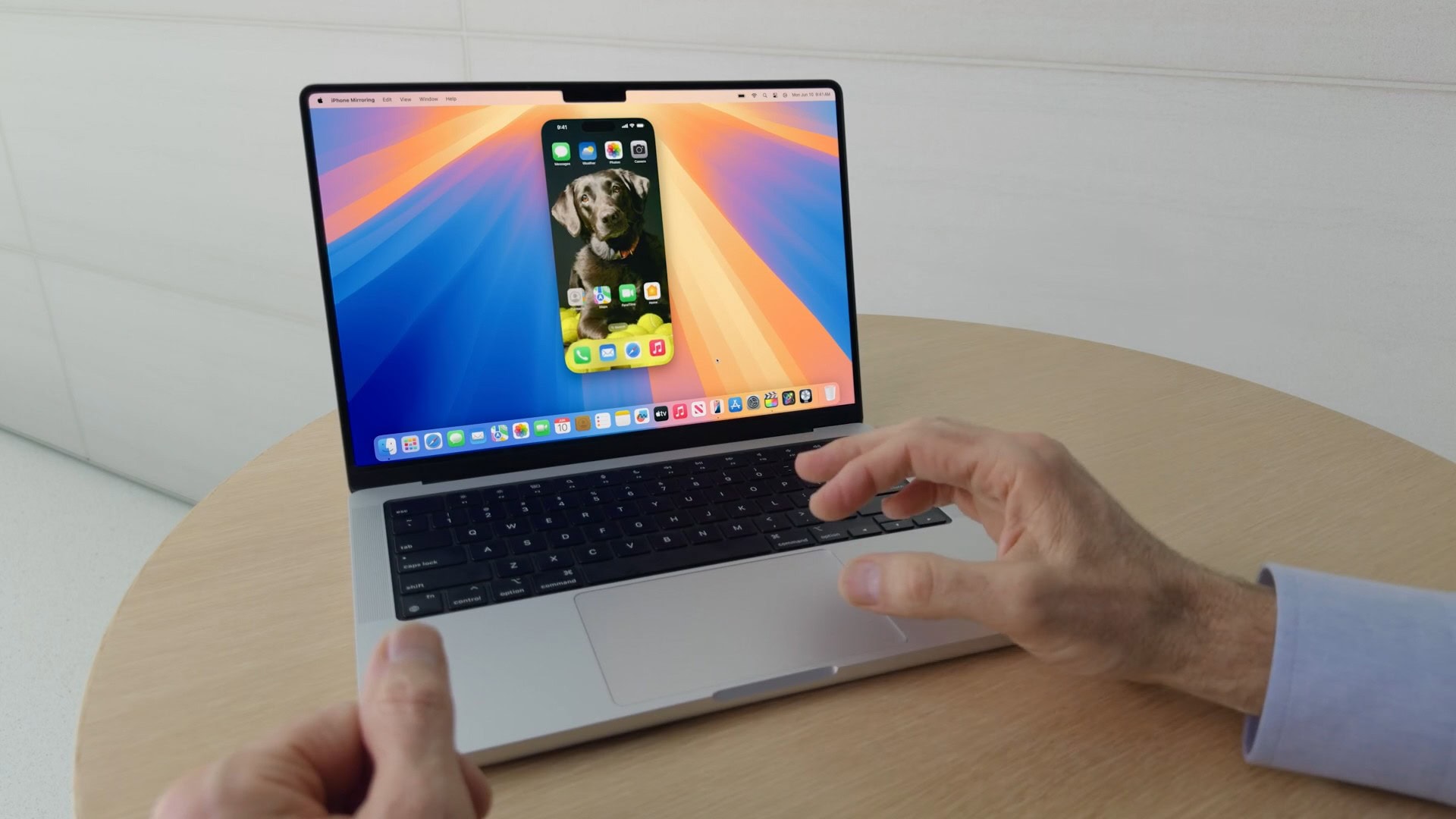
Photo: Apple
iPhone Mirroring lets you remotely access your iPhone using your Mac. It’s convenient if you left your phone in your pocket or your bag, but need to clear a notification or check something really quickly. The feature comes with three big improvements in macOS Golden Gate:
- You can resize an app to be bigger and see more content on the screen at once. (A big clue about the upcoming folding iPhone.)
- Control Center is available within iPhone Mirroring, so you can toggle settings or even ping your Apple Watch.
- You can watch DRM-protected video when using iPhone Mirroring, in case you want to watch Netflix or HBO content downloaded on your phone from your Mac.
Search in Mail that actually works
Mail is one of the most important apps on your Mac, yet one of its core features has basically been broken for a long, long time: search. Across all its platforms, Apple “rebuilt the foundation of search that powers Spotlight, Photos and Mail,” according to Stacy Ford, Apple’s vice president of OS program management.
If you have a large and/or ancient mailbox stuffed with thousands upon thousands of messages, Mail in macOS Golden Gate should surface better results when you search. That’s thanks to a new ranking system that prioritizes relevance over recency.
It can also search based on your intent, rather than your specific phrasing. So a search for “dentist” will also include “dental clinic,” for example.
Video podcasts on the Mac

Screenshot: D. Griffin Jones/Cult of Mac
Video podcasts debuted in iOS 26.4, but remained absent on the Mac app until macOS 27 Golden Gate. After the upgrade, if you play a video podcast, it’ll automatically start showing the video. You can click Turn Video Off from the Now Playing screen to go audio-only, or click on the video to make it bigger. You can also click the Picture-in-Picture button to make it float on top of all your other windows.
The Cult of Mac podcast now supports video as well!
Copy as Markdown in Notes
Markdown is a popular way of formatting plain text. **Two asterisks** make text bold, [brackets and parentheses](https://URL) make a link, and ##Pound signs make a heading. Markdown has become the standard way to format text across Reddit, Discord, GitHub and more — and has only risen in popularity with LLMs.
If you draft your writing in Apple Notes, there’s an even faster way to copy it out as Markdown in macOS 27. Just select some text (or the whole note) and in the Edit menu, select Copy as Markdown. Then you can paste it into any Markdown editor.
Smarter Shortcuts automations
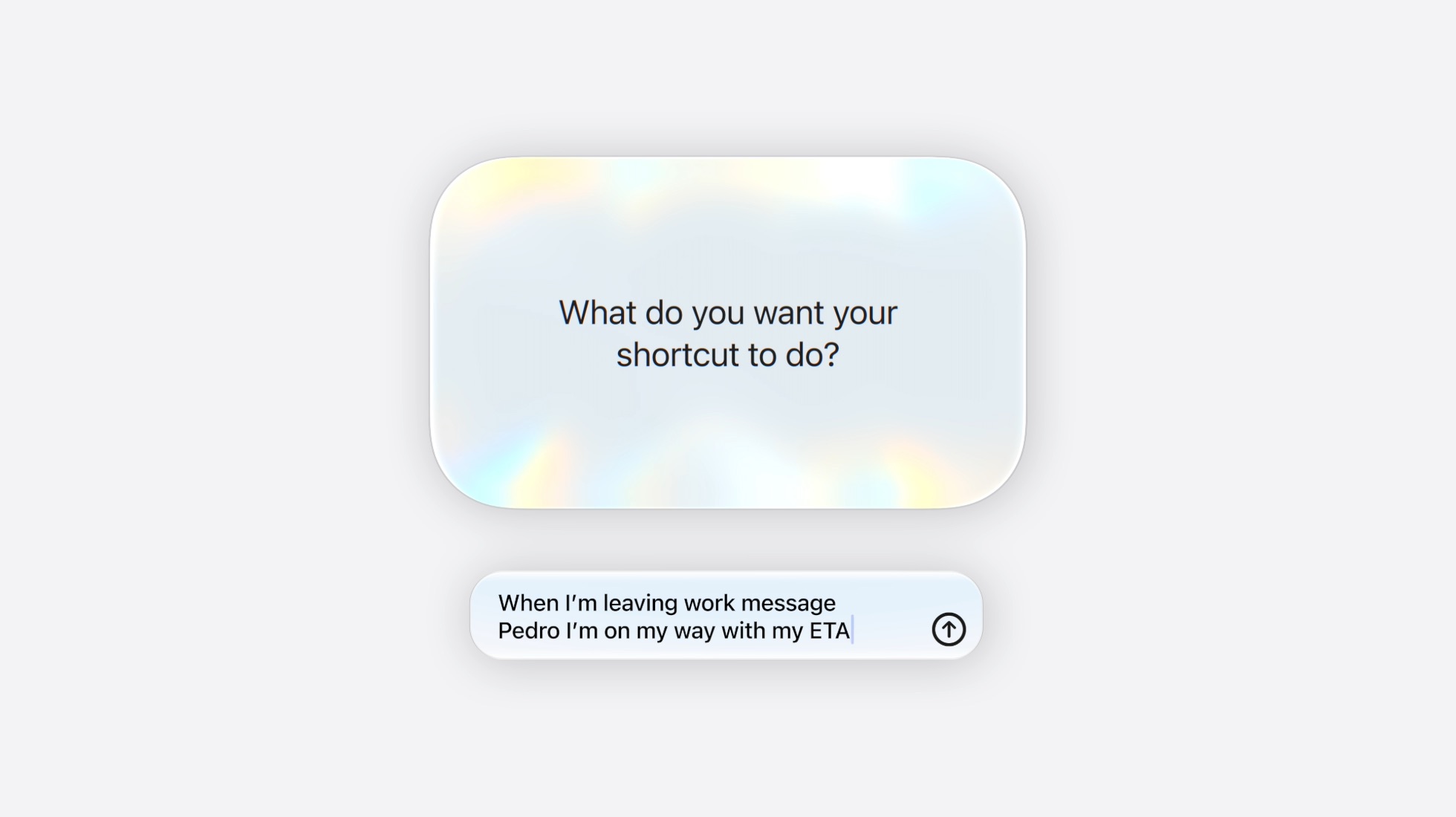
Image: Apple
Apple’s Shortcuts app becomes much smarter in macOS 27 Golden Gate. For starters, it can use Apple Intelligence to generate an automation entirely by itself — no more futzing around, searching through the copious list of actions and possibilities.
Speaking of which, Shortcuts adds a few important new actions:
- Else-if blocks are an excellent new addition for structuring the logic of your shortcut.
- You can create automations based on screenshots and notifications.
- Shortcuts can resize and position windows on the screen.
- Shortcuts can store data.
- Get What’s On Screen is smarter.
Ethernet status in the menu bar
If you have the Wi-Fi item visible in your Mac’s menu bar, it’ll show a different icon when you’re connected via Ethernet (a wired connection). This is a faster way to see which connection your Mac is using — Ethernet is typically much faster and more reliable.
Make sure you have this enabled in System Settings > Menu Bar by enabling the Wi-Fi control.