There are eight great new Safari features in iOS 27. The update fixes a lot of irritating design problems that have bothered me for years.
Plus, if your phone supports Apple Intelligence, you’ll enjoy some smart new features that make your browsing easier — I’ve already created a couple custom extensions. And everyone will appreciate the speed and performance gains when they update.
Check out what you can expect from Safari this fall when Apple releases iOS 27.
8 new features in Safari in iOS 27
Safari is Apple’s own web browser. It runs on iPhone, iPad, Mac and Vision Pro. It’s highly performant, energy-efficient and tightly integrated into all your devices. Like all Apple software, its design is minimal yet powerful.
It’s the browser nearly everyone uses on their iPhone, because it’s just so good out of the box. Apple keeps adding great new features every year, and this update cycle is no exception. Check out what’s new in Safari.
Table of contents: New Safari features in iOS 27
- New start page with bookmarks, reading list and history
- New compact button layout
- Create your own web extensions
- Get notified when a page is updated
- Organize your tabs automatically
- Dense scrollable page menu
- Uninterrupted audio playback
- Faster performance
- More iOS 27 features
1. New start page with bookmarks, reading list and history
Screenshot: D. Griffin Jones/Cult of Mac
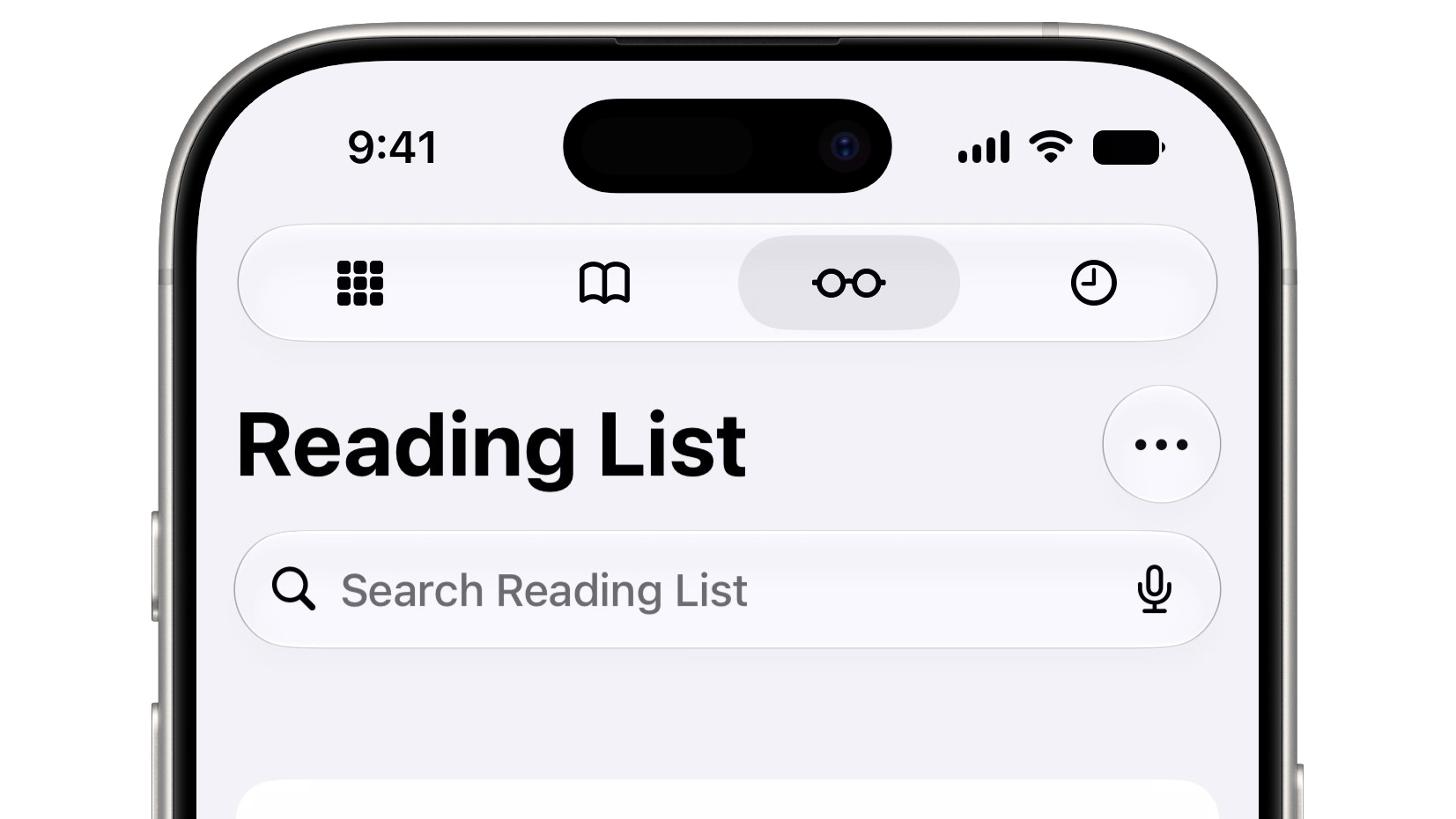
In iOS 27, you no longer need to dig through a menu to find your Safari bookmarks, reading list and history. When you open a new tab, you’ll see a picker at the top of the screen to switch between them. It’s incredibly fast and convenient.
It’s not yet present on the Mac, but I hope this new design makes its way over soon.
2. New compact button layout

Screenshot: D. Griffin Jones/Cult of Mac
Apple tweaked the buttons in Safari’s compact layout in iOS 27. The “More” menu on the right has been replaced with a Tabs button. While you’ve been able to swipe up on the address bar to see your tab overview for years, the gesture isn’t obvious — the Tabs button is easier to work out.
However, this makes the Share button harder to find — you can tap the Page menu on the left of the address bar, or tap and hold the address bar.
You can tap and hold on the Tabs button to bring up a menu to switch tab groups.
Of course, you can still switch to the full-sized toolbar in Settings > Apps > Safari.
3. Create your own Safari web extensions in iOS 27
Screenshot: Apple
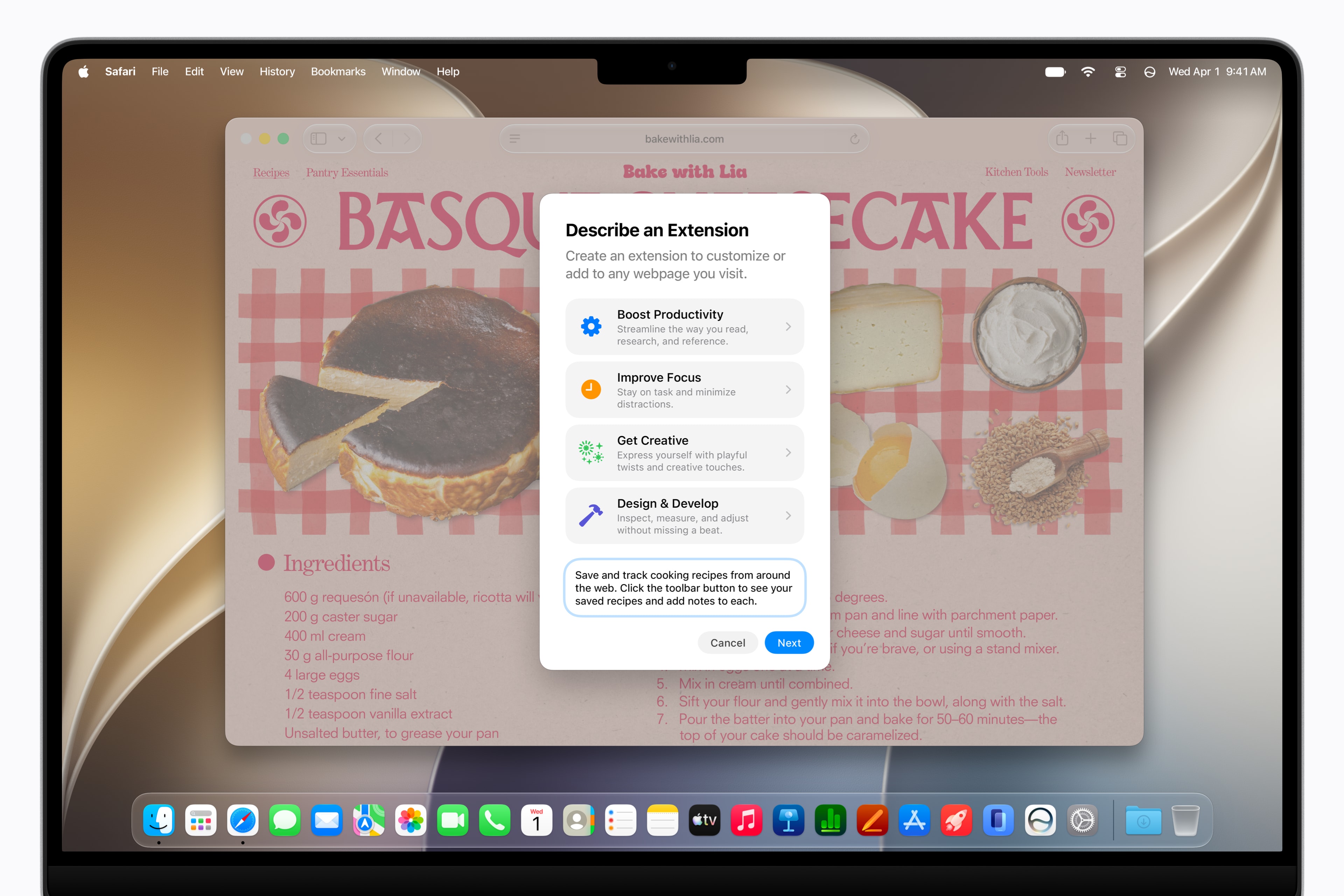
On devices that support Apple Intelligence (iPhone 15 Pro and later, iPhone 16 and later), you can create your own web extensions just by asking. Tap the Page menu on the left of the address bar, then tap Describe Extension. You can give it a prompt in plain language.
I used this feature to create an extension that adds an “Open in Apple News” button when I’m viewing articles on The Verge, The Washington Post and The Wall Street Journal. Since I pay for Apple News+, which includes these outlets, it’s a convenient way to get through their paywalls.
4. Get notified when a page is updated
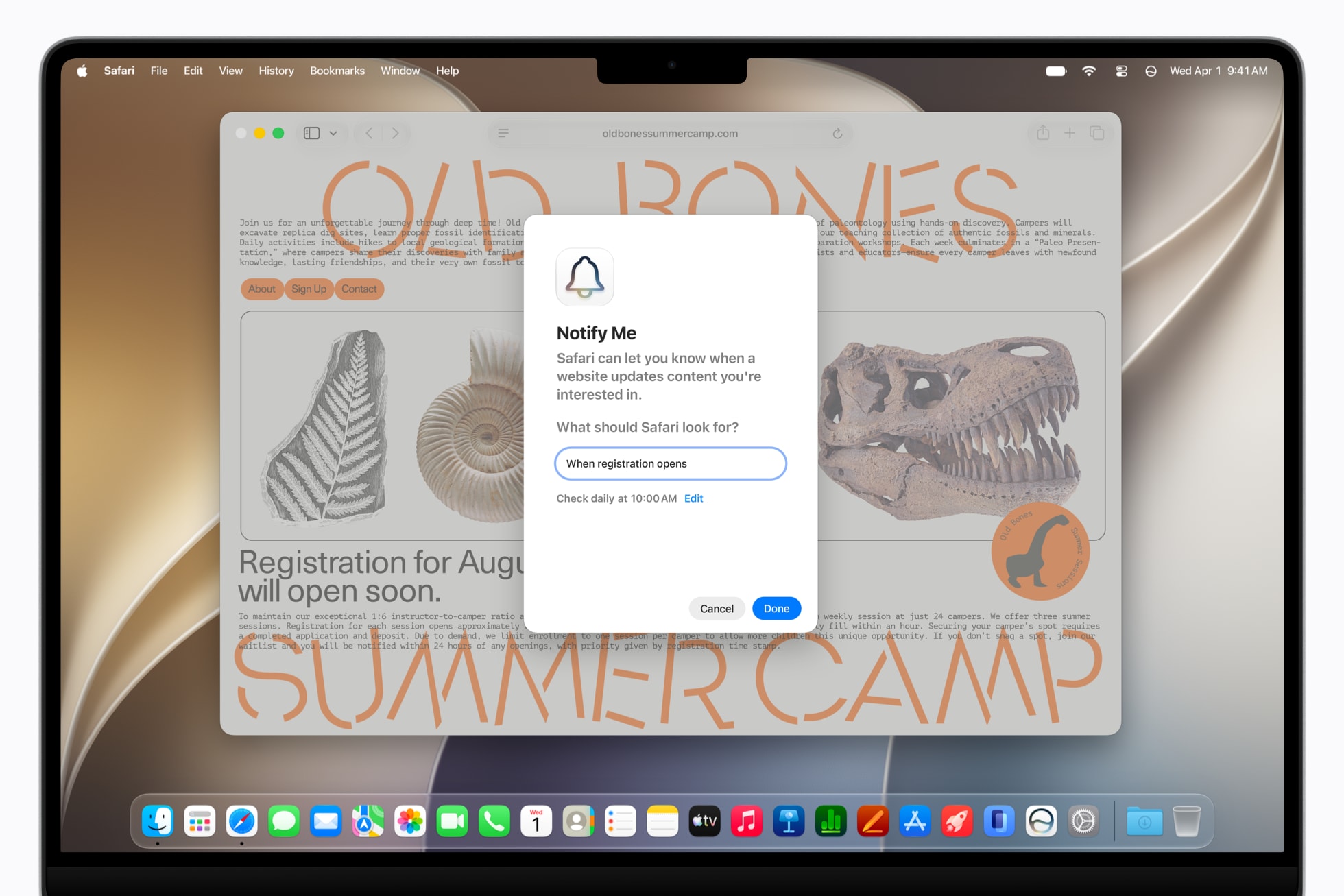
Photo: Apple
You don’t need to check a page every hour of every day or madly hit refresh. In iOS 27, Safari can notify you when a page is updated or changes. If your device runs Apple Intelligence, tap the page menu on the left of the address bar, then tap Notify Me. You can describe what you’re looking for — like “when this comes back in stock,” “when tickets are available to order,” or “when a new episode of the podcast is published.”
5. Organize your tabs automatically with Safari in iOS 27
Graphic: Apple
In iOS 27, Safari will organize your tabs for you — another useful feature powered by Apple Intelligence. If you’re a tab hog, you don’t need to play janitor — the browser will group all your open tabs by topic. On the start page, it’ll even group your iCloud tabs by topic, too.
Finding the specific page you want is much easier when you can click a category, rather than scroll through a sea of dozens of options.
The fancy, slide-up page menu panel is gone in iOS 27. Instead, it’s a regular context menu that scrolls. It’s less visual, and more dense, but at least it gives you all the controls at once. None of the settings are hidden behind a second menu.
7. Uninterrupted audio playback
Finally, if you’re listening to a podcast or music, a snippet of sound playing on a website won’t interrupt your listening. Safari can handle a little bit of overlapping audio.
This was a necessary tradeoff in the early days of the iPhone. Without a Dynamic Island or Control Center, or even multitasking, Apple didn’t want users to get stuck playing two things at once without an obvious way to pause playback in the background. But now, in the 20th major version of the software, Apple trusts you to pause your music yourself.
8. Safari gets faster performance in iOS 27
Apple also significantly improved the speed and performance of Safari in iOS 27.
- Safari gains smoother scrolling, animations and graphics, with better web app performance.
- JavaScript performance is improved.
- The Start page loads more quickly and handles resizing better.