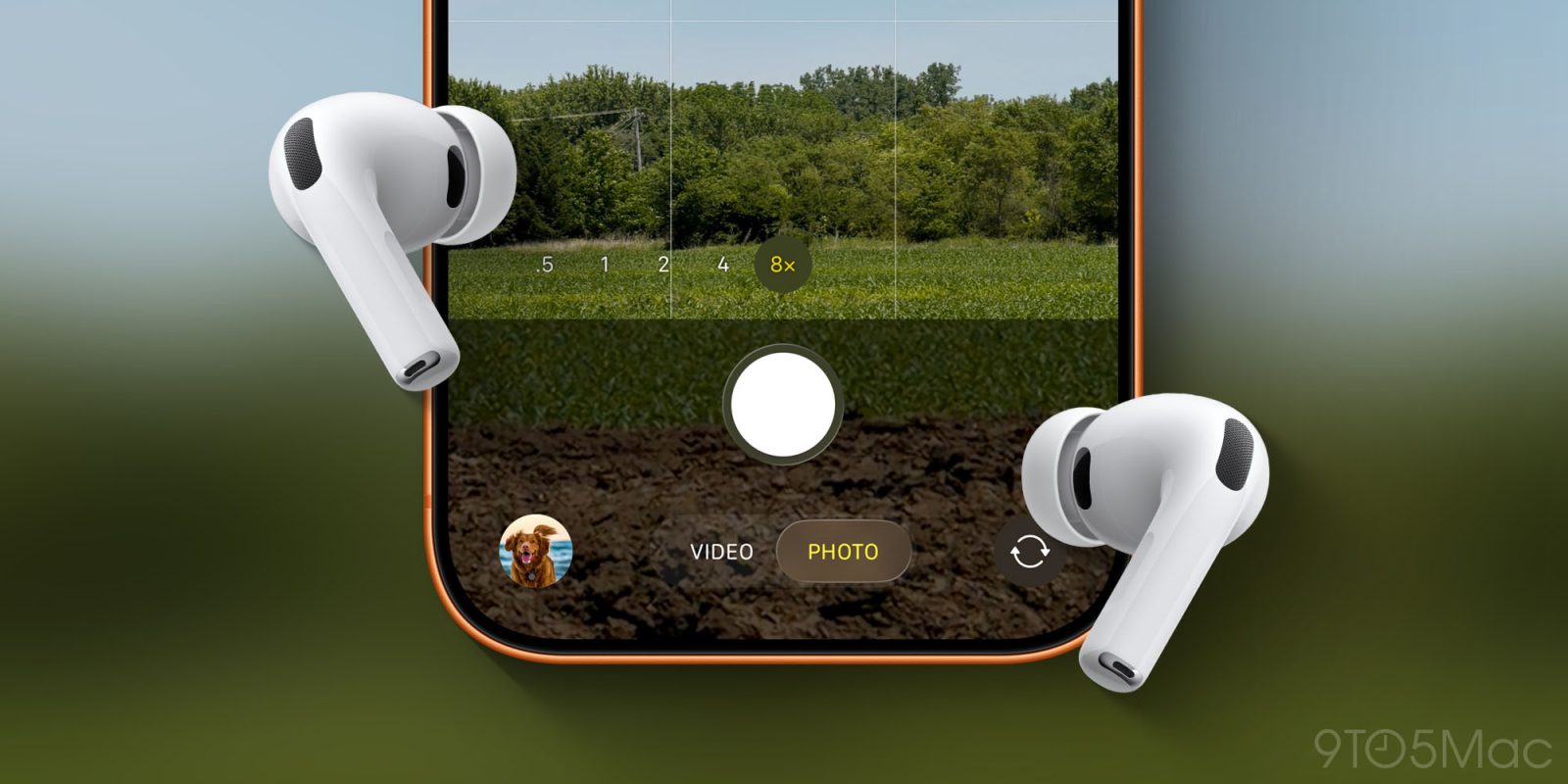
iOS 26 added a variety of new features for AirPods, including a Camera Remote setting to control your iPhone’s Camera app. Here’s how to use it.
Camera Remote can be enabled in AirPods settings to control iPhone’s Camera app
Have you ever wanted to take a photo or video without needing to have your iPhone within reach?
Apple Watch has long offered a Camera Remote app that lets you control the iPhone’s camera remotely. And you can always use the built-in timer in the Camera app.
But with iOS 26, Apple added a third option: Camera Remote for AirPods.
Camera Remote is off by default, but you’ll find it inside the Settings app under AirPods settings in a ‘Camera Control’ section.
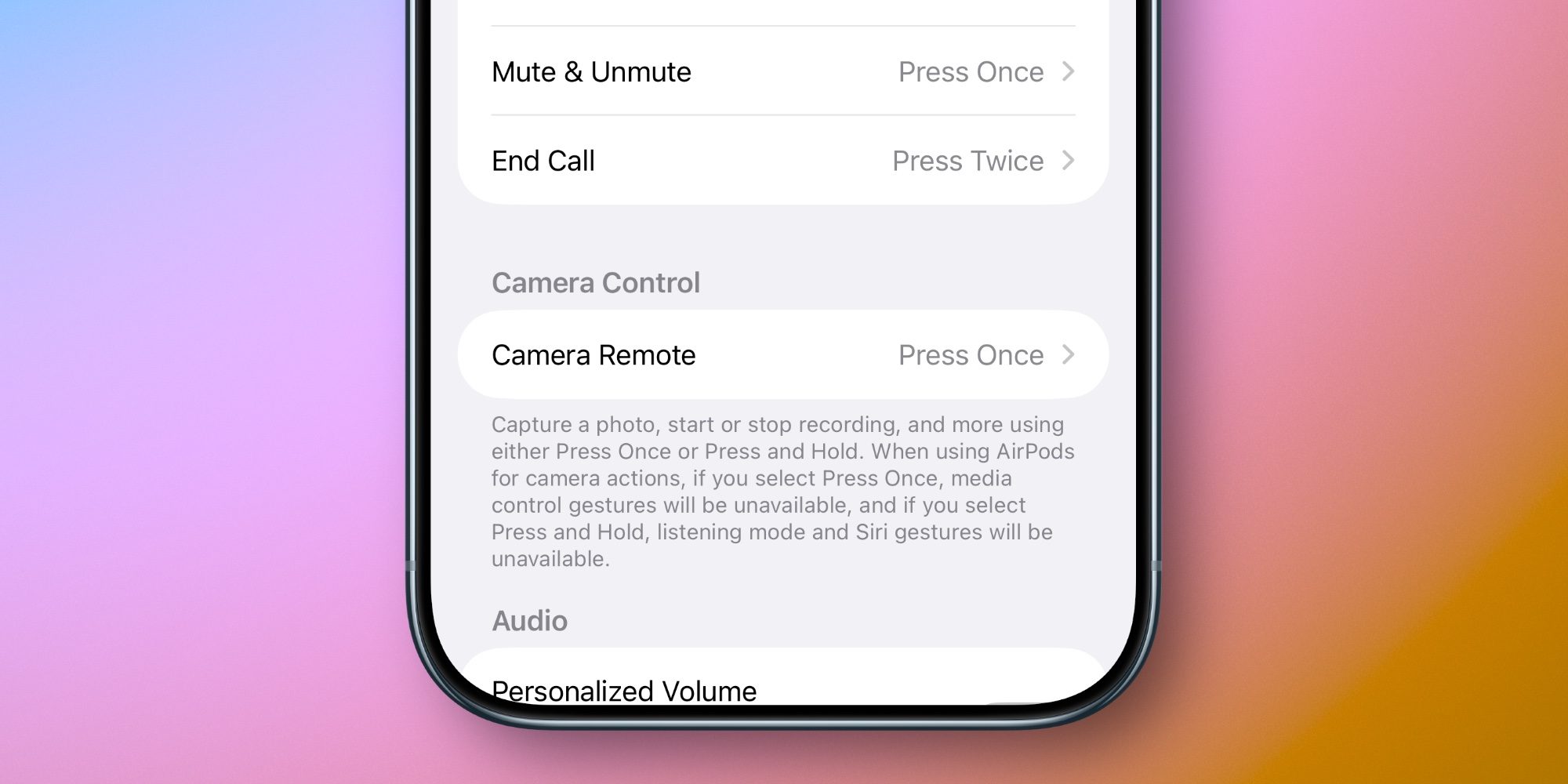
Tap into the Camera Remote menu and select either ‘Press Once’ or ‘Press and Hold’ to enable your preferred gesture.
Once it’s set up, any time your iPhone’s Camera app is open, you’ll be able to snap a photo, start and stop recording, and more by pressing your AirPods stem. Or the Digital Crown on AirPods Max.
From Apple’s description in the Settings app:
Capture a photo, start or stop recording, and more using either Press Once or Press and Hold. When using AirPods for camera actions, if you select Press Once, media control gestures will be unavailable, and if you select Press and Hold, listening mode and Siri gestures will be unavailable.
All that’s saying is that when the Camera app is active, your AirPods will replace the typical media control and/or Siri gestures with Camera Remote.
There’s one requirement worth mentioning: Camera Remote is limited to AirPods Pro 3, AirPods Pro 2, AirPods 4, and AirPods Max 2.
Have you been using AirPods’ new Camera Remote feature? When have you found it especially helpful? Let us know in the comments.
Best AirPods deals and accessories
FTC: We use income earning auto affiliate links. More.