Don't like Gemini? Here's how to roll back to Google Assistant on your Android phone
Want to go back to your ex... AI assistant? We don't blame you. Take these steps to get Google Assistant back after your fling with Gemini.
Don't like Gemini? Here's how to roll back to Google Assistant on your Android phone
Go back to a (slightly) simpler time.
So, you're here because Gemini is driving you nuts. It's a pretty common sentiment about the AI assistant, especially for those who use their phones to control their smart home devices. Even if you don't use your Android phone to control your smart home, you may still want to get rid of Gemini because it takes too long to respond or it can't even understand your commands in the first place. Maybe it gives you inaccurate weather forecasts and information about nearest establishments. Or maybe, it just keeps failing at the most basic tasks and has been throwing you too many errors. You're not the only one tired of seeing "Something went wrong, please try again."
Whatever your reason is, you don't have to keep using Gemini if you don't want to. Below, we've listed out steps you can follow so you can go back to using Google Assistant on your Android phone. If you want to get Gemini out of your other Google apps (like Gmail or Chrome), you can refer to our previously published guides as well.
How to switch back to Google Assistant
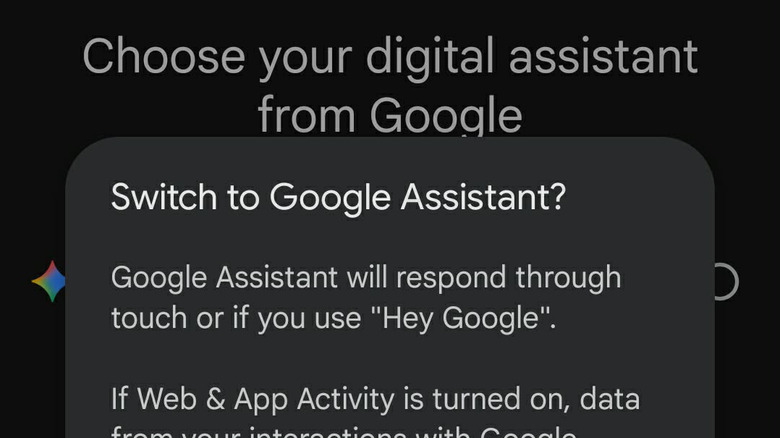
Try these steps on any standard Android phone.
- Go to Settings.
- Open the Apps menu.
- Find the Assistant option.
- Scroll down to the "Digital assistants from Google" section.
- On this screen, you can choose which digital assistant you want to use. Pick Google Assistant instead of Gemini.
- Confirm the switch, and you're done.
If your phone has its own branded Android skin, such as Samsung (One UI), Xiaomi (HyperOS) and Oppo (ColorOS), you may not find the same options in your menu. You can try these steps instead:
- Open the Google app on your phone.
- Tap on your Google profile photo at the top right corner of the screen.
- Open the Settings menu.
- Tap the Google Assistant option.
- Scroll down until you find the "Digital assistants from Google" section. Tap on it.
- From this screen, you'll be able to choose between Gemini and Google Assistant.
If you want to see less of Gemini in more places, you can check out more of our guides. I already mentioned our instructions on how to de-Gemini your Google apps, so the AI assistant doesn't pop up in Sheets or Docs to distract you while you work. Take note, however, that you do lose some some features if you remove Gemini from your Workspace apps. And if you want to see less Gemini-powered results in your web searches, you can follow our instructions on how to turn off Google's AI Overviews.
Originally published on Engadget