The iPhone Duo is special in many ways. It’s Apple’s first foldable iPhone, and its brand-new form factor means the experience of using it will be unlike previous iPhones.
Before you spend the day folding and unfolding your new iPhone Duo and admiring its design, here are seven things worth doing first.
Got an iPhone Duo? Do these 7 things first
Start by protecting your new phone and getting familiar with its folding screen. Then spend some time exploring the hinge, multitasking options and camera features. A few minutes with each will help you find useful ways to take advantage of the Duo’s design.
Table of contents
Put a case on it

Photo: Apple
The iPhone Duo is unlike any other iPhone before it. That’s also true of its durability. Irrespective of what Apple claims and the materials used, the iPhone Duo is not as durable as a regular iPhone because it’s a foldable.
While the cover display and the titanium frame can take a beating, that’s not the case with the inner folding screen. So, as much as the iPhone Duo feels nice to hold without a case, make sure to put one on.
Pick one of the best iPhone Duo cases you can buy right now, depending on your needs and how much protection you want.
A slim case will keep the bulk down but leave the titanium frame exposed to dings and scratches. Some cases may require an adhesive strip to stay in place properly.
Get AppleCare+
If there is one investment that you should make for your new iPhone Duo, it’s AppleCare+.
Without Apple’s protection plan, out-of-warranty repairs for the foldable are exorbitantly expensive. For example, an inner display repair will cost $999. With AppleCare+, you pay a service fee of $99 for covered accidental damage to the inner display.
Even better, outer display repairs will cost $29 under the plan. Likewise, replacing the folding screen’s matte cover layer costs only $19 under AppleCare+. That’s something you will need more than once if you plan to use the Duo for several years.
AppleCare+ with Theft and Loss for iPhone Duo costs $19.99 per month or $199.99 per year. Service fees and deductibles are extra when you make a claim. You can add AppleCare+ coverage to the iPhone Duo within 60 days of purchase.
If you already own several Apple devices, you can add the iPhone Duo to your AppleCare One plan instead. The Individual plan covers up to three eligible devices for $19.99 per month, with additional devices costing an extra $5.99 each per month.
There’s also a Family plan that costs $49.99 per month and covers all eligible devices for up to six people in your Family Sharing group.
Take care of the inner display
The iPhone Duo is all about that folding screen. But the reality is that the display may not always look the same as it did when you first got the phone. Unlike the cover screen, the inner display is not protected by Ceramic Shield.
Instead, it uses a custom polymer cover layer with a nano-texture finish that reduces glare and helps make the crease less visible. A scratch-resistant coating provides additional surface protection.
In a nutshell, the surface you touch is polymer rather than Ceramic Shield glass. And that means it is not as durable as glass.
Always check for grit and other hard objects before folding the phone shut. Likewise, avoid pressing hard on the screen or trapping anything between its two halves, especially sharp objects, as they can easily damage the polymer layer.
Also, keep the phone away from the beach and sand. Sand particles can easily scratch the inner display.
Do not try to remove the protective cover layer yourself. If it ever becomes damaged, contact Apple to get it replaced. A replacement costs $49 without coverage or $19 with AppleCare+.
Before applying any aftermarket screen protector to the inner folding screen or using a cleaning product, check Apple’s instructions.
Play around with the right hinge angle
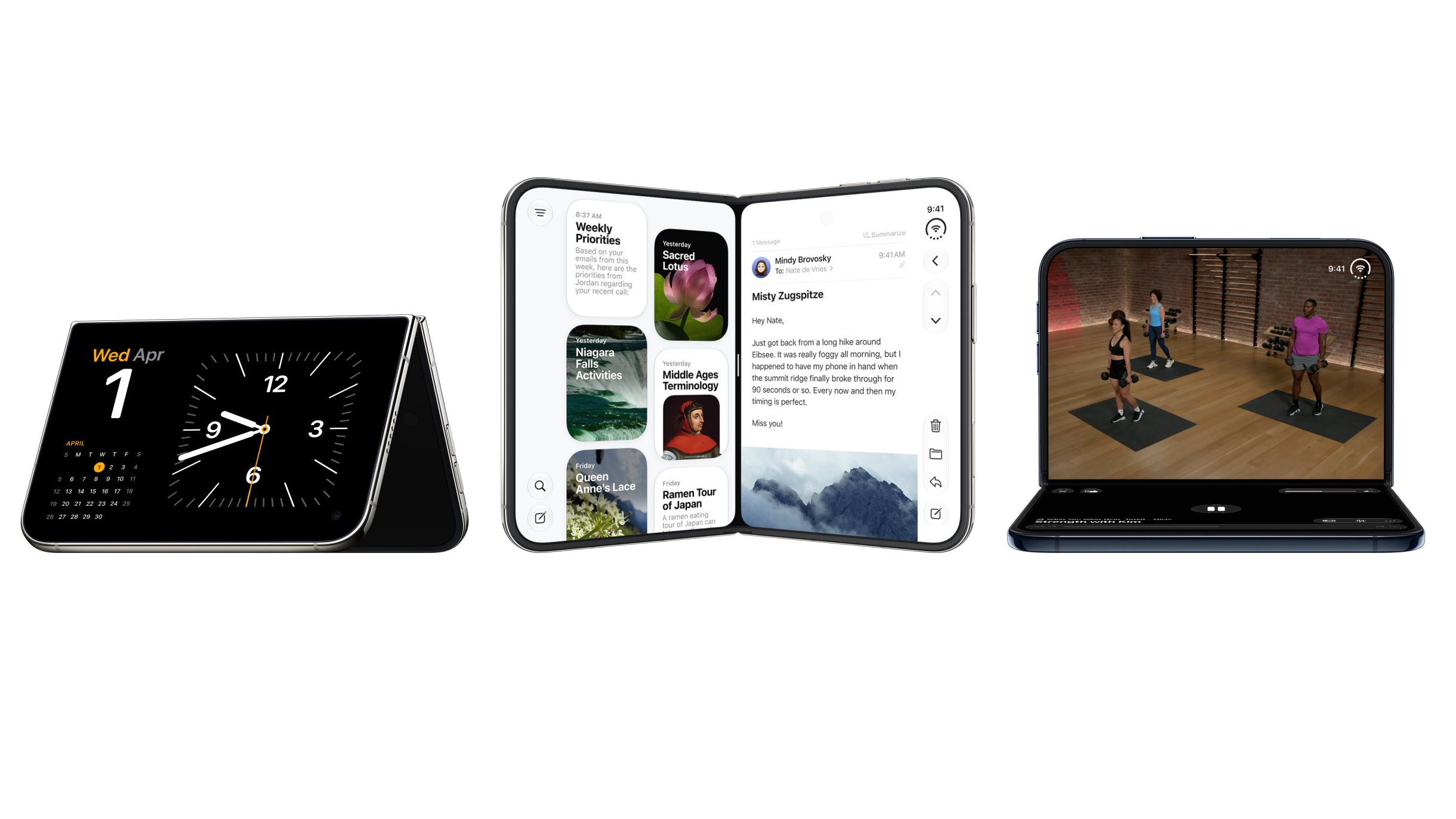
Photo: Apple
The iPhone Duo’s hinge lets you do more than open the phone fully or close it completely. You can partially fold it so that it stands on its own, which opens up a few useful ways to use it hands-free.
For example, you can set the iPhone Duo down on a table like a small laptop, with the lower half resting flat on the table. You can adjust the upper half to get a comfortable viewing angle for a FaceTime call or video. There is also the tent position, with the outer display facing you when you place the phone on your desk or bedside table.
As you use the foldable, you will realize that the hinge’s flexibility opens up a lot of possibilities in how you can use foldable hands-free for different tasks.
Try two apps side by side

Photo: Apple
The iPhone Duo’s folding screen provides additional screen real estate to run two apps side by side. That’s not something you could do on any previous iPhone. Essentially, on the Duo, you get an iPad-like Split View feature, making it great for multitasking on the go.
To get started, unfold your iPhone Duo and hold it in landscape orientation. Open the first app, swipe up on it, then dock it to the left or right side of the display. The Home Screen appears on the other half, letting you choose a second app to open alongside it.
Even better, if you frequently run the same combination of apps side by side, you can save it as an app pair. With both apps open in Split View, tap the center of the divider between them. The pair then appears together in the app switcher, so you can return to both apps without arranging them again.
Note that if you rotate the Duo into portrait mode, it will switch to a single-app view. But rotating it back to landscape will bring back the app pair.
Split View on the iPhone Duo also supports two windows from the same app, so you can view them side by side. The trick is to start with tasks that already make you switch between apps. Save the combinations you find useful as app pairs to fully utilize the Duo’s extra screen real estate.
Explore the foldable camera features
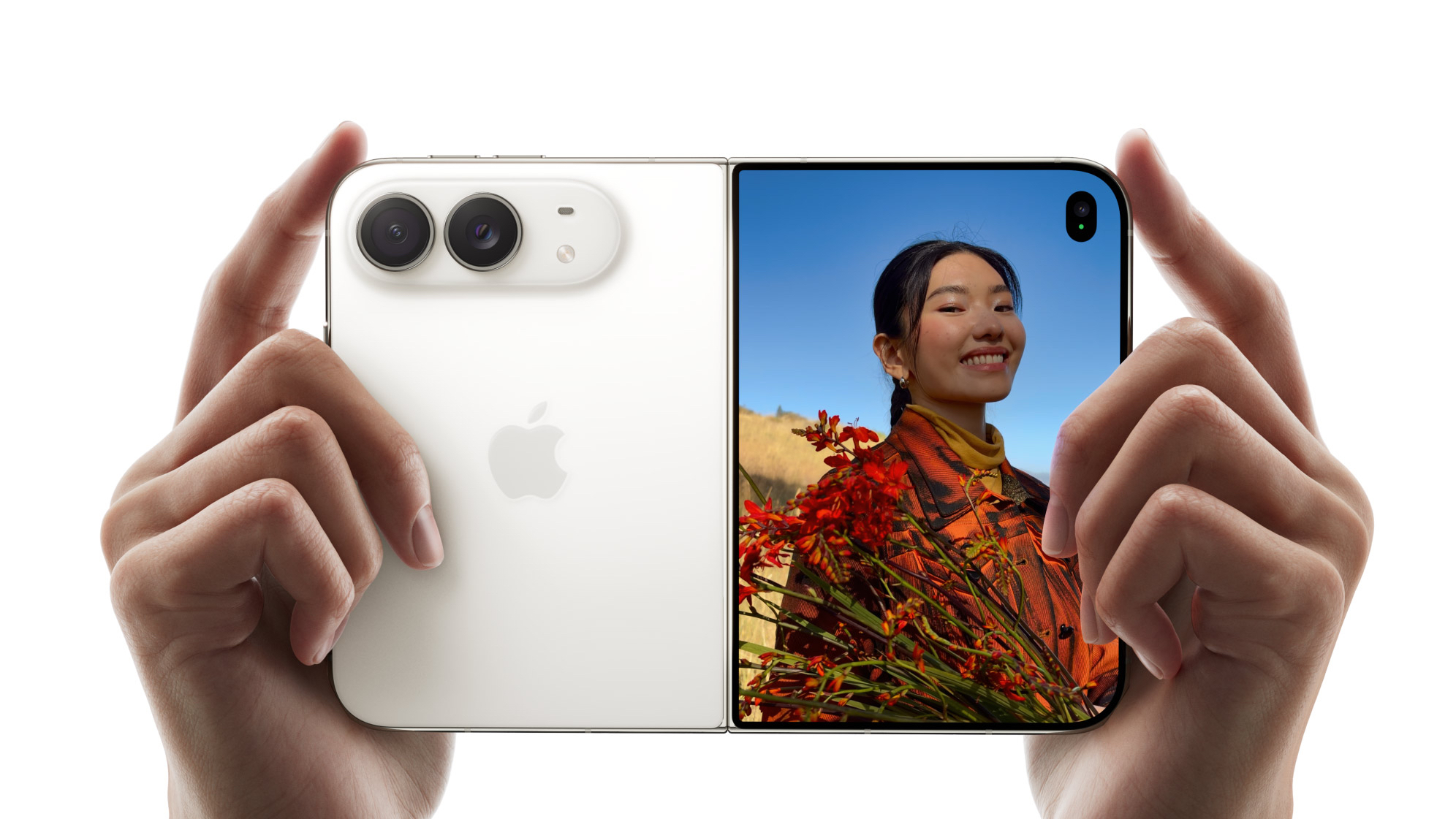
Photo: Apple
Once you are done setting up the iPhone Duo, explore its camera features. The foldable form factor allows the phone to offer some nifty camera tricks. These include the ability to take selfies with the rear cameras. To do this, unfold the phone and use the outer screen as the viewfinder to frame the shot.
There’s also a Duo Preview option in the iPhone Duo’s Camera app. Enable it, and the person in front of the phone can see a live preview on the outer screen of the shot you are framing. That way, they can adjust their pose and position themselves as needed instead of asking you to take another shot.
Getting kids to stay still for a photo is a big challenge. The iPhone Duo smartly uses its outer screen to make this easier. Enable the Kid Cue option in the Camera app, and the Duo will play animations on the cover display to draw a child’s attention toward the camera. It may not always work, but it could help on the odd occasion.
Smart Take is another iPhone Duo camera feature that you should explore. It makes it easy to take group shots using the rear camera. Prop the phone on a stable surface and enable Smart Take. Once the entire group has assembled in front of it, the Duo automatically takes a picture.
Turn the Duo into a desk display
On regular iPhones, you can only activate StandBy while the phone is charging and resting horizontally. That’s not the case with the iPhone Duo. StandBy works even when the phone is not charging.
Partially fold the Duo and prop it on your desk, and you can turn either display into a clock, photo frame or home for your widgets. The hinge holds the phone upright, so you don’t need a separate stand, either.
Having your calendar and the weather visible beside your computer makes the phone useful without you needing to pick it up. Or keep things simple with a large clock that you can read at a glance.
The Duo adds Calendar and Weather faces alongside Clock and Modular, while the Photos face supports Shared Albums. You can adjust colors, fonts and complications to suit what you want to see.
Protect your new iPhone Duo, then take some time to explore what its folding design makes possible. Whether it’s running two apps together or finally getting yourself into the group photo, find the features that fit your everyday routine.


