How Focus mode has changed in iOS 27
iOS 27 brings tons of cool upgrades to your iPhone. Don't miss the interesting-yet-subtle changes to Focus.
How Focus mode has changed in iOS 27
Focus isn't the biggest feature to change with iOS 27, but it has some cool enhancements worth knowing.
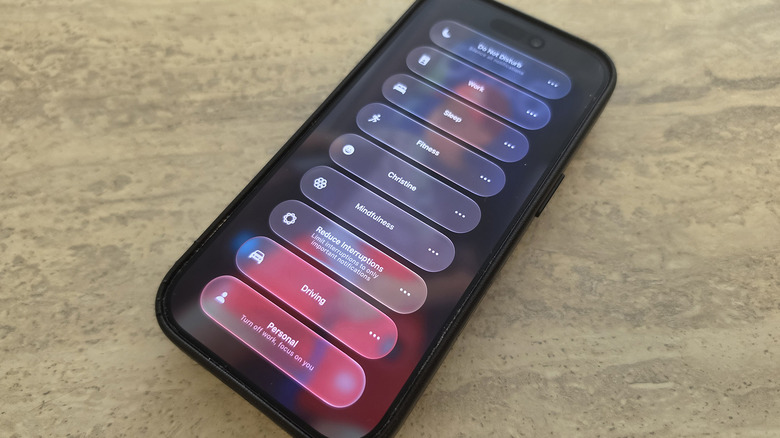
One of the best tools your iPhone offers to help you avoid distractions is Focus, which lets you control which alerts arrive at what times. It includes default modes like Work, Personal, Sleep and more, as well as the ability to create your own. For example, you might want to silence social media notifications while still getting pings for incoming messages from family members.
To select a Focus mode, swipe down from the top-right of the screen to open Control Center, then tap the Focus panel and select the desired mode from there. To configure your Focus modes, go to Settings, scroll down to Focus, then select any option (or create your own) to tweak what's permitted and what's silenced.
While Focus has been around for several years, some of iOS 27's improvements include tweaks to the feature. If you haven't updated yet, this is another great reason to do so.
Notable changes to Focus mode
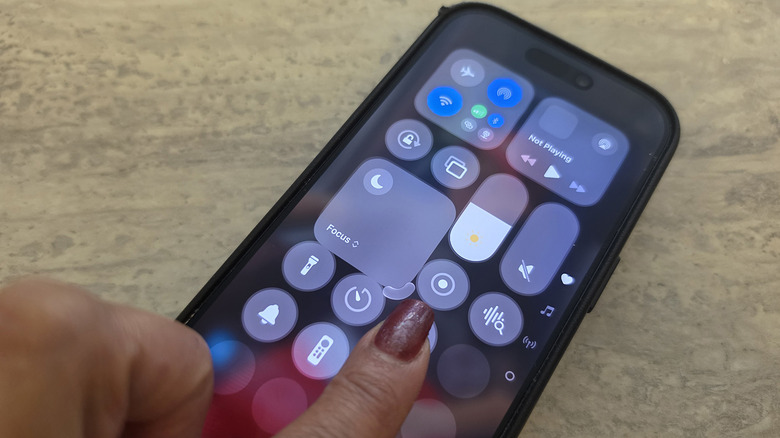
You can now change how the Focus entry appears in Control Center. With Control Center opened, long-press on any empty part of the screen until edit mode activates. Drag the bottom-right corner of the Focus icon to resize it as desired. While this was limited to a 2x1 space in iOS 26 and earlier, you can now make it a small 1x1 circle to save room or as large as 2x2 for quicker selections.
iOS 27 also brings improvements to Focus mode tracking that allow you to build better Shortcuts around them. As explained by Derek Seaman, Shortcut actions can check your specific phone state based on the Focus mode that's currently active. For example, I created a Shortcut, using natural language commands, that asks my phone to play a podcast when it's in Driving focus mode. You can now select Sleep Focus mode for an automation trigger, too.
Finally, "Otherwise if" logic statements are now supported with Shortcuts and Focus mode triggers. So, you might have a Shortcut trigger a specific action automatically if Sleep Focus is turned on, but if Driving is on instead, another action will trigger. Your device is able to track when you switch to each mode and run the action accordingly. This allows for more granular control of automated actions so they relate back to the Focus mode your phone is in, not just a single trigger.
Focus mode can simplify automations
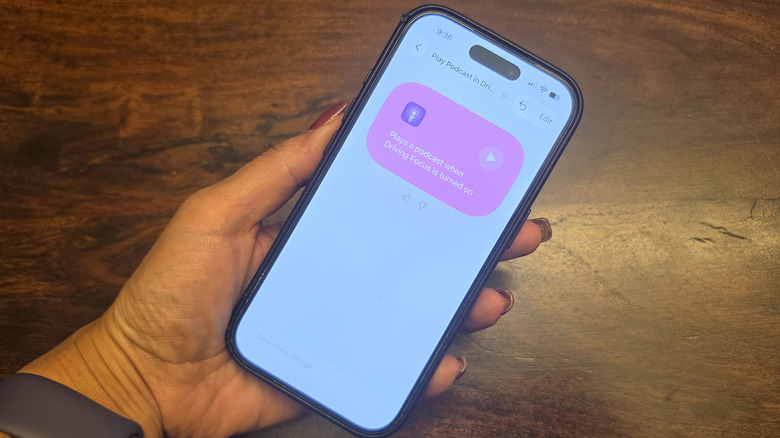
There are vast improvements to Siri AI with iOS 27. You can use natural language commands to have Siri create a Shortcut that includes Focus mode status integrated to it, now improved with iOS 27.
I have a custom Focus Mode called Christine where I silence notifications from Facebook, Instagram, Phone and Messenger but still permit notifications from Slack and my Ring video doorbell. You can also choose specific people to allow notifications from, like your boss or spouse, so you don't miss a crucial message.
I also set a Shortcut to open my workout app automatically whenever I switch to Fitness mode. These aren't massive changes, but can make your days run more smoothly thanks to actions being easier to trigger. It's worth getting more familiar with Focus mode and using it alongside Shortcuts to create your own phone automations. Focus Mode is one of Apple's best productivity tools, and you're missing out if you're not using it.
Originally published on Engadget