How to add and remove cards from Apple Wallet
It's easy to add all your various cards and passes to Apple Wallet, and they don't have to stick around once you're done using them.
How to add and remove cards from Apple Wallet
Apple Wallet makes your payment cards easily accessible, but it's even better when you add more types of information to it.
Apple Wallet is great for keeping your payment cards always available, but it can hold much more than those. Depending on where you live and what issuers support, it can store transit cards, tickets, loyalty passes, keys and even some forms of ID. These include eligible driver's licenses, state IDs, and Digital IDs created from a US passport.
However, adding something to your Wallet doesn't work the same way for every item. Debit and credit cards go through Wallet itself, while gift cards and other passes usually depend on support from the company that issued them.
Add payment cards directly in Apple Wallet
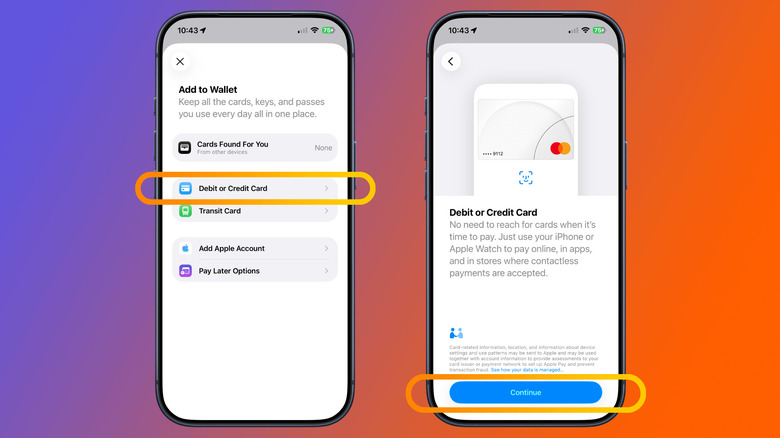
To add a debit or credit card on an iPhone, open Wallet, tap the Plus (+) button and choose Debit or Credit Card. You can hold an eligible physical card near your iPhone or enter its details manually. Wallet may also show cards you've used previously so you can add them again. Follow the onscreen instructions to finish setting up the card.
The payment card needs to come from a participating issuer, and your bank or card provider may require another verification step before approving it for Apple Pay. If Wallet won't add the card, Apple recommends contacting the company behind the card for help.
This Plus menu is also where you can add other supported cards like transit passes, driver's licenses and ID cards. You may be able to easily add items in the From Apps on Your iPhone menu, too.
If you want to also use Apple Pay on an Apple Watch, iPad or Mac, adding a card to your iPhone doesn't automatically set it up everywhere. Those devices have their own Apple Pay setup steps.
Passes for everything else in Apple Wallet
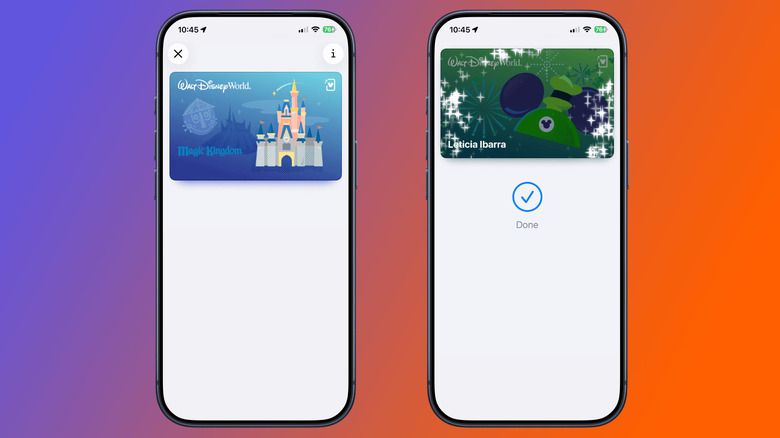
Outside of credit and debit cards, most of what goes in Apple Wallet is called a "pass." These cover loyalty and rewards cards, coupons, gift cards, boarding passes, movie tickets, event tickets and similar.
Unfortunately, this is where Apple Wallet gets a little less straightforward. There isn't a general option that lets you type in the number from any retailer's gift or loyalty card and add it to Wallet. Instead, the retailer or issuer needs to support Apple Wallet passes.
A supported pass can come from an app, website, email, QR code, AirDrop or similar source. When you see an Add to Apple Wallet button, tap it and follow the prompts. For example, the Ticketmaster app will provide an option to add your show tickets, or you might see this button in an email confirming your theater tickets. If that option isn't visible, Apple suggests contacting the company that issued the pass.
Apple Gift Cards are a separate case. If your Apple Account card is available in Wallet, open it, tap the More button and choose Redeem. You can scan the gift card or enter its 16-digit code manually. The money is added to your Apple Account balance, rather than appearing as a separate gift card pass in Wallet.
Payment cards and passes are removed differently
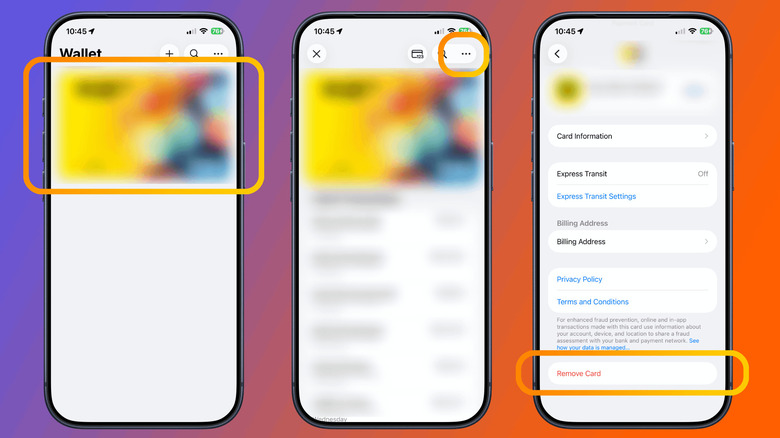
To remove a debit or credit card, open Wallet, select the card, tap the three-dot (...) button, choose Card Details and tap Remove Card. That removes the payment card from the iPhone you're using, but it doesn't remove the same card from Wallet on your other devices.
Passes behave differently. Select the pass, tap the three-dot (...) menu and choose Remove Pass. Permanently deleting a pass on your iPhone also removes it from Apple Wallet on your other devices.
Some expired passes are hidden automatically instead of deleted. Tap three-dot (...) > Expired in Wallet to view them, restore one or permanently remove it.
You can remove payment cards even if your iPhone is lost
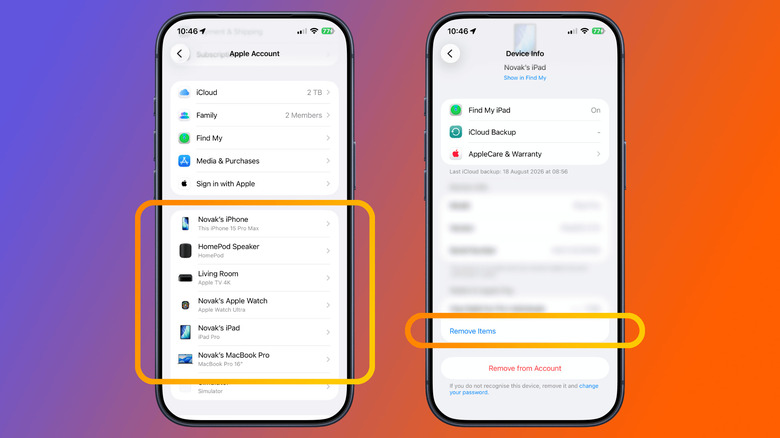
If your iPhone is lost or stolen, you can remove its Apple Pay cards without having the phone on you. On another iPhone or iPad signed in to your Apple Account, open Settings, tap your name, select the missing iPhone and choose Remove Items under Wallet & Apple Pay. You can also sign in to your Apple Account in a browser, select the device, and remove its Wallet items there. Calling your card issuers is another option.
Assuming you had Find My enabled before the phone went missing, marking the iPhone as lost suspends its payment cards and passes used with Apple Pay. This ease of blocking a lost card from being abused is one of the key pros of digital wallets.
Originally published on Engadget