How to check your Ethernet cable's speed
Understand the speeds your Ethernet cable can transmit at help you diagnose where the slowdowns on your network are happening.
How to check your Ethernet cable's speed
That 100 Mbps result doesn't automatically mean your Ethernet cable is bad. Here's how to narrow down the culprit.

You have gigabit internet and your wired-in PC is only getting 90 Mbps, so is that outdated Ethernet cable getting in the way? While running wired Ethernet connections avoids Wi-Fi interference and can lower latency, plugging in a cable doesn't automatically mean you'll get ultra-fast speeds. Even if your internet service is speedy, a slow Ethernet connection can slow down file transfers between computers at home.
Using an online speed test won't provide a definitive answer, as it measures more than just the cable. The first place to start is to check the Ethernet link speed, and you don't need to purchase a tester to do this.
Checking your Ethernet link speed
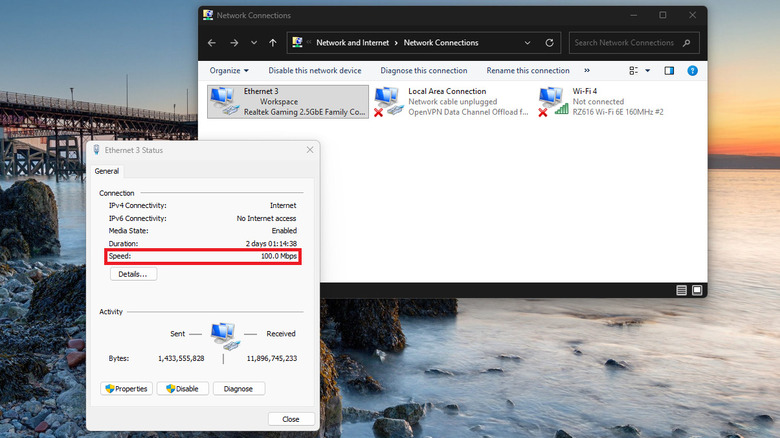
On Windows 11, go to Settings > Network & internet > Ethernet and check the Link speed (Receive/Transmit) field. Another method involves a shortcut that also works on Windows 10: press Windows + R, type ncpa.cpl, right-click your Ethernet adapter and select Status. The negotiated connection rate is displayed in the Speed field.
On a Mac, open System Settings > Network > Ethernet (or your USB Ethernet adapter), then go to Details > Hardware and check the Speed field. Keep the configuration set to Automatic, as manually setting a speed may result in connection issues.
There's a difference between seeing 1 Gbps here and actually downloading at 1 Gbps. The figure describes the connection between your computer and the router or network switch. It doesn't tell you your internet speed or the highest speed the cable can handle. The link-speed reading alone also can't confirm whether the cable is faulty.
While you're looking into this, take a look at the lettering on the jacket of the cable. Markings like Cat5, Cat5e or Cat6 are typically found there, as the connectors are virtually identical and don't tell you much. Both Cat5e and Cat6 support gigabit Ethernet, so Cat6 is more than sufficient for 1,000 Mbps.
The category isn't an absolute speed ceiling either. Older cables can sometimes support very high speeds for short runs, but a successful test doesn't mean they will perform the same way for longer runs.
How to tell if your Ethernet cable is actually the problem
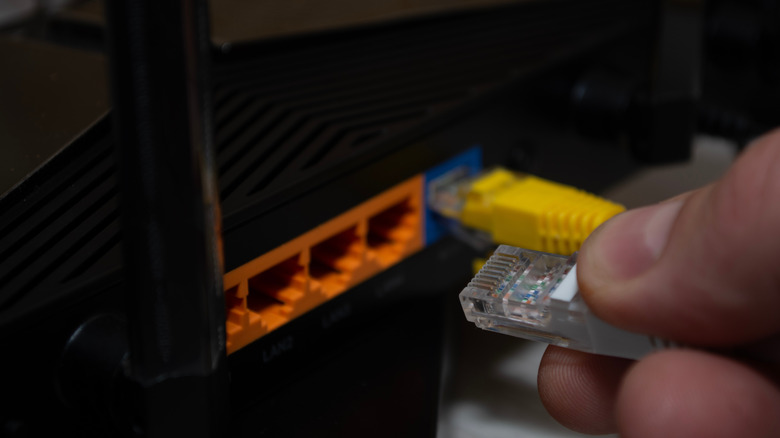
If your computer reports 100 Mbps cable speeds when you expect 1 Gbps, verify the hardware on both ends. A 100 Mbps LAN port on a router, or a similarly limited USB Ethernet adapter, will limit the connection no matter how costly your Ethernet cable is. Even with gigabit-capable ports at both ends, a damaged wire or loose connector can still disrupt the connection or fall back to slower connections. Gigabit Ethernet utilizes all four twisted pairs of wires inside the cable, whereas conventional 100 Mbps Ethernet uses two.
Start by reseating the connectors, then swap in a short, known-good cable using the same ports. If the reading changes from 100 Mbps to 1 Gbps, the original cable or its connectors are strong suspects for what's wrong. If nothing changes, check the port specifications and adapter settings before spending money on a replacement.
For a more thorough check, you can use iPerf3 to measure real throughput between two wired computers without involving your ISP. After installing it on both computers, turn off Wi-Fi, run iperf3 -s on one computer and iperf3 -c SERVER_IP on the other (replacing SERVER_IP with the local IP address of the first computer). Compare the results after swapping cables, keeping the rest of the setup the same.
A multimeter or simple cable tester can determine some wiring faults, but neither can determine the maximum data rate that a cable supports. That requires specialized cable qualification equipment. Certification testers verify compliance with cabling standards.
Originally published on Engadget