How to disable absolute Bluetooth volume on Android (and why you might want to)
Sometimes the volume control on a Bluetooth device behaves unpredictably. This quick fix in your Android phone's settings is a good troubleshooting step.
How to disable absolute Bluetooth volume on Android (and why you might want to)
If the volume on your Bluetooth device is not behaving, this might help.
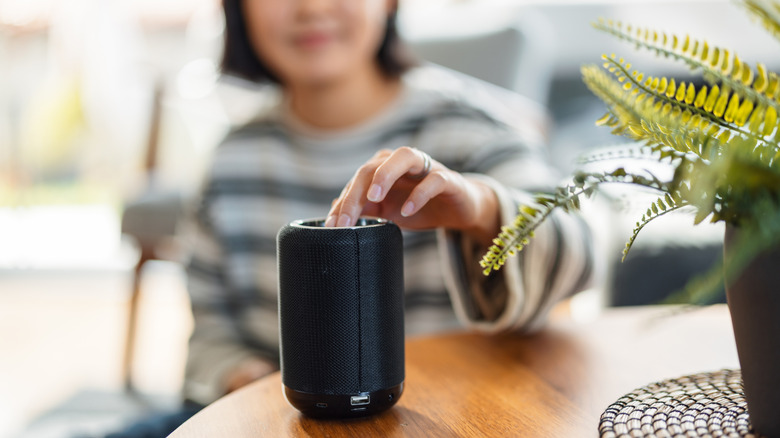
You know how, when your Android phone is connected to a Bluetooth speaker or headphones, you can control the volume by pressing the buttons on your phone? Well, that feature doesn't always work, and sometimes you might find yourself pressing the button repeatedly with no response before suddenly getting blasted with full-volume music. Don't worry — neither your phone nor your Bluetooth device are defective. Instead, you're dealing with a feature called Absolute Bluetooth Volume that's been built into every Android phone running Android 6.0 or later.
The goal of this feature is pretty straightforward, as it syncs your phone's volume controls with that of your Bluetooth device so you don't have to fiddle with both. Sometimes, however, this feature breaks down due to incompatibilities between your phone's volume scale and your Bluetooth device's internal amplification.
The good news is that Android gives you a direct way to fix this without needing any third-party apps.
What does Absolute Bluetooth Volume do on Android?
Absolute volume control is a Bluetooth feature that syncs your phone's volume controls directly with any connected Bluetooth device. That includes headphones, speakers or even car stereos. With this feature turned on, it's theoretically easier to control the master volume level on both devices by pressing the phone's volume buttons.
According to the Android Open Source Project, "the source device sends un-attenuated audio and volume information to the sink. The sink then amplifies the audio according to the volume information." Basically, your phone tells your headphones just how loud to play rather than letting them manage their own volume.
The logic behind this feature is pretty sound because it's so much simpler to control one volume than two. The problem is that it assumes every Bluetooth device follows the same standards, when they don't. Variations in hardware and software implementations by manufacturers make some devices follow absolute volume control to the letter, while others might implement it partially or not at all.
Why would you want to disable absolute volume?

First of all, your phone might have 15 volume steps, but your Bluetooth speaker might have 100. When Android tries to mix these together, the math doesn't work cleanly. That's how you get dead zones where you press the volume button multiple times with no result. That's usually followed by a sudden and uncomfortable jump in loudness, which is just as annoying as not getting any response when pressing those buttons.
Some Bluetooth devices may also come with hearing protection limits when synced with Android so the output is capped at a lower level than the hardware is actually capable of. Separating the two volume controls lets you push each device to its own max volumes. The move also gives you more control over dynamic content, such as podcasts, audiobooks and music. Without the absolute volume feature, you can set your phone to maximum output and tune the volume on your headphones directly, or vice versa.
Pros of Absolute Bluetooth Volume
-
No volume dead zones for predictable control.
-
Unlocks higher volume potential on certain Bluetooth devices.
-
Prevents accidental blasts when switching between phone speaker and Bluetooth.
Cons of Absolute Bluetooth Volume
-
You'll need to manage two separate volume levels.
-
Useless if your earbuds don't have the physical volume controls that most of the best earbuds for Android devices do.
-
Risk of hearing damage if both your phone and device are set to max volume simultaneously.
How to disable Absolute Bluetooth Volume on Android
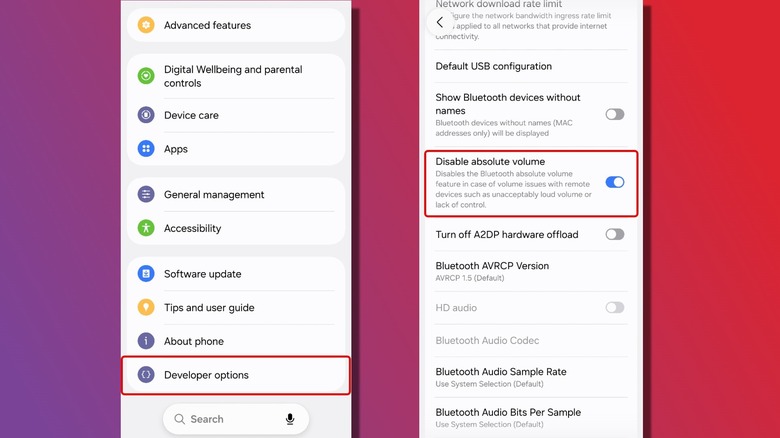
First, you'll have to unlock developer options on your phone. Here's how to do this:
-
Go to Settings, scroll down to About phone (Some phones will have this under System > About phone)
-
Find Build number. (Samsung devices will have this under About Phone > Software information) Rapidly tap it seven times in a row.
-
Enter your PIN or password when prompted.
-
You'll get a message confirming you've turned on the Developer features.
Now that you have this done, it's time to actually disable Absolute Volume.
-
Go to Settings > Developer options and scroll down to the Networking section.
-
Find Disable absolute volume and flip the toggle.
-
You'll need to restart your phone or disconnect and reconnect your Bluetooth device for the change to take effect. Once you do this, your phone and Bluetooth device will operate independent volume controls.
Disabling Absolute Bluetooth Volume is a straightforward fix that can make a real difference if you've been dealing with unresponsive volume buttons or sudden audio spikes. This isn't a setting everyone will need to change, but if your Bluetooth headphones or speaker behave inconsistently with your Android device, it's an easy troubleshooting step.
Originally published on Engadget