Anyone interested can download the iOS 27 developer beta for free — right now.
You’ll be among the first to try the exciting new Siri AI, which really does work as promised. It can answer complex questions about your digital life, understand what you’re asking for and look things up online with broad world knowledge. You’ll also get the other new Apple Intelligence features, a tweaked Liquid Glass design, improved speed and performance, and much more.
Of course, there are a few things you should look out for. Beta software is buggy and can lead to data loss. That being said, iOS 26 has been buggy since September. iOS 27 promises broader system stability — unlike most early betas, in my testing, the system runs smoother than before. But it comes at the expense of odd behavior you may find in third-party apps, since they haven’t been updated to support the new changes to Liquid Glass.
If you want to try it out, you should make sure you have a backup of your most important data with two copies of your photo library before you try installing. I’ll show you how.
How to download the iOS 27 developer beta
Apple showcased iOS 27 on Monday during its WWDC keynote and released the first developer beta after the event. The first developer beta is always the shakiest. That’s why Apple typically doesn’t release a public beta until a few weeks later in July.
But anyone can install the developer beta anyways — if you’re impatient, here’s how.
Table of contents: How to download the iOS 27 developer beta
- Check that you have an iCloud backup
- Check that your photo library is backed up
- Switch to allow public beta software updates
- Install the update
- Try out the new Siri AI
1. Check that you have an iCloud backup
Screenshot: D. Griffin Jones/Cult of Mac
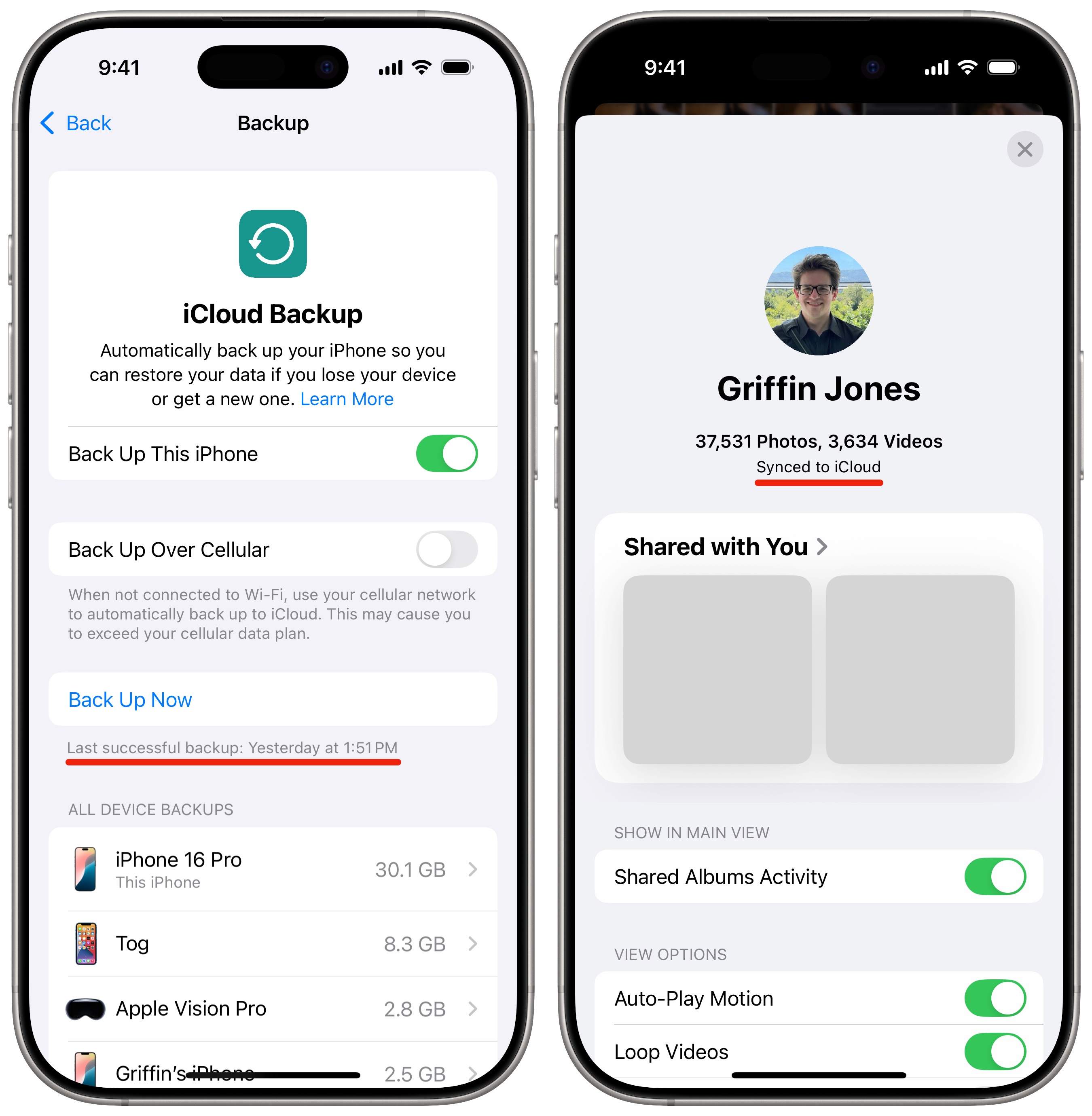
Before you download the iOS beta, you should make sure that your phone is backed up. If you lose important data, if the software update is unsuccessful or if you want to roll back to the stable version of iOS after trying out the beta, this backup will save your skin.
Double check in Settings > [Your Name] > iCloud > iCloud Backup. Right under the button that says “Backup Now,” you should see small text that says, “Last successful backup”. If you have it set up properly, it’ll probably say it last backed up overnight.
If not, you need to make a backup. To do so, tap Back Up Now.
If you don’t back up over iCloud, you can back up your phone by plugging it into a Mac or PC.
2. Check that your photo library is backed up
Next, open Photos and tap on your icon in the upper right corner. If it says “Synced to iCloud,” you’re golden. Otherwise, tap Sync Now to make sure you don’t lose anything.
If you have a Mac with enough storage (or with an external drive) you should have another copy of your photo library, too. Backing up to iCloud will help if something happens to your phone, but if a bug corrupts your photo library and those changes are synced to iCloud, a separate copy will make sure you have a safe copy.
On your Mac, go to Finder and open the Home folder with your name (⇧⌘H). Open Pictures. You should see a file called Photo Library.
Make a local copy by clicking File > Duplicate (⌘D), or copy it to an external drive by clicking and dragging it over. Then, rename it something descriptive, like Photo Library (Backup).
3. Switch to allow beta software updates
Screenshot: D. Griffin Jones/Cult of Mac
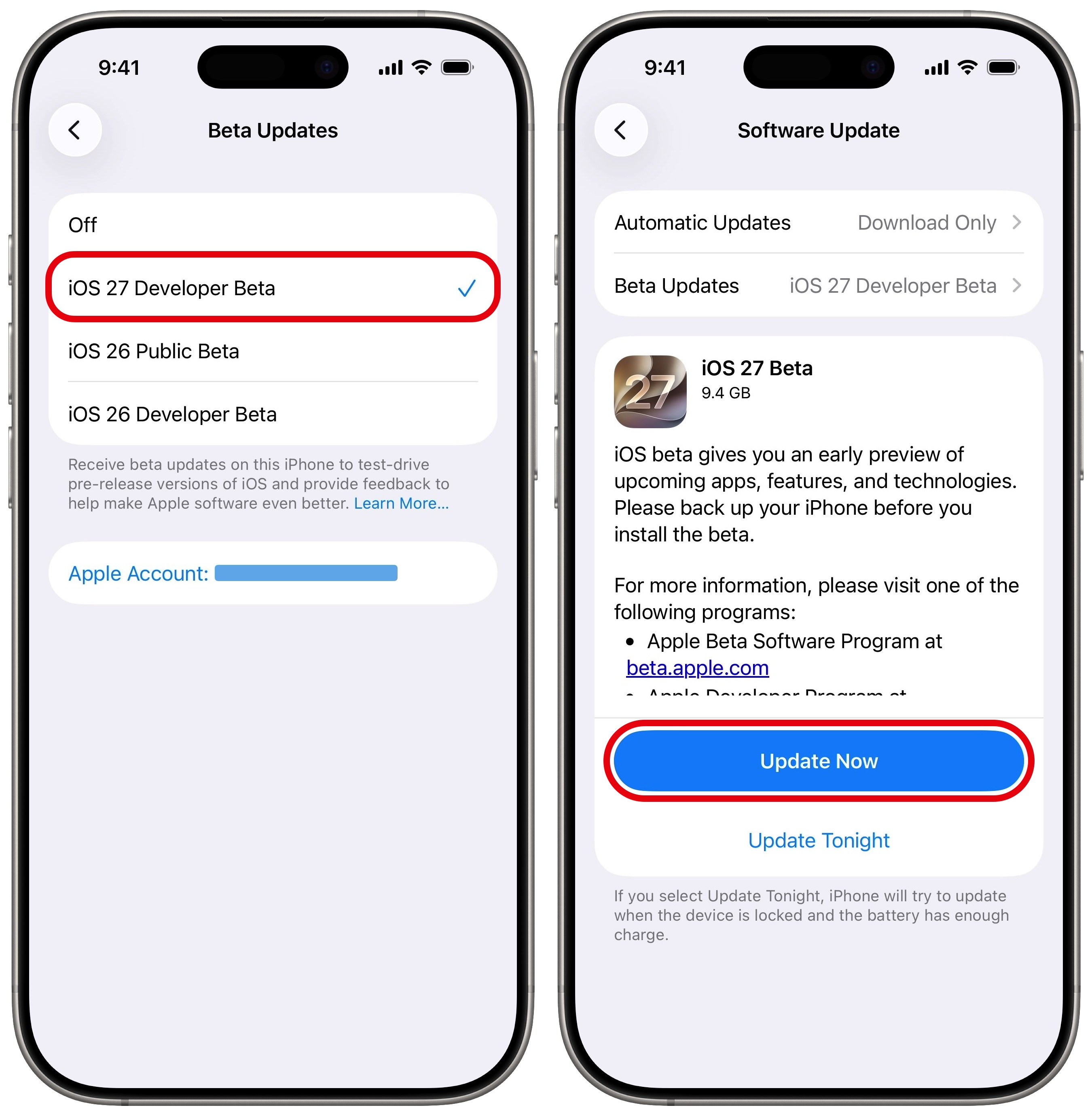
Go to Settings > General > Software Update. After it checks for updates, you’ll see the option appear for Beta Updates. If this option doesn’t appear, open this link to enroll in the Apple Beta Software Program. Tap Sign Up, sign in using your Apple ID and agree to the terms. After that, you should be able to see the “Beta Updates” section in Software Update.
In Beta Updates, you’ll see the options currently available: Off, iOS 27 Developer Beta, iOS 26 Public Beta and iOS 27 Developer Beta.
- The iOS 27 developer beta is the fast track, intended for app developers to test functionality and implement new features. These betas are released a little early, but have a higher risk of bugs.
- The iOS 27 public beta will be a safer way to enjoy the prerelease software. Updates will go out at the same pace of every two to three weeks, but released about a day later to make sure there are no critical bugs in the software. The public beta will be released in July.
- The iOS 26 betas are for the last few software updates on the current operating system version. No new features are expected to come to iOS 26.
Tap iOS 27 Developer Beta to get the flashy new features.
4. Download the iOS beta update
Swipe back and you’ll see the iOS 27 update available. Tap Update Now to download the iOS beta and Install Now when it’s ready. It may take longer than a usual software update.
At the end, you’ll reboot into the shiny new beta operating system! You can expect to get a new software update about every few weeks.
Try out the new Siri AI
Now that you’re on the latest beta, you should dive into the most exciting feature — Siri that actually works. Head on over to Settings > Siri and tap Join Waitlist.
For more details, like device compatibility and language/region support, check out our full article: How to join the waitlist and get the new Siri AI early.
We originally published this article on how to download the iOS beta on June 11, 2024. We updated it with the latest information on July 24, 2025 and July 9, 2026.