Managing passwords is and always has been a giant pain, but passkeys offer a better way. They are an advanced system that automatically signs you in to online services using your phone’s Face ID (or Touch ID) or your computer’s password.
Switching to biometric authentication or your device’s password means one less thing to remember. Plus, passkeys work without fiddling around with a password manager.
The technology promises a simpler, more convenient and more phishing-resistant way to log in. However, getting started can still feel confusing. Here’s how passkeys work and how to use them across your iPhone, iPad and Mac.
How to use passkeys
Thankfully, passwords are starting to look like a relic of an earlier internet era. They replace the password’s familiar string of characters with cryptographic credentials tied to your device. That means you can log in to websites without needing to remember — or repeatedly reset — yet another (hopefully complicated) password.
“Passkeys are a standard-based technology that, unlike passwords, are resistant to phishing, are always strong, and are designed so that there are no shared secrets,” says Apple in its support document about the security of passkeys.
Passkeys aren’t an Apple-exclusive feature. You can bet the technology will be supported eventually, no matter which devices you own, because all of these companies are part of the FIDO Alliance that created the system.
Apple began supporting passkeys in iOS 16 and Safari 16 for Mac, and Google added passkey support to user accounts on “all major platforms.” Microsoft added support to Windows 11 in the 22H2 update.
Device support is one thing, but only certain websites utilize passkeys. 1Password maintains a list at passkeys.directory where you can see every website known to support passkeys — all 250 of them, at the time of writing.
Some notable ones include Amazon, Apple, Best Buy, Google, eBay, Microsoft, Nintendo, PayPal, PlayStation and Snapchat. Let me show you how to convert an existing account (or create a new one) and what the sign-in process looks like when using a passkey instead of a password.
Table of contents: How to use passkeys
- How to use passkeys with a Google account
- How to use passkeys on eBay
- Create an account using passkeys on Best Buy’s website
- Sign into an account with passkeys on a computer that doesn’t support it
- Using passkeys on a Mac
How to use passkeys with a Google account
Screenshot: D. Griffin Jones/Cult of Mac
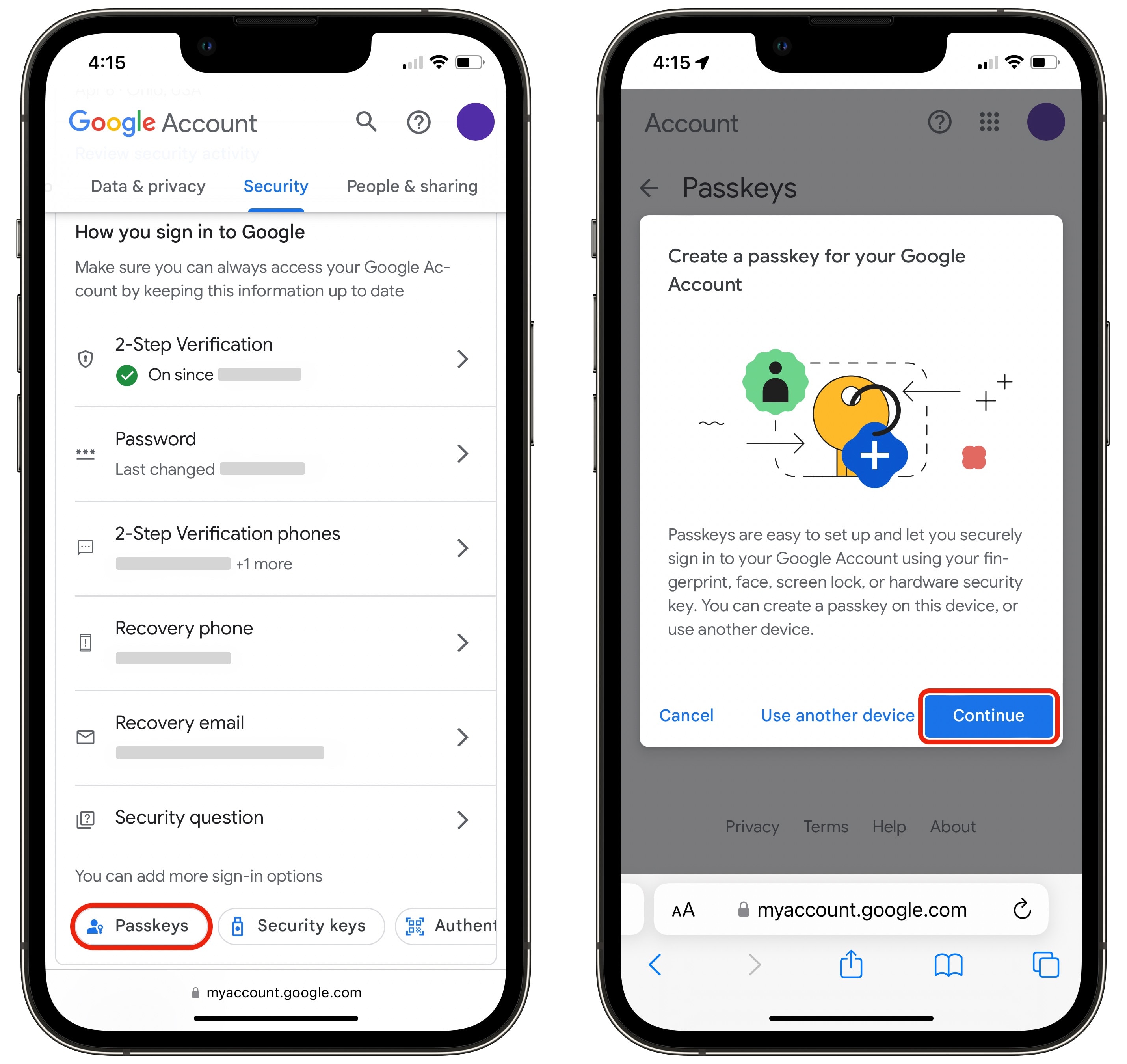
To use passkeys with Google services, open security settings for your Google account. Below the “How you sign in to Google” section, tap Passkeys and security keys. You’ll need to tap Create a passkey, then tap Continue. A system dialog will come up. Tap Continue again, and your phone will ask for Face ID (or Touch ID). Tap Done to go back to security settings.
Screenshot: D. Griffin Jones/Cult of Mac
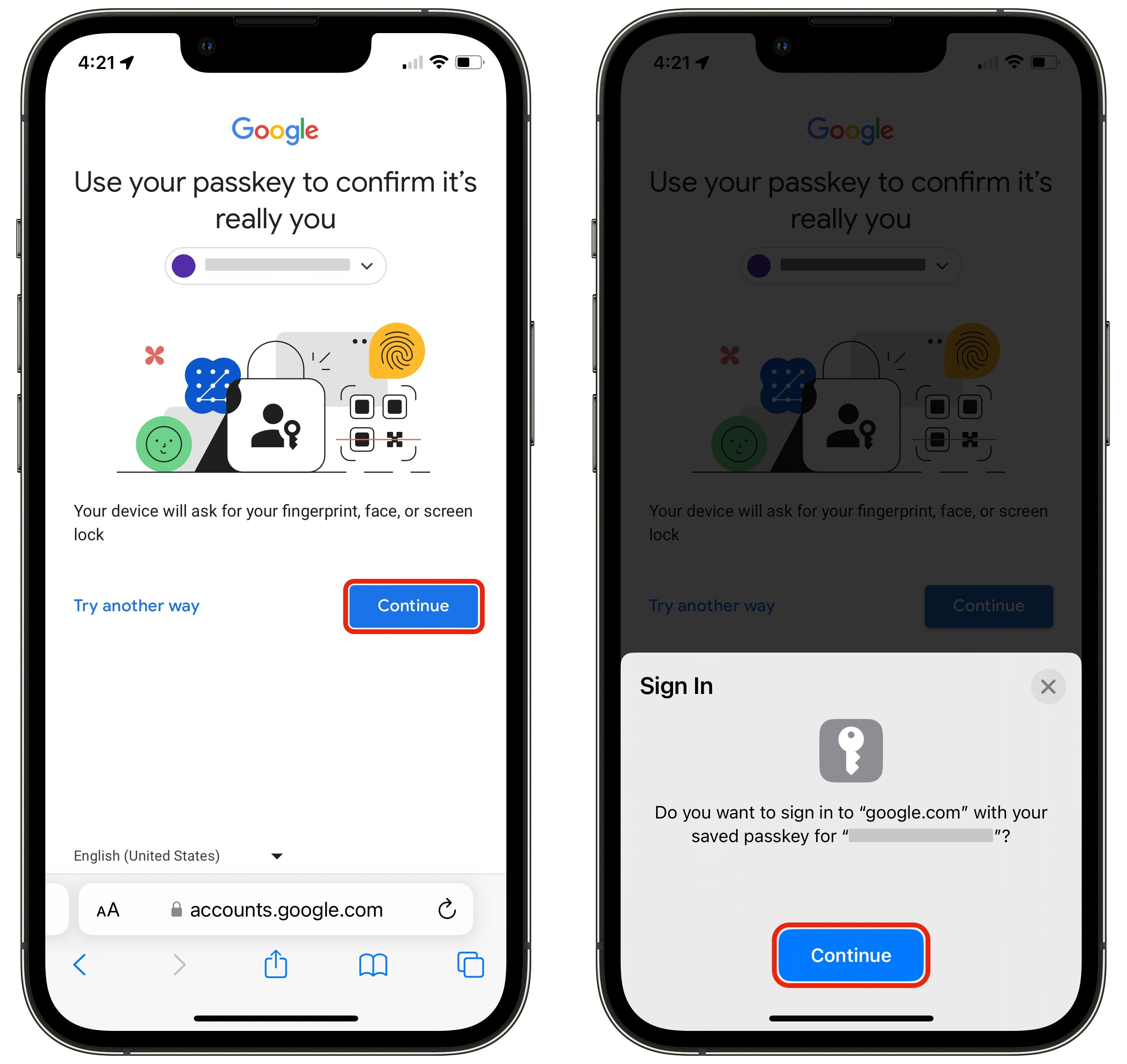
The next time you sign in to Google, tap Continue twice to use Face ID.
This doesn’t replace your Google password — it’s a different, faster way to sign in. If you’re using a different device, you can always tap Try another way to enter your password. So you shouldn’t turn off two-step verification if you already have that turned on.
How to use them on eBay
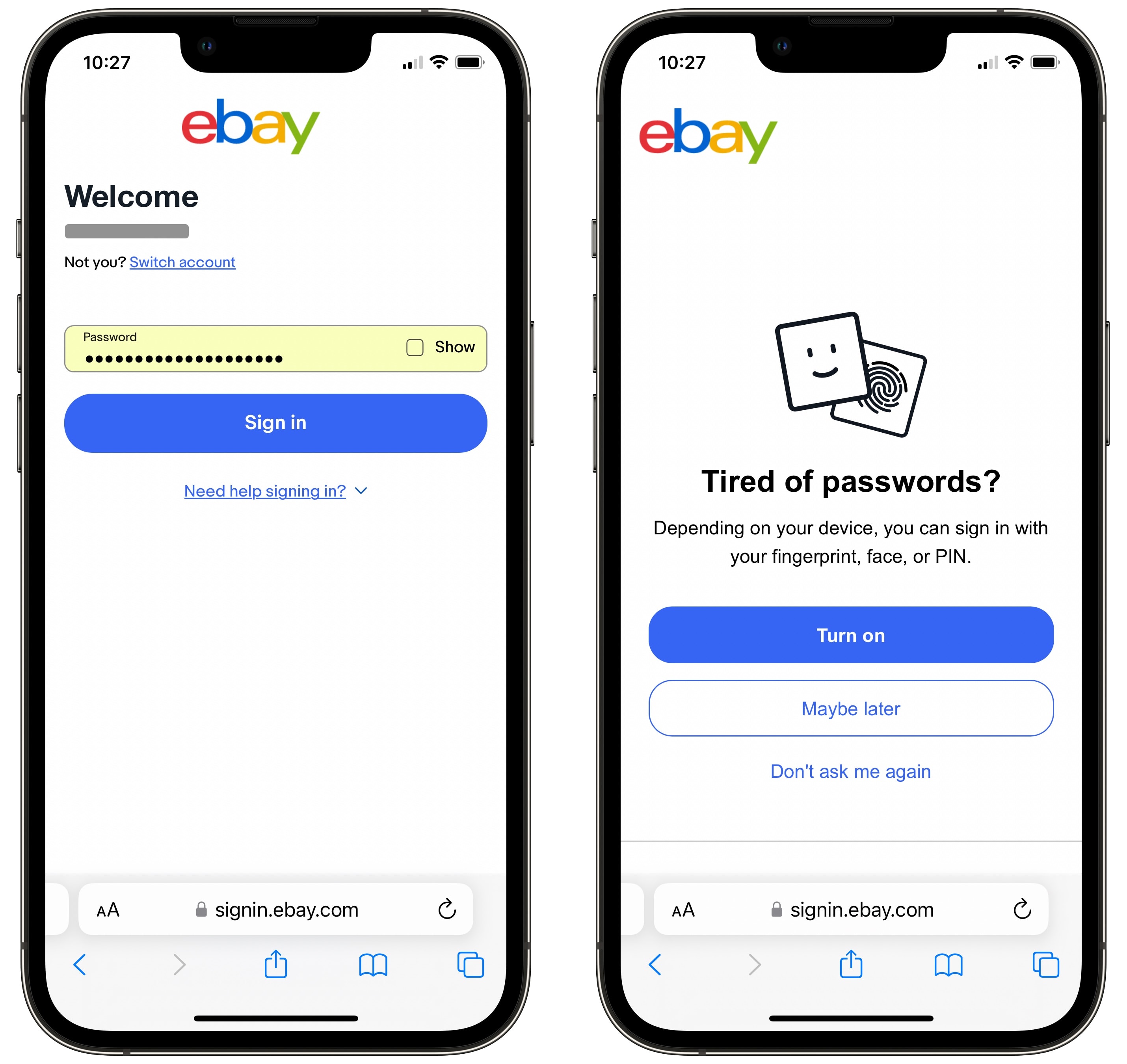
Screenshot: D. Griffin Jones/Cult of Mac
When you sign in to ebay.com on your iPhone, you’ll see a prompt to add Face ID. This alternative way of signing in proves faster, safer and easier to manage.
The next time you sign in, you can tap “Turn on.” A system pop-up will appear from the bottom asking if you want to authenticate with Face ID; tap Continue.
That’s it!
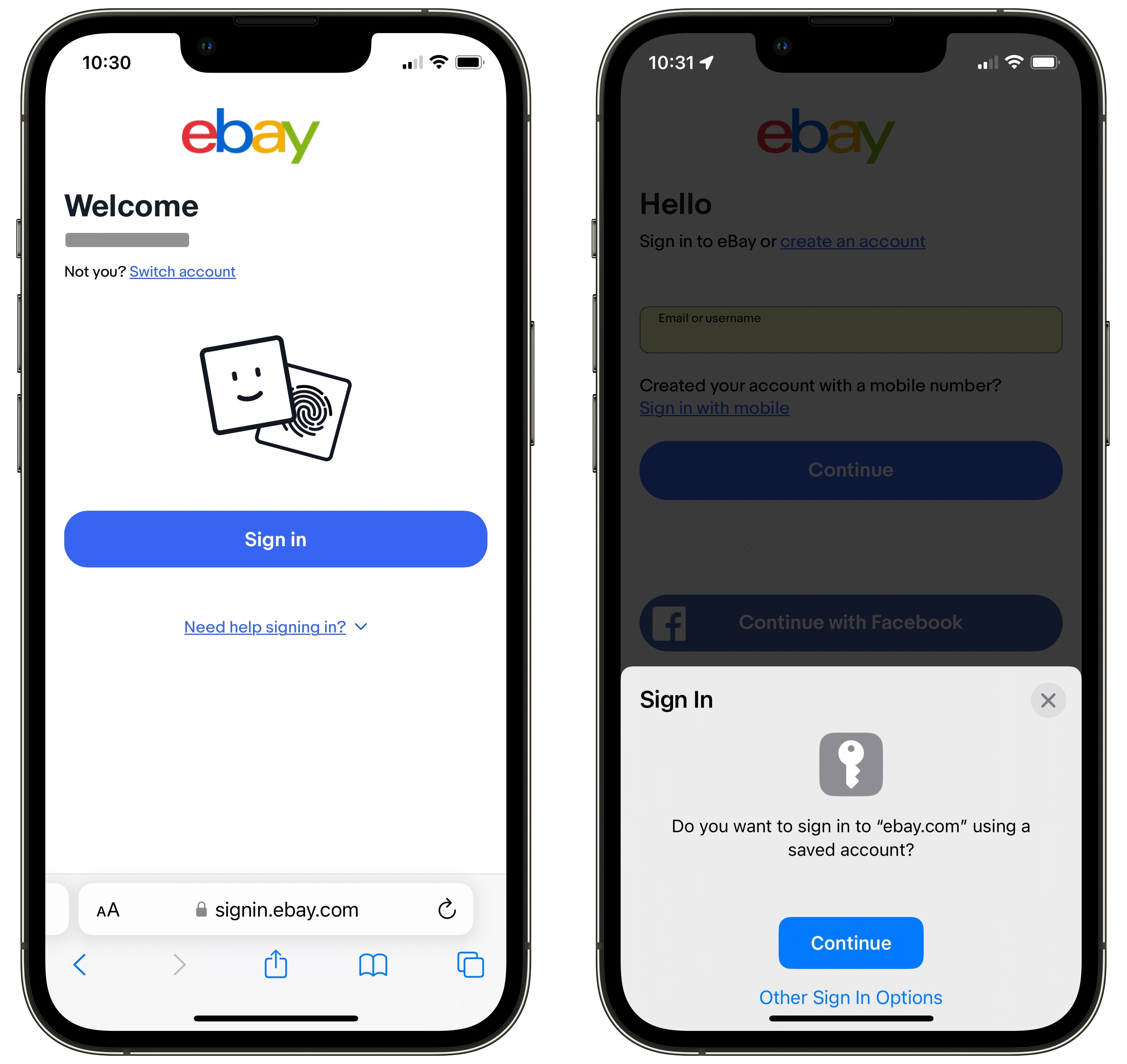
Screenshot: D. Griffin Jones/Cult of Mac
The next time you sign in from the same device, you won’t see a password field — you’ll see a simple Sign in button that brings up another system prompt.
Tap Continue, and you’ll be signed in again.
Create an account using passkeys on Best Buy’s website
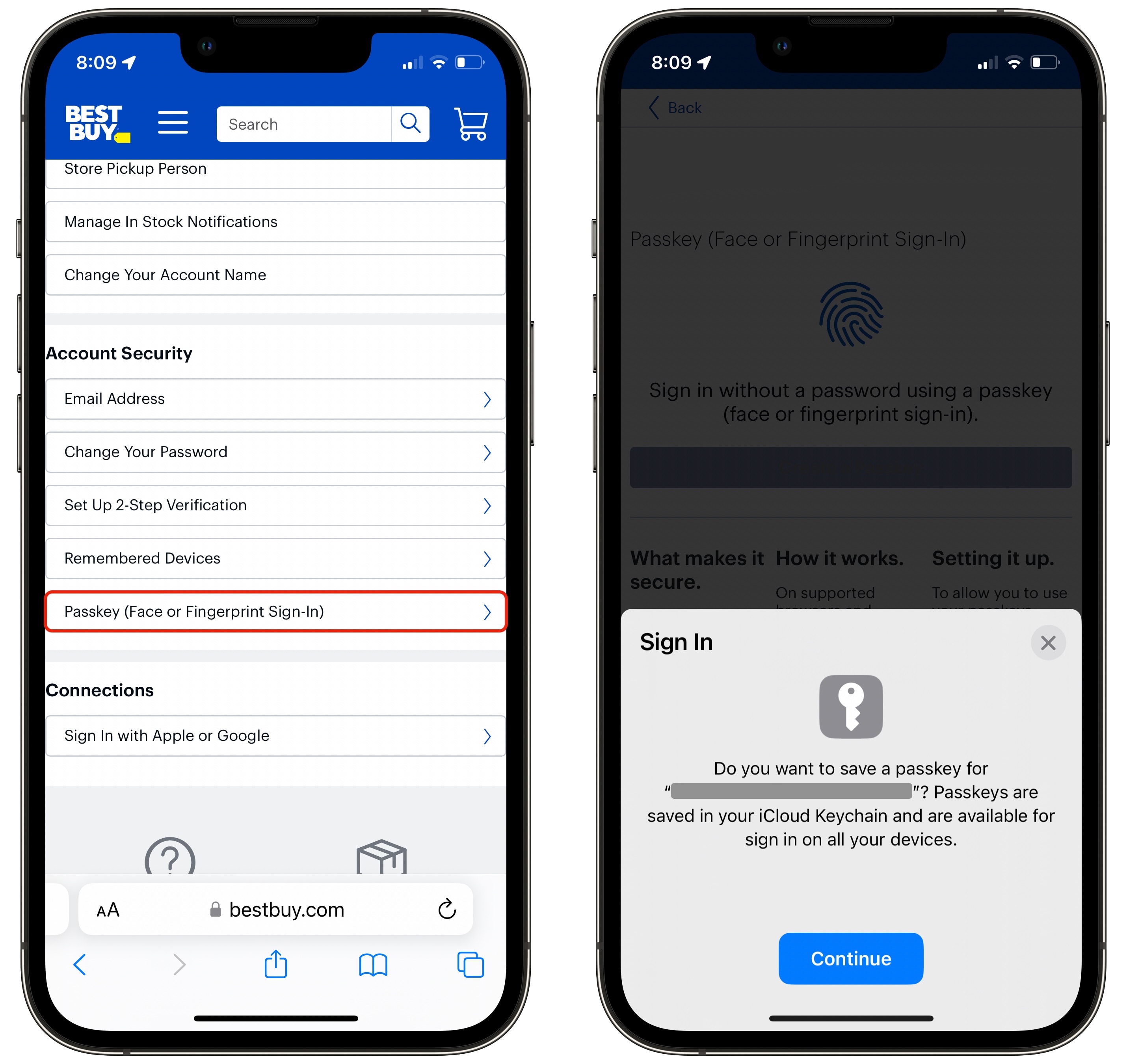
Screenshot: D. Griffin Jones/Cult of Mac
I wanted to try creating a passkey on a different website to see if it followed the same process. After creating a Best Buy account, I wasn’t asked to create a passkey, but I found the option hidden in account settings.
After you create or log in to your Best Buy account, go to Account Settings > Passkey (Face or Fingerprint Sign-In). Then tap Create a Passkey, and you will see a system prompt. Tap Continue, make sure your face still looks like your face, and you’re all done.
Using them on a Mac
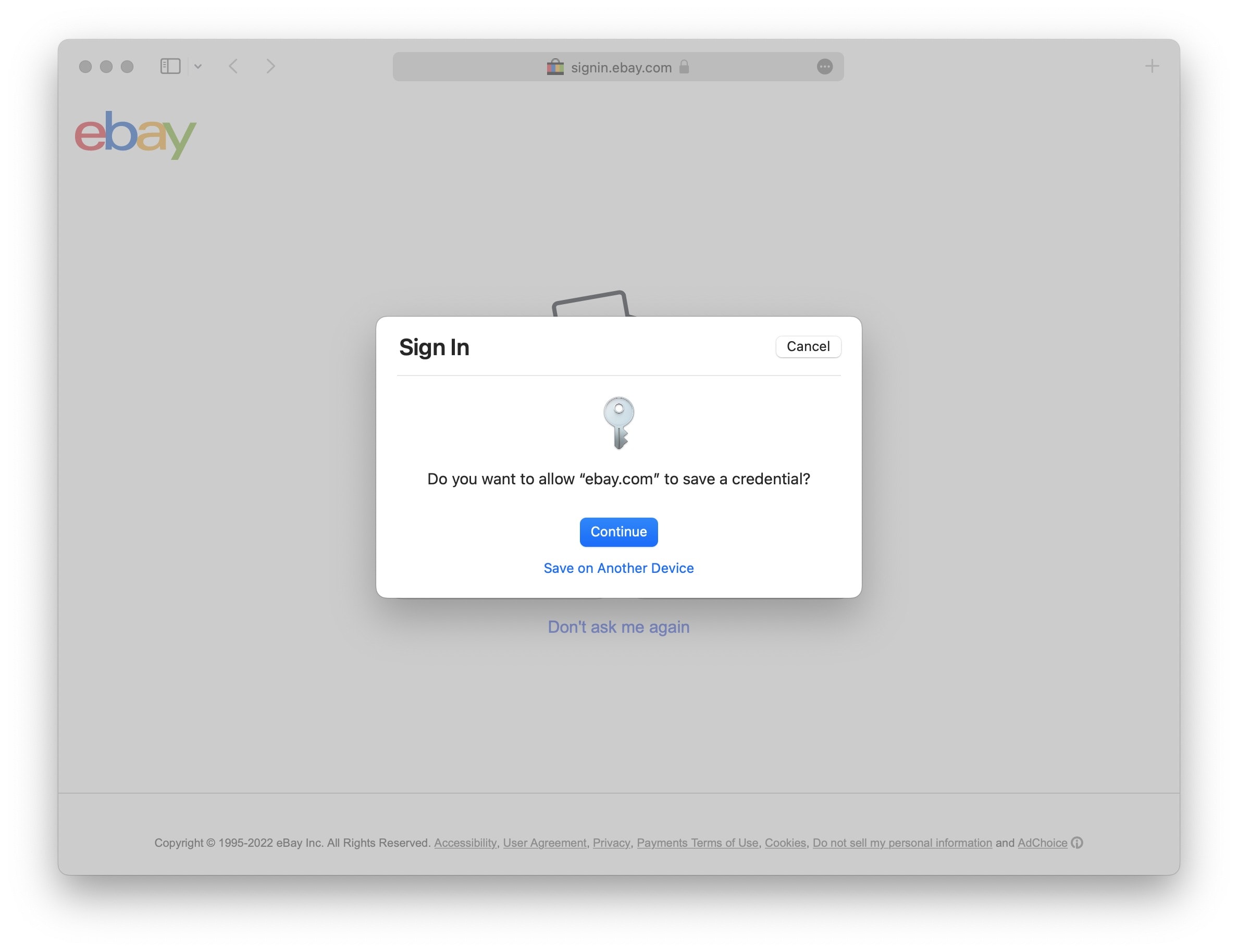
Screenshot: D. Griffin Jones/Cult of Mac
Using passkeys on your iPhone is excellent — and they work on your Mac, too. It feels wrong that this is far safer than a password — it feels like things need to be inconvenient to be safe. But passkeys couldn’t get any easier.
You also don’t need your Mac to run a version of macOS that supports passkeys, because you can update Apple’s Safari web browser separately in System Settings > General > Software Update. My 2015 MacBook Pro did not support macOS 13 Ventura, but I could still create and use passkeys on it.
Unfortunately, people inevitably use the same password for nearly every account they have, because how in the world are you supposed to keep more than 10 unique alphanumeric passwords in your head?
Sign into an account with passkeys on a computer that doesn’t support it
Am I locked out of my eBay and beloved new Best Buy account on computers that don’t support passkeys?
No. Passkeys don’t eliminate passwords. They simply offer an easier way to sign in on devices you activate them on. When I go to ebay.com, I can still sign in using my password.
Password managers serve as a decent stopgap solution that can quickly devolve into a storage problem with passwords not updating, passwords kept here but not there, and fiddling around with an app for way too long just to get into a dumb website.
I can only hope that I will be able to live in the glorious password-free future that awaits us for at least a couple of years before I die.
We originally published this article on December 8, 2022. We updated it with new information on May 4, 2023; October 24, 2023, May 1, 2025, and August 18, 2026.