How to know if your USB-C ports can support video
Your USB-C port can do a lot, but it won't necessarily be able to transfer video. Understanding what yours can do makes it easy to choose the best video option.
How to know if your USB-C ports can support video
Not all USB-C ports are created equal. Don’t find out the hard way.
We may receive a commission on purchases made from links.
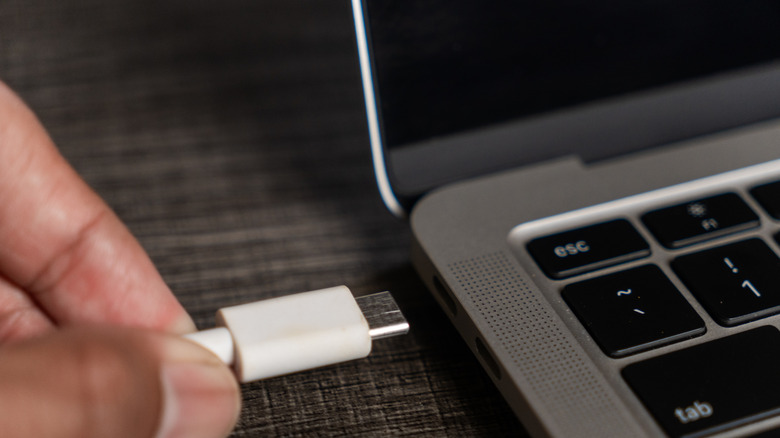
Since its introduction in 2014, USB-C has become the primary connection method for laptops, phones, tablets, game controllers and other devices. For the most part, this provides a much simpler experience since you aren't required to collect an endless set of cables for various device. But it's still not perfect, with the crux of the problem being that not all USB-C ports and cables are created equal despite their shared standard.
While some USB-C connections are able to carry a video signal, others are only capable of charging your device. Ideally, everything would have do-it-all USB-C connections for handling data transfer, charging and audiovisual output. But this isn't realistic.
Thus, the secret to solving your USB-C port conundrum is hidden in each product's specifications. But what should you look for to know if your devices and cables support video output?
Understanding DisplayPort Alternate Mode
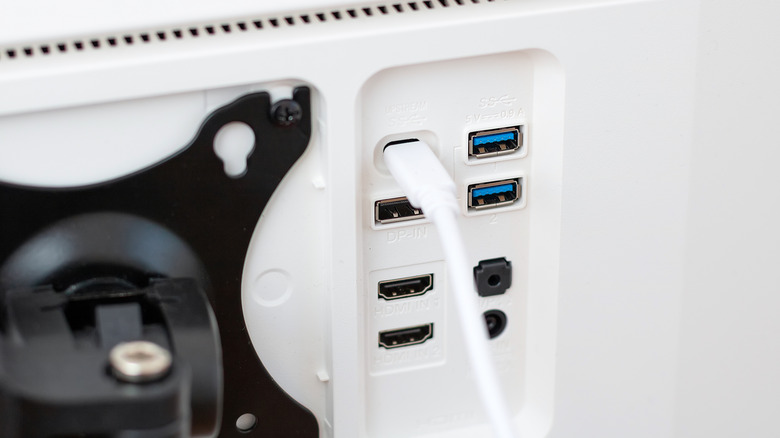
The best way to know if your USB-C setup supports video transfer is checking whether it supports DisplayPort Alternate Mode. Built into many USB-C accessories, DP Alt Mode allows your USB-C cable to carry video signals using the DisplayPort protocol. This is a digital display interface (which you might be familiar with from desktop PCs and monitors) that supports high resolutions and speedy refresh rates. DP Alt Mode enables a single cable to transfer both data and audiovisual displays. Critically, DP Alt Mode connections require that all three parts (the device, display and cable joining the two) are DP Alt Mode compatible.
Unfortunately, many of the older iterations of USB standards do not support DP Alt Mode. USB 3.1 and 3.2 devices may support it, but this is dependent on the manufacturer. However, newer connection standards mandate baked-in support for DP Alt Mode, such as USB4 supporting both power transfer and video.
All generations of Thunderbolt connections that use USB-C (Thunderbolt 3 through 5), marked by the familiar lightning icon, offer high-speed data and video transfers including DP Alt Mode. Thunderbolt 3 offers similar capabilities as USB4, while Thunderbolt 4 and 5 provide several performance upgrades. Although they're more expensive than their Thunderbolt 3 counterparts, opting for the latest versions of the standard can enhance your experience by powering multiple monitors with better refresh rates and higher resolutions.
Knowing whether your devices are DP Alt Mode compatible can be difficult. Some manufacturers put the port type on the device, such as the lighting symbol next to Thunderbolt ports. Other may add a DP icon beside a USB-C port to demonstrate its DP Alt Mode capabilities. If you don't see any clues on the devices or cables, check the manual or search for product specs online to confirm support for DisplayPort Alternate Mode.
What to do if your USB-C port doesn't support video
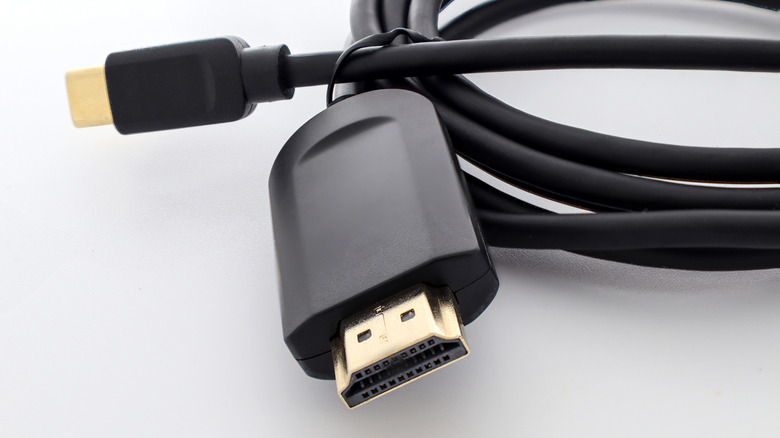
If you discover that a USB-C port or cable doesn't support video, there are workarounds. If your device has an HDMI port, you can use an HDMI cable compatible with both your device and display to deliver video output. For the most part, modern HDMI cables support up to 8K visuals and high dynamic range, meaning you're likely to get comparative visual results as you would through a USB-C port. However, not all HDMI ports and cables are created equal. To get the highest resolutions and refresh rates, opt for at least HDMI 2.0, with HDMI 2.1 or later being best for modern setups.
If your display doesn't have HDMI input, you can try an active adapter like the StarTech USB-A 3.0 to Dual HDMI Adapter. These let you run HDMI output from a USB port that's not normally capable of doing so. Because these rely on internal software and bandwidth, they introduce overhead and thus aren't ideal for gamers or anyone who wants super-high resolutions or refresh rates. Normal adapters, like USB-C hubs that have an HDMI port or USB-C to HDMI cables, won't work if your laptop doesn't support DP Alt Mode.
Otherwise, wireless display options like AirPlay or Miracast are a backup for casting your display to a TV or monitor without cables.
Originally published on Engadget