How to lock apps on your Samsung Galaxy phone
Samsung phones have a couple of features that can keep sensitive apps and files private. One locks your chosen apps, and the other restricts all but one app.
How to lock apps on your Samsung Galaxy phone
Keep your kid from ordering a five-pound bag of candy.

Handing your phone to your kid for a few minutes of game time shouldn't mean they end up three menus deep in your banking apps, emails or texts. That's a common enough worry that plenty of Galaxy owners go searching for a simple way to lock their apps, much like iPhone users can do. Well, Samsung doesn't offer one.
On an iPhone, the fix is a quick long-press and selecting Require Face ID. The app then won't open without a face or fingerprint scan. Samsung takes a different approach to this whole situation. Instead of a single toggle, Galaxy phones split the job between two tools: Secure Folder and app pinning. Neither one is a direct copy of Apple's version, but together they cover more ground. At the end of the day, the important part is that you'll be able to keep prying eyes away from apps they shouldn't have access to.
Why Samsung skipped the simple app lock
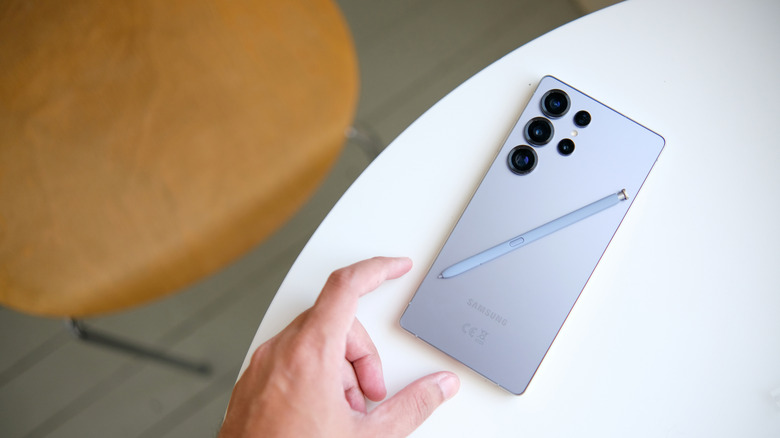
Samsung phased out a basic app lock option in favor of Secure Folder, a more robust system built on Samsung Knox, the company's security platform. Rather than just gating an app behind a password, Secure Folder creates an entirely separate, encrypted space on the phone. Apps placed there run as isolated copies, with their own data and sign-ins kept apart from the rest of the device.
That's quite the difference from how Apple does things since iOS locks an app in place, while Secure Folder essentially duplicates it inside a vault. The trade-off is setup time, because Secure Folder takes quite a few extra steps. Given the complexity of the task, there's been quite a bit of pushback over the years as users argued a lighter-weight lock would suit everyday needs like keeping kids out of TikTok. For quick, temporary restrictions, Samsung offers a second option called app pinning. This one works more like a makeshift version of Apple's screen-lock tools.
How to lock apps using Secure Folder
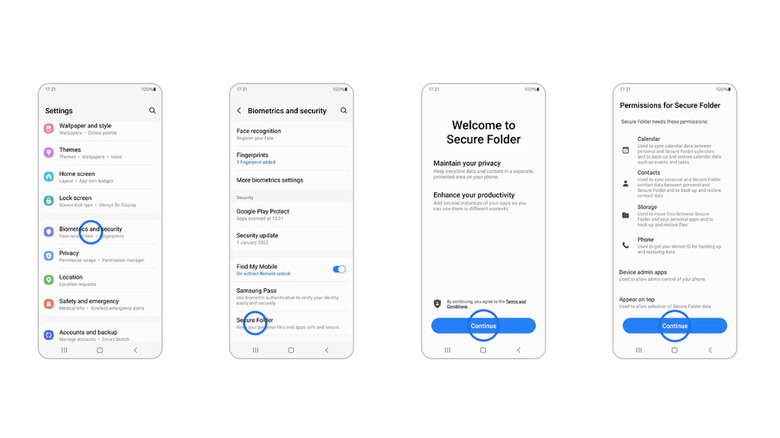
If you want to keep sensitive information safe on your phone, Secure Folder is the way to go. This won't just protect your data from your kids, but also from thieves and nosy relatives. It's the best place to put your banking apps, messaging tools, private photos and anything else worth encrypting. Here's how to set it up:
-
Open Settings > Security and privacy > More security settings > Secure Folder.
-
Sign in with your Samsung Account.
-
Choose a lock type: PIN, password, pattern or biometric scan.
-
Choose whether the apps can still run in the background when the Secure Folder is closed.
-
Tap the plus icon inside Secure Folder and select the apps you want to add.
Apps moved there will be inaccessible until you unlock Secure Folder using your authentication method of choice. The best part is that you can hide the folder icon from the home screen for extra discretion, which you can do from the quick panel by turning off the Secure Folder app. The apps in Secure Folder won't continue to work in the background or create notifications when the folder is hidden, so be sure to unhide it when you're ready to use the apps therein. Just another something extra to consider when you're customizing your Samsung Galaxy phone.
How to use app pinning for quick restrictions
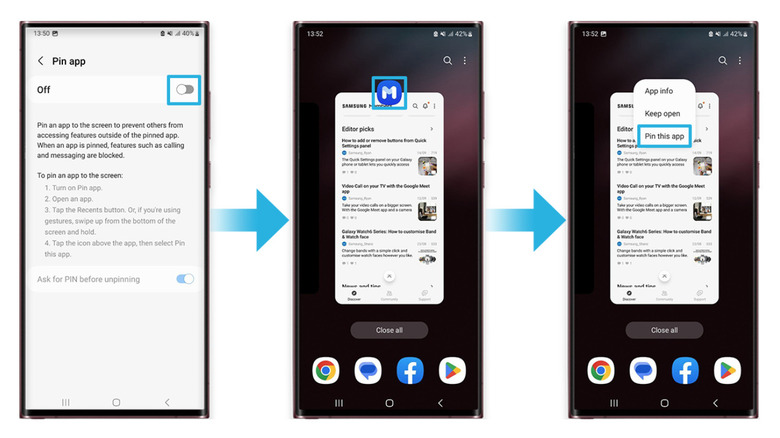
For all those situations where full encryption isn't called for, like letting a kid play one game without slipping into the Play Store to install some random app, app pinning gets the job done faster. So, before you hand your phone over, here's what you have to do:
-
Go to Settings > Security and privacy > More security settings and turn on Allow apps to be pinned.
-
Tap on the Recents button (the three vertical bars at the bottom of the screen) or, if you use swipe gestures, swipe up from the bottom of the screen and hold.
- Tap on the icon above the app you want to pin and select Pin this app or Pin to screen.
-
To unpin the app, you have to hold the Recents and Back buttons at the same time.
-
So, if you're letting your kid use your phone for one specific game, just open their game and pin the app. They won't be able to switch to a different app. Pinning doesn't encrypt anything, so it's not the right pick for financial or private apps, but it works just fine as a fast and temporary lockdown. Truth be told, this one will work best if your kids don't know how to read yet because you get on-screen directions on how to unpin the app when you tap on the bottom buttons.
For sensitive apps that need real protection, Secure Folder's Knox-backed encryption is the stronger option, even if it takes a few minutes to set up. For quick and low-stakes restrictions, like keeping a toddler inside a single game, app pinning gets the job done with almost no setup at all.
Originally published on Engadget


