ALVR is one of the tools to stream VR games from a Windows PC to their Apple Vision Pro over Wi-Fi. Here's how to get the tool working, and what to expect.
Virtual reality gaming has been around for years. While it has advanced over time to accommodate advances in tech, there are still some limiting factors that can get in the way of a great gameplay experience.
One of those advances is on-device processing, with hardware like the Apple Vision Pro and Meta's Quest headsets able to display apps directly on the device. For some users, this is more than enough of a VR experience, but avid gamers may want more.
For PC gamers, it's almost certain that they have a Steam account, and a collection of VR games for it. When used with a compatible headset, gamers can play the titles, but typically have to deal with a physical limitation.
Steam VR games are not able to be played entirely on a standalone headset, even powerful ones like the Apple Vision Pro. Since the rendering and all of the core processing is handled on a gaming PC, there needs to be some form of connection between the headset and the PC itself.
The result is usually a very well-rendered VR experience, but with the added annoyance of a cable. This could be a video cable or a lengthy USB-C cord, depending on the headset, but it still means there's a cable limiting your motion and possibly getting in the way.
There are tools available to cut the cord, taking advantage of high-speed Wi-Fi networking to wirelessly stream gameplay from the PC to the headset.
We've been using ALVR for a while, and it's now mature enough to recommend.
What is ALVR?
ALVR (Air Light VR) is a tool for streaming VR games from a PC to a headset. Specifically it's a free and open-source utility that is growing in popularity compared to other paid options, and even Steam Link.
Fundamentally, it's a client-server system, with the server installed on the gaming PC and the client on the headset. The server handles piping the rendered gameplay to the client, while the client feeds back head and controller movements, as well as hand tracking data, to the server.
While ALVR does support a USB cable for a low-latency setup, its main reason for existing is for Wi-Fi streaming. This does away with any pesky cables that can intrude on your gameplay.
An area of interest here is its headset support. ALVR has clients for many headsets, including the Apple Vision Pro, making it a good choice for wire-free PC-based VR on Apple's head-mounted system.
Requirements
To make the most out of ALVR, you need to have some prerequisites in place. This means having a headset, a computer, and a suitable Wi-Fi network.
For the headset, the supported device list includes the Apple Vision Pro, but also many others, such as the Meta Quest lineup, Vive Focus 3, and even some Android versions. If you're reading this guide, you probably have that Apple Vision Pro nearby.
You also need a high-specification gaming PC, which is used to handle rendering the gameplay. This does need to be fast enough for VR, so a powerful GPU is a must.
For a desktop PC, this means an Nvidia graphics card with NVENC support, an AMD GPU with AMF VCE support, or an Intel GPU with VPL support. For notebooks, there is an additional need to assign the integrated or dedicated GPU to work primarily with ALVR and SteamVR.
In our testing, we're using a 12th Generation i7 PC, with 32GB of RAM, a SSD, and a Nvidia 5070 card provided by Colorful, specifically, the iGame GeForce RTX 5070 Ultra OC 12GB x 007 First Light Edition. My thanks to the company for helping us out with this — a bit more on this in a while.
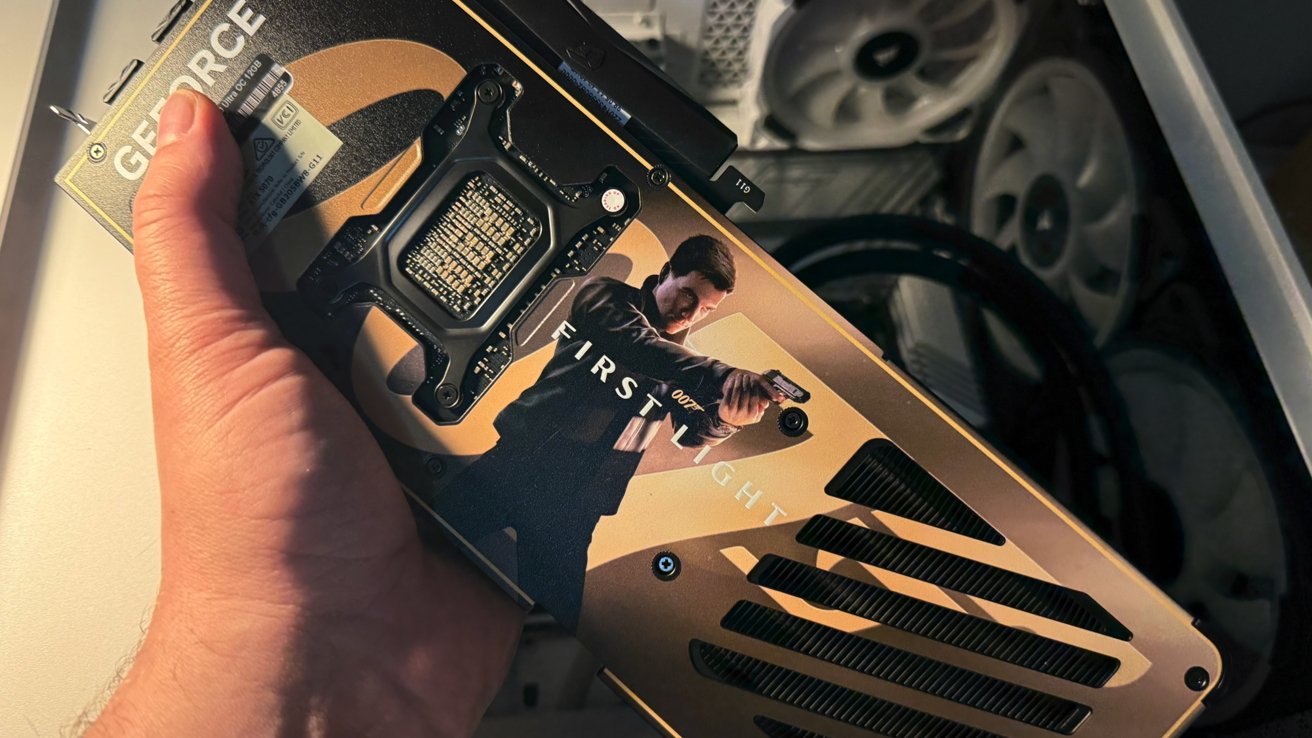
iGame NVIDIA GeForce RTX 5070 Ultra OC 007 First Light Edition
There are server apps available for Windows 10 and Windows 11, and an installer for Linux. However, it isn't available on macOS nor on Windows 8 or earlier Windows releases.
To actually play games, you will need Steam installed as well as Steam VR. You'll also want to have your chosen VR games installed.
Games used to test are:
- 007 First Light
- Star Wars: Squadrons
- Elite: Dangerous
- Half Life: Alyx
- Cyberpunk 2077 with mods to add VR headset compatibility
- No Man's Sky
- Microsoft Flight Simulator
- Euro Truck Simulator 2
On the network side, you will want to have as fast a wireless connection as possible between the Apple Vision Pro and the gaming PC. The PC should ideally be connected to the network using wired Ethernet, while the Apple Vision Pro should be on a 5GHz 802.11ac Wi-Fi network.
Also, the nature of wireless networking means that you will have to be more mindful of bandwidth limitations and latency. The test environment has spanned Amazon Eero 7 Max, and the router that Google provides for 3 gigabit Internet, and both worked well.
Other than some routing improvements that are backwards compatible, Wi-Fi 7 here doesn't mean much. Consider your network congestion, though, as latency can take a bit hit if you're streaming across a heavily-trafficked network.
I've started experimenting with a devoted router to do this connection, and have started using a Developer's Strap with my M2 Apple Vision Pro. I'll report back in a follow-up piece how this goes.
How to set up ALVR to stream PC VR games to the Apple Vision Pro
The process is remarkably simple. I cannot stress enough, though, that you need a video card powerful enough to get the job done. The Nvidia 3080Ti card that I was using prior to the 5070 card that Colorful provided just wasn't fast enough, and crucially lacked DLSS frame generation.
- Install the client on the Apple Vision Pro from the App Store. Make a note of the version number and keep the app running while other instructions are completed.
- Install ALVR Launcher on the PC, which can be downloaded from the GitHub page. You will need to download the same version of ALVR as used for the Apple Vision Pro, then launch it on the PC.
- On the PC, go to the ALVR settings and set the streaming connection to run over TCP, not UDP.
- In the ALVR app on the Apple Vision Pro, click the "Enter" button with a VR icon. It will generate a wireframe mapping of your room.
- On the PC, launch Steam VR. After a few seconds, the Apple Vision Pro will show the Steam VR home room. At this point, you can start using Steam VR Home and launch VR games.
Control and quality
The Apple Vision Pro relies on hand tracking for its in-app navigation, something which isn't always handled gracefully in games. Most VR games instead rely on the user holding some form of controller.
There are instructions available for linking controllers via Bluetooth to the Apple Vision Pro, such as the Meta Quest controllers or some Nintendo Switch Joycons.
If you're running into that latency problem, within the ALVR app on the Apple Vision Pro, there will be streaming settings that you can adjust. Reducing the bitrate and resolution lowers the fidelity, but it can also cut down on lag you may be experiencing.
Experiment with the settings, and you will eventually find an adequate compromise on quality and latency. From then on, you should have the best wireless VR experience possible.
In future installments, we'll be discussing iVRy and KRVR. I'm excited about the latter, as it integrates CloudXR technology that cuts back a bit on bandwidth requirements with foveated rendering. This technology renders where the wearer is specifically looking at, at higher fidelity than where they are not.