How to split bills and customize passes in Apple Wallet with iOS 27 Update
Apple's Visual Intelligence will make splitting the check easier in iOS 27.
How to split bills and customize passes in Apple Wallet with iOS 27 Update
Visual Intelligence will make splitting the check a bit easier.
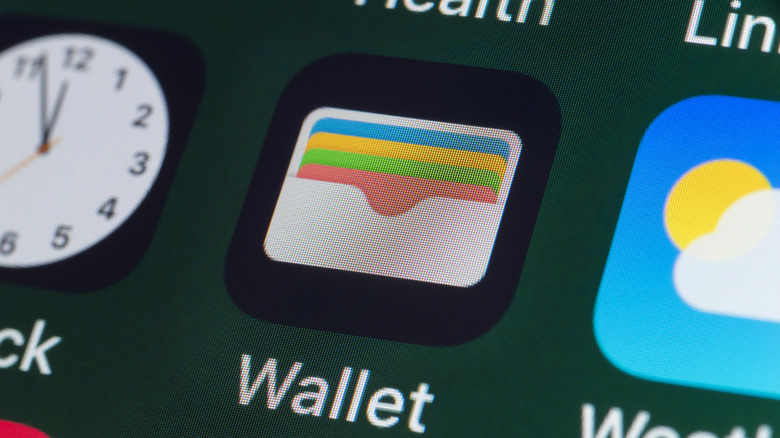
The upcoming iOS 27 update will deliver some much-needed optimization and system refinements to the iPhone — along with a more practical way to settle a group meal. For those who prefer contributing to the collective gastronomic experience instead of carrying the entire bill, Visual Intelligence will read receipts, split the bill and send out Apple Cash requests to the group. Thankfully, this new feature isn't buried in the settings menu. Instead, it works with Visual Intelligence and the iPhone's camera to recognize a receipt.
It's not a universal bill-splitting tool, however. iPhone users must set up Apple Cash to receive and send money through Wallet. You'll also need a compatible iPhone running iOS 27, an itemized receipt that the camera can read and contacts who can receive and send an Apple Cash request.
iOS 27 will also include a separate tool for Apple Wallet passes, also using Visual Intelligence. As with receipts, the camera identifies a compatible physical pass (boarding passes, loyalty cards, tickets, etc.) and adds it to Wallet. Overall, it's a nifty little upgrade, especially for those already using their iPhones as a debit/credit card. All you need to do is set it up through the Control Center and start splitting bills.
How to split a bill with Apple Cash
Visual Intelligence is basically your camera with Siri floating around in the background. It's a separate icon that you can add to your Control Center for quick access when you need to identify something or scan a receipt. Swipe down from the top right corner of your iPhone screen to open Control Center. Touch and hold an empty area, then tap Add a Control when prompted. Search for and add Visual Intelligence. Once set up, you can swipe down to access Visual Intelligence anytime you need it.
When you're ready to split a bill, just do the following:
-
Place an itemized receipt on a flat, well-lit surface.
-
Open Control Center and tap Visual Intelligence.
-
Point the camera at the receipt and let the iPhone scan it.
-
Tap the centered yellow Split Bill with Apple Cash button when it appears.
-
Choose the contacts included in the split.
-
Review the items and amounts before sending the Apple Cash requests.
Visual Intelligence is designed to parse the receipt so the entire group can account for individual items instead of coming up with an even split. You can always double-check the taxes, tips, discounts or any shared appetizers before you request payment, especially if the receipt includes any service charges or promotions.
How to add passes with Visual Intelligence
The same Visual Intelligence control will scan a physical pass and add it to Apple Wallet. For the most part, anything that works with Apple Wallet will generally come with QR codes or Apple Wallet logos. However, not everything does, but Visual Intelligence may do the job in a pinch.
Open the Control Center, tap Visual Intelligence and point your camera at the pass. If iOS 27 recognizes it as compatible, follow the on-screen prompt to add it to Wallet. Of course, this process may vary by issuer, and some passes will still require adding through the airline, venue or retailer app instead.
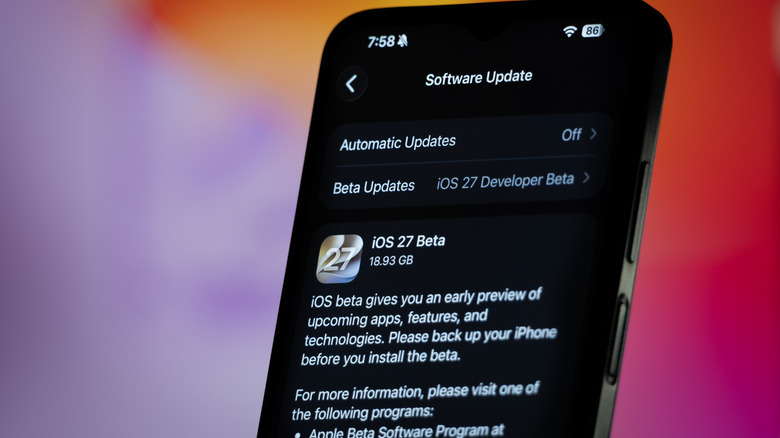
You can organize the cards and passes already in your wallet by touching and holding one, then dragging it into place until it's tailored to your preferences. Until some point in the fall, Visual Intelligence and split bill pay are only available in iOS27 Public or Developer Beta. Even when iOS 27 is officially released, it's still a relatively new feature — using the issuer's official "Add to Apple Wallet" link or process may yield more dependable results. For now, Visual Intelligence is a great fallback option for compatible physical passes.
Originally published on Engadget