If your Messages inbox is catching a lot of stray, unwanted messages, we'll show you how to filter, report, and block spam messages on iOS 27.
At WWDC 2025, Apple announced that it would be bringing enhanced message filtering capabilities to Messages. As promised, they rolled out as part of iOS 26, released in September 2025. They continue to be available in iOS 27.
The new features are designed to help manage the onslaught of texts everyone seems to get these days. Here's how to do it.
How to screen messages from unknown senders on iPhone
- Open Messages
- Tap the Hamburger Menu in the top right corner, which looks like three horizontal lines
- Tap Managing Filtering
- Toggle on Screen Unknown Senders
If you'd like to allow notifications from some unknown senders — and AppleInsider suggests that you do — you can tap Allow Notifications. In this subsection, you can toggle on notifications for time-sensitive texts, meaning that you'll still get those verification codes.
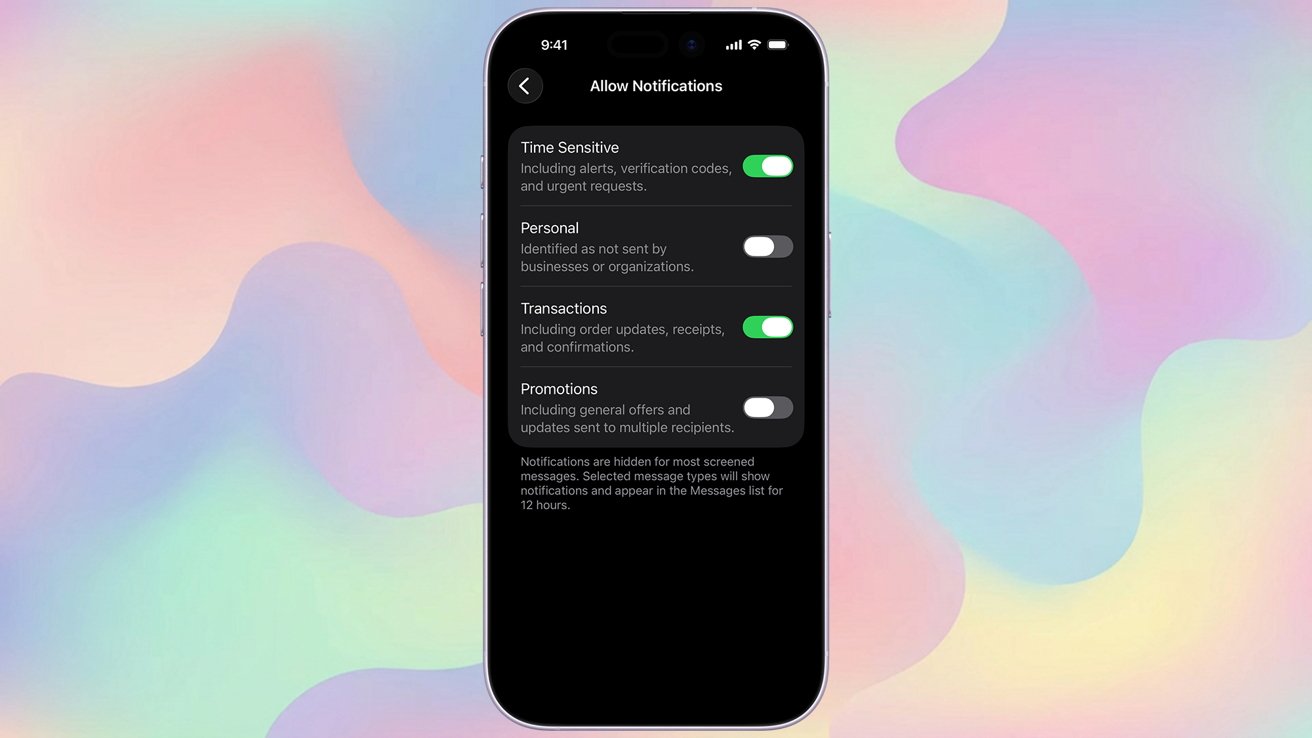
Allowing time-sensitive notifications ensures you'll still get two-factor authentication texts and time-sensitive delivery alerts
To review the messages, you'll need to tap the Hamburger Menu in the top right corner of the Messages app. Then, tap Unknown Senders to be taken to a list of unknown senders.
How to make an unknown sender known
There will be, inevitably, times in which you'll need to make an unknown sender into a known one. Fortunately, this can be done in just a few taps.
- Open Messages
- Tap the Hamburger Menu in the top right corner, which looks like three horizontal lines
- Tap Unknown Senders
- Tap the message from the sender, then tap Mark as Known
You can also add the sender to your contacts, which will automatically mark them as known, too.
How to filter SMS, MMS, and RCS messages
You can detect and filter non-iMessage-based texts, such as SMS, MMS, and RCS messages. However, you will need to install a text message filter, which is a third-party app with message filtering extensions.
These are highly variable based on your location and your carrier. AppleInsider suggests you research which third-party apps and extensions are designed to work with your carrier in your region.
How to report spam
Reporting spam via Messages is pretty easy, too. Most of the time, your iPhone will accurately detect if a message is spam and will move it to your spam folder.
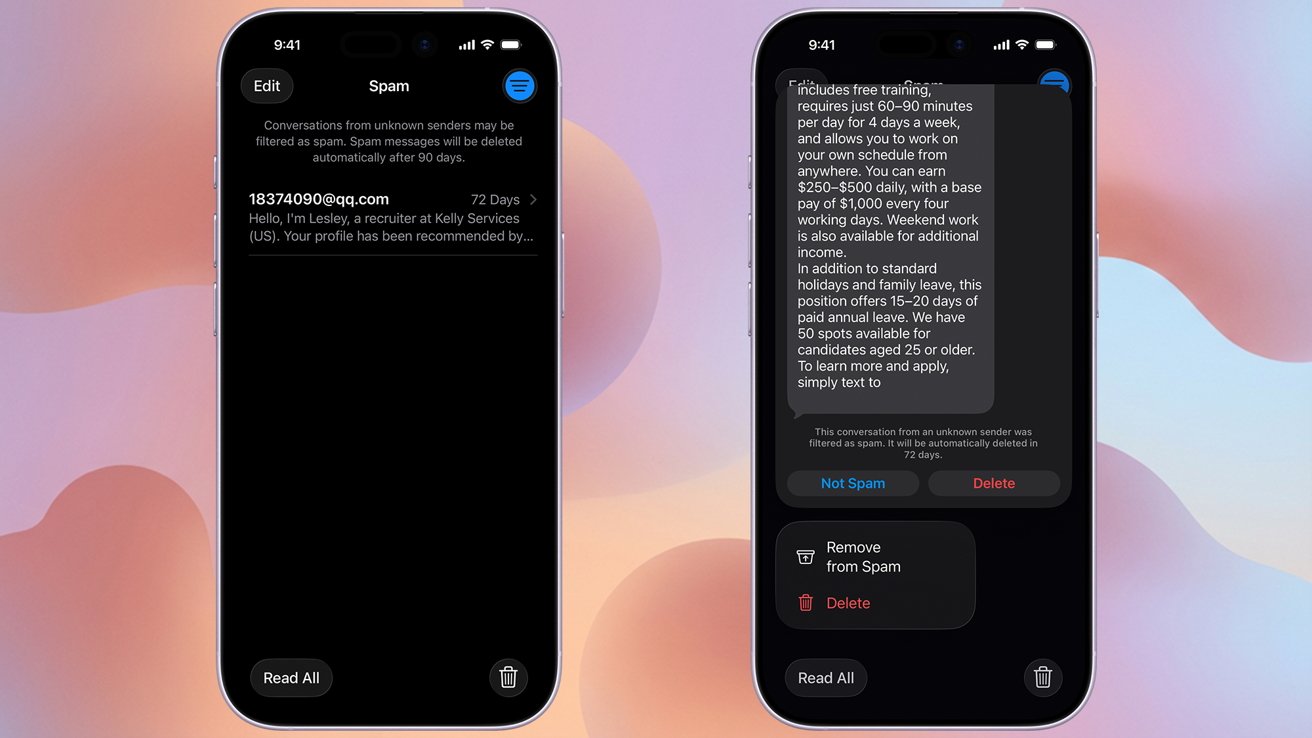
Managing spam is easy with the Messages app
If it hasn't, though, you can mark the message as spam manually by following the steps below.
- Open Messages
- If you haven't opened the message, you can swipe left, tap the trash icon and then tap Delete & Report Spam
- If you've already opened the message, at the bottom there will be a "report spam" button
- Alternatively, you can tap and hold a message to bring up a report spam window
How to recover messages sent to the Spam folder
Occasionally, a message will get marked as spam, even when it isn't. Here's how you can recover an erroneously tossed message.
- Open Messages
- Tap the Hamburger Menu in the top right corner, which looks like three horizontal lines
- Tap the message you wish to recover
- Tap Not Spam
- Tap Move to Messages
- Tap the Hamburger Menu
- Tap Messages
If Messages is a crucial part of your life, knowing how to deal with spam and unwanted senders will mean it remains useful and fun, instead of becoming a chore to handle.


