The iPhone 15 family of devices was the first to have USB-C ports, but you really aren't making the most of it if all you do is use yours to charge. Here's what you can do, and what you can't with external drives.
The beauty of the USB-C port is that there are already countless devices and accessories out there that can plug into it. That's the benefit of a "universal" port, after all.
In the case of your iPhone, being able to charge it using a friend's cable is just the beginning. The real fun starts when you plug things like external storage into it.
But while taking a USB-C thumb drive and plugging it into your iPhone is certainly doable, how you can use it is more complicated. It also depends on exactly which iPhone you own as well.
Here, we're going to run down which iPhones are best suited to using USB-C storage, and why. We'll also get into why you might want to use a USB-C drive with your iPhone while detailing what it won't do, no matter how hard you try.
A pro feature for pro iPhones
While it's true that you can plug a USB-C storage device into any iPhone with a USB-C port, how fast it transfers data will depend on the iPhone itself.
The iPhone 15 and newer non-Pro iPhones all have USB 2.0 ports, so they're limited to data transfer speeds of just 480Mbps, or around 50MB/s. That includes the iPhone Air.
This limitation may also have a larger impact than just making you wait longer for files to transfer. Accessing some files directly from a USB-C drive at USB 2.0 speeds could have its own problems.
One example would be playing back video files. Depending on the quality of the video, USB 2.0 speeds may simply be too slow to reliably stream the video from the drive.
In such cases, you can always copy the video to your iPhone before watching it. But that does rely on you having the time to wait for the copy and the space on your iPhone, too.
The iPhone 15 Pro and newer, plus the iPhone Duo, all have USB 3 ports capable of data transfer speeds of 10Gbps. That works out to around 1,000 MB/s.
If your iPhone has one of those USB 3 ports, you can plug in a high-speed portable SSD to expand your storage. But don't expect your iPhone to treat that SSD as if it were internal storage, because it's more complicated than that.
What you can use external storage for
With Apple keeping the top-speed USB-C ports back for the Pro iPhones, it's no surprise that some of the most notable use cases are for creative professionals.
Direct ProRes video recording
When connected to an iPhone that supports it, high-bitrate ProRes video recording supports up to 4K capture at 60 and 120 fps directly to an external SSD. There's a very good reason, too, in that ProRes files can be extremely large.
There are different options available when choosing to record in ProRes. But as a primer, 4K ProRes video recorded on an iPhone can use up to 6GB of storage for every minute of video captured.
That's why Apple limits the higher-quality ProRes capture settings to those iPhones with an external SSD plugged in. In those cases, the ProRes files are written directly to that SSD to save internal storage space.
File management and media transfer
The built-in Files app supports external SSDs, and you can move, copy, rename, view, and organize files at will. You can access files directly from the portable SSD itself, while you can also move files to and from it as well.
This approach can be useful if you need to access and work with large files, such as videos. But it can also be a great way to move data between devices without relying on AirDrop or other file transfer mechanisms.

The Files app is a great way to move and manage files on an iPhone.
This approach can be useful if you need to access and work with large files, such as videos. But it can also be a great way to move data between devices without relying on AirDrop or other file transfer mechanisms.
Media playback
You can plug an external SSD into your iPhone and play back media that is saved on it. The most obvious example here is movies and TV shows, but high-resolution photos will also work.
How you access your media may depend on which app you plan to use. Some apps, like Infuse, have their own file managers that allow you to open files directly from within them.
Another option would be to use the Files app. Tap and hold a media file, then tap Open In before selecting the app you'd like to use.
This is a reliable way to access large media files without them taking up valuable space on your iPhone's internal, often limited, storage.
Manual data backup
Whether you use the Files app or file management features built into your favorite apps, an external SSD is an excellent way to back up data.
While iCloud backups help preserve the data on your iPhone, that isn't always ideal. Such data is then locked within a backup on Apple's iCloud servers and not readily accessible.
Instead, you can use the Files app to manually back up any important data and files to an external SSD. Some USB sticks and drives also have iPhone apps that can be used to automatically back up photos, videos, and contact data.
Backing data up to an external SSD means you maintain control and can access that data from other devices if the need ever arises.
What you CAN'T use external storage for
For every useful way an external SSD can upgrade your iPhone-using experience, there are plenty more that simply won't. Apple still keeps iOS locked down in plenty of ways, and that includes the way external storage can be used.
Installing apps
You might think that you'd be able to combine your new external storage with your iPhone's internal storage to install more apps. Unfortunately, that isn't the case.
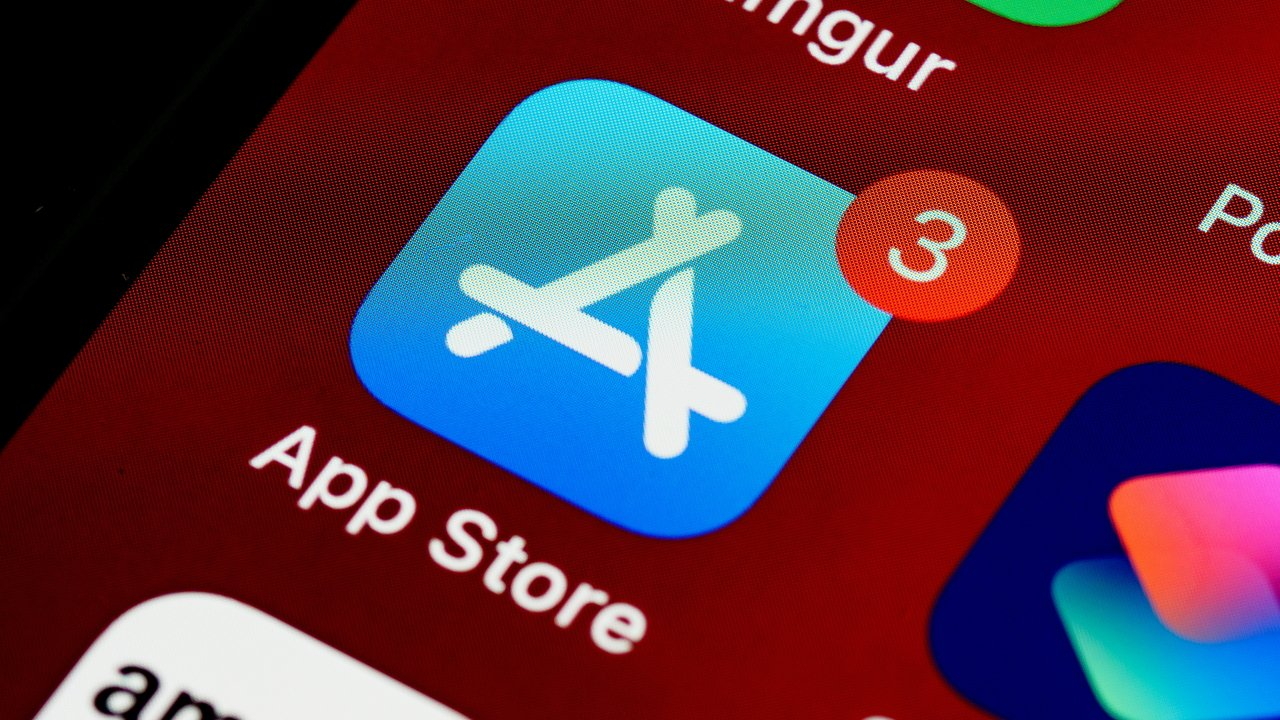
Apps can only be installed on an iPhone's internal storage.
Apple prevents apps from being installed anywhere other than the iPhone's internal storage. If you want more space for apps, you'll need to buy a bigger capacity when it's time for a new iPhone.
There are a few reasons why this is the case. Apple would argue that installing apps on external storage would open the door to potential piracy and data privacy issues, for example.
Automated system backups
While you can back up some data to an external SSD via the Files app and in-app data management features, wholesale backups are out of the question.
Apple does not allow full iPhone backups to be made to external storage. Instead, they're limited to iCloud backups to Apple servers and backups that are made over a cable to a Mac or PC.
None of these automated backups can be rerouted to an external SSD, as useful as that may be.
Direct standard Camera app recording
Capturing Apple ProRes video to an external SSD is a great option, and it's required for the higher-resolution options. But the ability to save videos to external storage doesn't extend to standard formats.
Normal camera modes, including standard H.264/HEVC video capture, Time-Lapse, Slo-Mo, and Photo mode, save directly to internal storage. Files generated from these features cannot be saved to an external SSD when they are created.
Encrypted data access
Given Apple's stance on privacy and encryption, it's unfortunate that not all encrypted drives can be used with an iPhone. APFS (Encrypted)-formatted drives can be accessed, as can drives that have a physical keypad for decryption or offer a companion iOS app.
However, drives that use software-based encryption designed for Windows, like BitLocker, will not work correctly. Neither will third-party solutions that don't have their own companion iOS app.
USB-C has always been more than a charging port
When Apple added USB-C to the iPhone, most people saw it as a way to use one charging cable for multiple devices. And while that's a key benefit, it isn't the only one.
For a lot of people, being able to connect a USB-C drive, whether that's an SSD or a thumb drive, is huge. Just remember that you'll need an iPhone Pro or an iPhone Duo to get the most out of it.