Apple ships the Mac with several built-in apps that are surprisingly feature-rich and fast. But over time, I found myself replacing a handful of them with third-party alternatives that simply did more.
I didn’t make these switches overnight. Each replacement solved a specific problem or added a feature I couldn’t live without. These are the Mac apps and tools I use instead of Apple’s stock apps.
7 great Mac apps I use instead of Apple’s apps
Apple makes the Mac’s built-in apps good enough that most people never need to look elsewhere. But “good enough” can feel limiting when your Mac becomes your primary work computer. From screenshots and email to search, calendars and passwords, the right third-party app can turn a familiar Mac workflow into something faster, more capable and better suited to how you actually work.
Some of these replacements have been on my Mac for years, while others are relatively recent additions. Regardless of when I switched, they all earned a permanent spot because they solve a problem that Apple’s default apps can’t. At this point, going back would feel like a downgrade.
That doesn’t mean every replacement will make sense for you. Everyone uses their Mac differently. But if your Mac is your primary work machine, there’s a good chance at least a few of these apps will improve your daily workflow as much as they did mine.
1. CleanShot X instead of the Mac’s built-in screenshot tool
Screenshot: Rajesh Pandey/CultofMac
macOS comes with a built-in screenshot tool that is surprisingly capable and covers the basics well. Besides a full-screen screenshot, it can capture a window or a selected portion of the screen. You can even copy a screenshot directly to the clipboard for quick sharing.
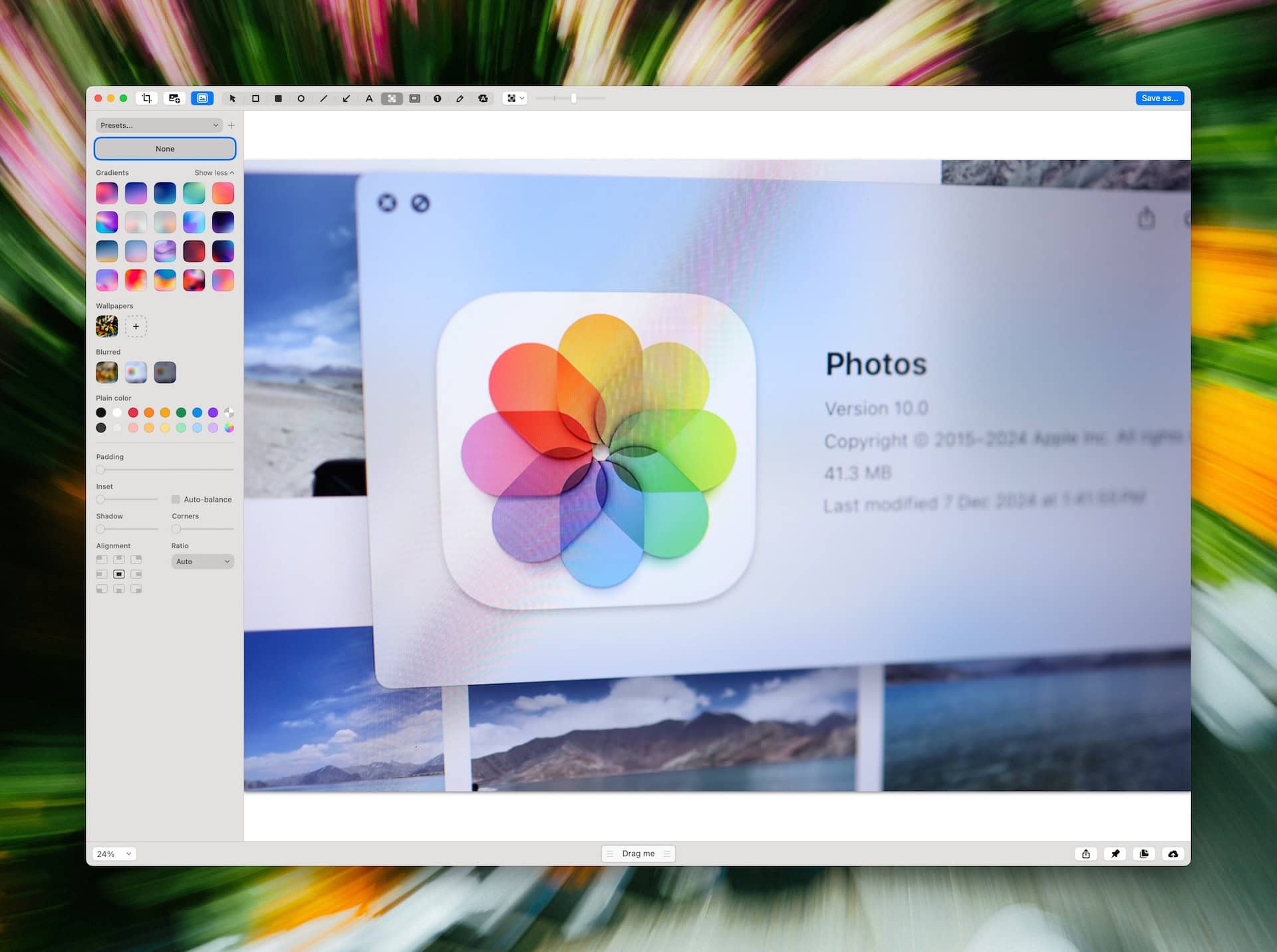
For most users, it’s probably the only tool they need. However, I take and edit screenshots throughout the day. So, I needed something more powerful. CleanShot X turns screen capture into a complete workflow, rather than forcing me to use another app for editing and annotating.
After taking a screenshot, CleanShot X displays a small Quick Access Overlay. Think of it as a floating panel holding the screenshot I just took. From there, I can immediately copy, save, drag, annotate or upload the screenshot to the cloud.
CleanShot X also comes with a fairly robust set of editing tools. I can add arrows, text, highlight important areas, blur sensitive information and place screenshots against beautiful backgrounds to create a professional-looking image.
I use CleanShot X’s Scrolling Capture and Timer features regularly. Scrolling Capture lets me capture an entire webpage or document in a single screenshot, while Timer starts a short countdown before taking the screenshot, giving me enough time to prepare the screen.
Another notable feature is the ability to extract text from an image using on-device OCR.
Better screen recordings, too
CleanShot X also comes with a screen recorder that’s more capable than macOS’ built-in tool. It can record the Mac’s audio, display keystrokes and mouse clicks, and even include the webcam feed.
However, CleanShot X is not cheap. It costs $29 for one year of updates. After that, renewal runs $19 per year to ensure you keep receiving updates. Compared to Apple’s free screenshot tool, CleanShot X pricing certainly feels steep. But then, screenshots are an important part of my work, and the time the app saves me easily justifies the price.
Download: CleanShot X
2. Hora Calendar beats Apple Calendar on Google Calendar compatibility
Screenshot: Rajesh Pandey/Cult of Mac
Apple Calendar supports several account providers and works well across the Mac, iPhone and iPad. But much like my email, my calendars live primarily inside Google’s ecosystem.
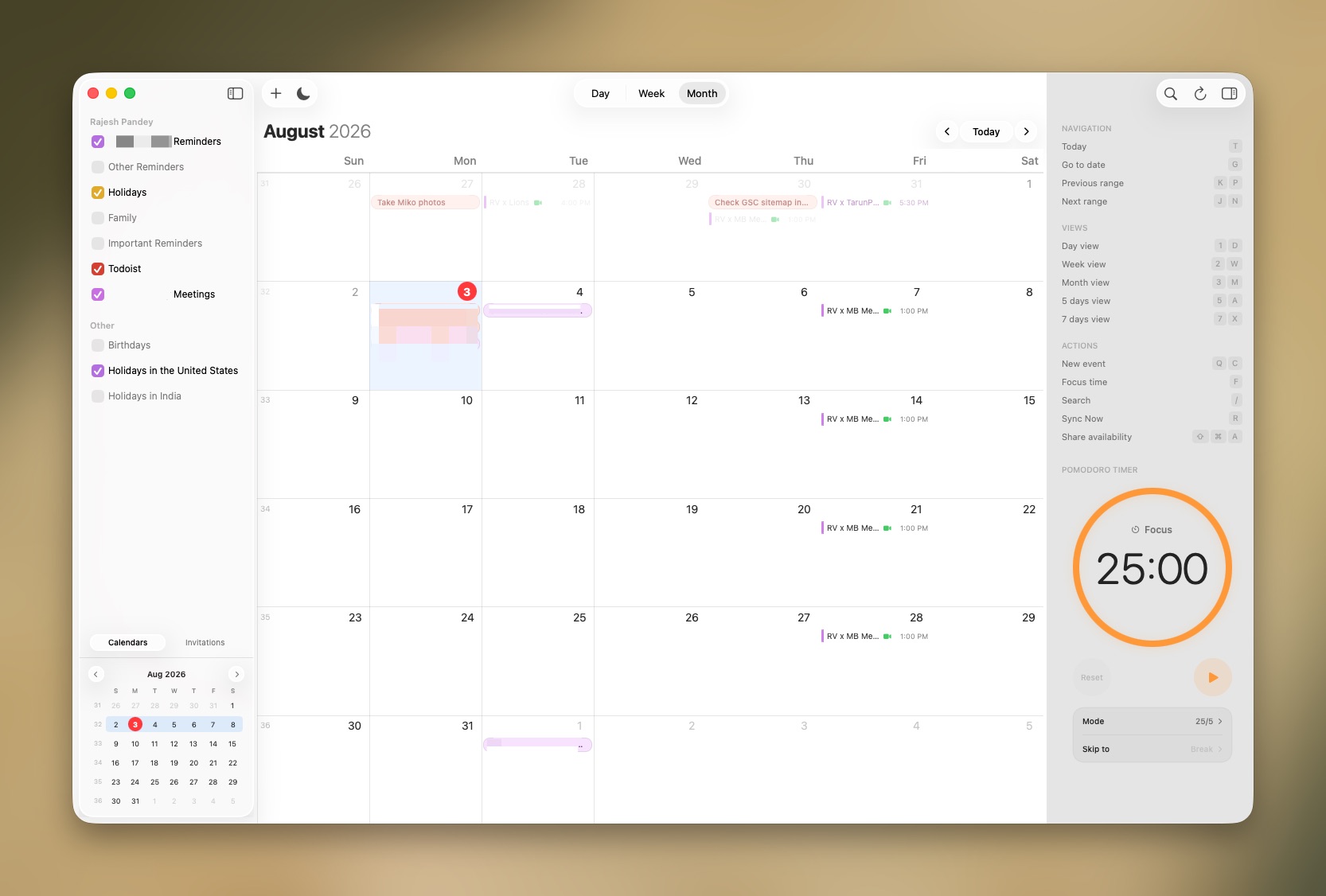
While there are plenty of great calendar apps for Mac, I prefer using Hora Calendar. This native, SwiftUI-based Mac calendar app integrates seamlessly with Google Calendar. It supports multiple Google accounts, color-coded calendars and Focus time scheduling.
Even better, it supports native Zoom and Teams integration, so you can directly add meeting links to events.
My favorite Hora Calendar feature is the ability to create new events using natural language. (Apple will add this feature to its Calendar app with the upcoming macOS Golden Gate update.)
Hora Calendar is not as feature-rich or powerful as Fantastical or other popular Mac calendar apps. But I prefer it for its simplicity and direct Google Calendar integration.
Hora Calendar’s lifetime subscription costs $49.90, or you can pay $29.99 yearly. A 14-day trial is available before you commit to a subscription.
Download: Hora Calendar
3. Raycast tops Spotlight
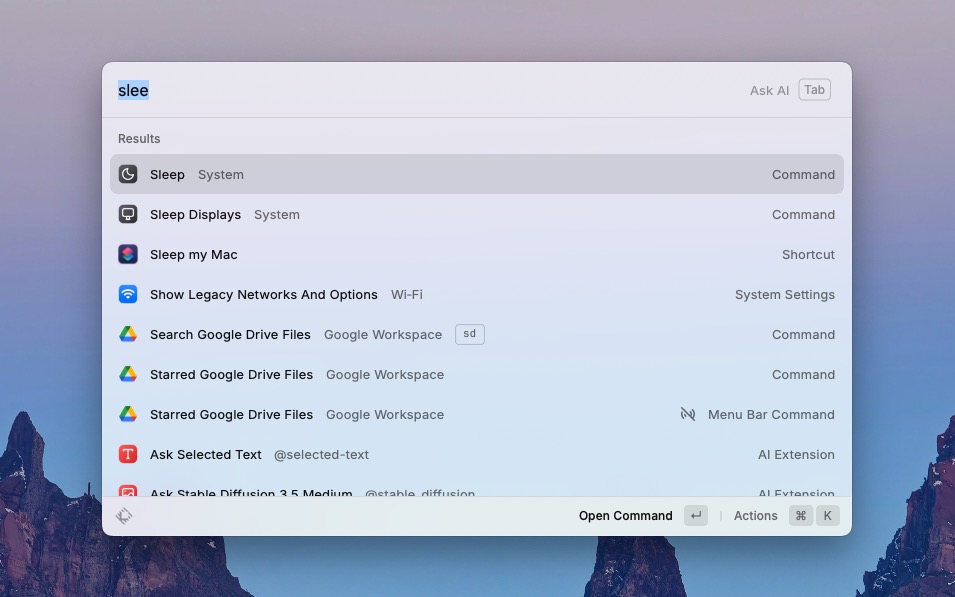
Screenshot: Rajesh Pandey/CultOfMac
When I first switched to a Mac, I loved using Spotlight. It is one of the quickest ways to find files or open apps on a Mac. But a few years ago, I switched to Raycast. It’s by far the most-used app on my Mac.
I use Raycast to launch apps, search for files, do quick calculations, search for symbols, and execute system commands like shutting down the Mac, locking the screen, etc.
Raycast is more than just a launcher and a Spotlight replacement. It’s far more powerful, with extensions adding to its capabilities.
I use Raycast to directly search for files in my Google Drive, do a Google Calendar search, create new Meet links, search through my Notion database and much more.
Raycast transformed the way I work on my Mac. No matter what improvements Apple may add to Spotlight, there’s no way I can go back to using it.
Download: Raycast
4. Mimestream trumps Apple Mail because of Gmail integration

AI image: ChatGPT/Cult of Mac
Apple Mail is a perfectly capable email client, especially if you use iCloud Mail or have accounts with several providers. But most of my email accounts run on Gmail, and Apple Mail does not work well with Gmail’s best features.
That’s why I use Mimestream, a native Mac app designed specifically for Gmail. It delivers a clean, Mac-like interface with the features I normally only get through Gmail’s website. It feels fast, remains easy to navigate and use, and handles multiple accounts without making the interface feel cluttered.
I recently wrote about why I prefer Mimestream over Apple Mail. The biggest advantage is that Mimestream connects through the Gmail API rather than treating it like a conventional IMAP account. That enables access to almost all of Gmail’s features, including colored labels, inbox categories and server-backed filters and search.
Mimestream is among the first apps I install every time I set up a new Mac. And that’s unlikely to change anytime soon. While Apple Mail is a great free email client, Mimestream is a much better Gmail client.
Download: Mimestream
5. Google Chrome is better than Safari for Android users
Safari is fast, power-efficient and deeply integrated with Apple’s ecosystem. Features like iCloud Tabs, Apple Pay and Private Relay make it a great choice for anyone who exclusively uses Apple devices.
But Apple’s browser is not for me. My browser of choice is Google Chrome. It gives me a wider selection of extensions and tends to better handle heavier websites and online tools. With Safari, I frequently run into issues with a tab or the browser itself crashing due to a memory leak.
More importantly, I don’t use an iPhone as my primary phone. Instead, I use an Android device, and Chrome makes it easy to access all my browsing history and extensions. Like on Safari, I can start reading an article in Chrome on my Mac and then switch to my MacBook and seamlessly pick up where I left off.
As someone who lives inside browser tabs and has a few dozen tabs open at a time, Chrome handles my workflow better. It offers access to a wider selection of extensions, which make my workflow more efficient and productive.
Admittedly, Chrome’s stability and vast extension library come at the expense of higher power consumption. It’s something that I don’t pay attention to when I’m using my MacBook at home or at work. But when traveling, I fall back to Safari to extend my Mac’s battery life.
Download: Google Chrome
6. Notion instead of Apple Notes
Notion is not a direct, feature-for-feature replacement for Apple Notes. The latter is a better choice when I quickly want to jot down something or scan a document. I was fine with using Apple Notes for a long time. But once my notes started turning into article ideas, research, project plans and reference materials, its folder-based structure became a hindrance.
That’s why I moved my serious note-taking work to Notion. I can organize ideas inside databases, add tags and statuses, link related pages and turn rough notes into structured projects. When I want to do serious work, like refine or build on an idea, I use Notion. For quick notes, Apple Notes remains my go-to app.
Download: Notion
7. 1Password is more full-featured than Apple Passwords
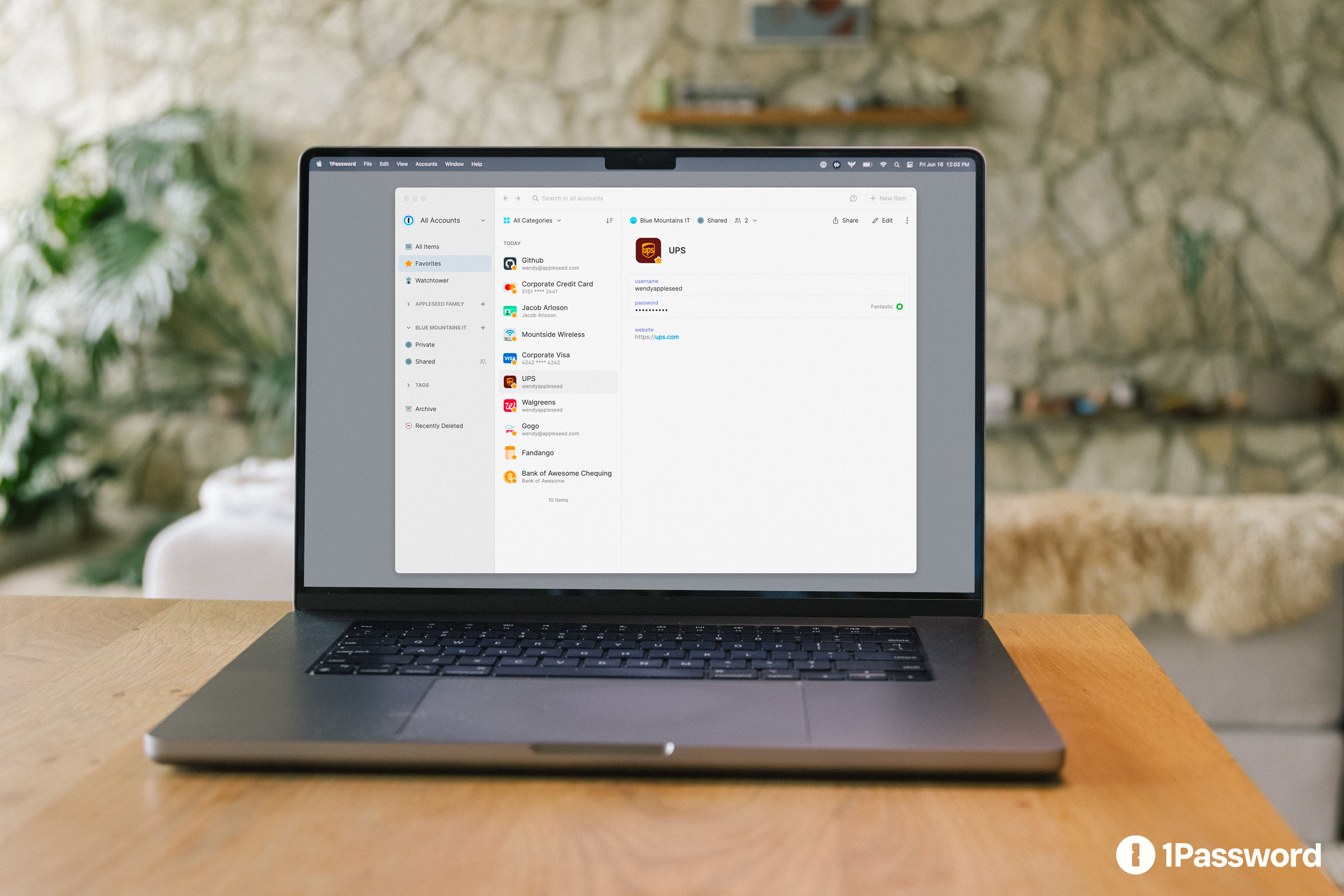
Photo: 1Password
Apple Passwords is a great, free, easy-to-use password manager that’s deeply integrated into Safari and other Apple products. It’s just not the right password manager for me, as I need to access my passwords from devices outside the Apple ecosystem.
Plus, I need my password manager to store more than just login credentials. I need to stash secure notes, credit card details, bank account information and sensitive documents there. And I don’t want to use another app for generating my two-factor authentication codes.
That’s why 1Password is my go-to password manager. It’s not tied to one ecosystem and works with all major browsers and devices. It also stores more than passwords, acting as a secure home for passkeys, digital ID cards, bank account details and more.
1Password’s vault and sharing features make things easier. I share a vault with my wife for all common and important services. And I use a separate shared vault with my business partner for joint projects.
When I need to share login credentials with someone, I can generate a one-time or seven-day secure link for them.
1Password is a much better password manager than Apple Passwords. But that comes at a cost. It’s not free, with an annual individual subscription priced at $36. A family subscription costs $53.88 a year.
Download: 1Password
Final thoughts: Mac apps that surpass Apple’s stock offerings
One of the things I appreciate most about macOS is that it doesn’t lock you into Apple’s apps. The built-in options provide an excellent starting point, but you’re free to replace them whenever something better fits your workflow.
The Mac apps above made the biggest difference to my workflow, and I can’t imagine setting up a new Mac without installing them.