After a few years of rumors about the feature, Apple added live translated captions to FaceTime in iOS 26, allowing one-on-one calls to display real-time subtitles spanning languages. Here's where to find live translation in FaceTime, and how it came to be.
Live translation in FaceTime is a big new feature, but many users don't even know it's there. That's because Apple doesn't make it clear or easy to find as a translation option.
Plus, the translation feature isn't found under Apple Intelligence settings or FaceTime menus where you might expect it. Instead, it's tucked away inside Live Captions, an accessibility feature that's been around for years.
Consequently even people who use the accessibility features may not have had reason to spot this new addition. But it's worth knowing about, because it is a boon in so many different situations, and while there are still limitations, Apple has implemented it well.
What happens is that during a FaceTime call, the system listens to the other person's speech and converts it into text in your preferred language. Both participants can keep speaking normally without any changes to the audio stream.
FaceTime never replaces voices with synthesized speech or inserts translated audio, so the speaker's original sound remains intact.
Apple offers a feature that adds visual context to calls, so you can hear the person with their tone, pacing, and emotions intact. At the same time, you can read a real-time translation of what they're saying.
To use translated captions, though, Live Captions must be enabled in advance.
- Open the Settings app on your device.
- Tap on Accessibility.
- Select Live Captions.
Once you activate the setting, FaceTime can show captions during one-on-one calls. You can even get translated captions if your device, language, and Apple Intelligence requirements are met.
Why people expected FaceTime translation long before it arrived
FaceTime feels like the perfect spot for live translation because it's Apple's most personal communication tool. It's designed for real-time chats, capturing facial expressions, and understanding emotional nuances.
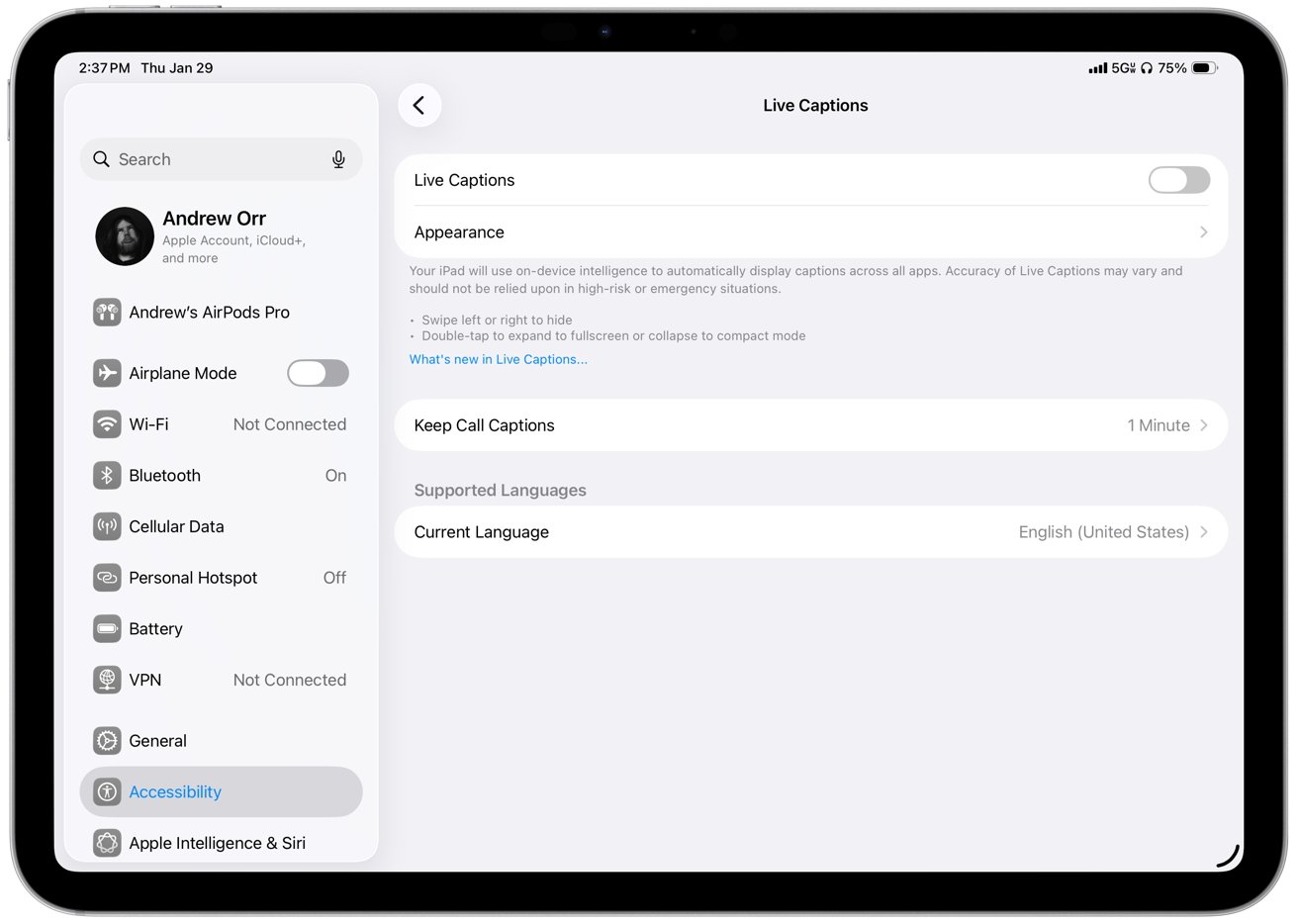
Live Captions in Settings
Expectations did keep rising as Apple rolled translation tools across more of its ecosystem. The push began with the Translate app and gradually spread to Safari webpages, Messages conversations, and phone call transcription.
From a user's perspective, FaceTime seemed like arguably the obvious missing piece. The absence of translation felt less like a technical limitation and more like an unexplained omission, perhaps a marketing one.
Apple never did give a clear reason for the delay, so the presumption was that the technology simply wasn't ready. In reality, it appears that Apple was waiting to add translation without altering the core experience of using FaceTime.
Why Apple avoided FaceTime translation for so long
Real-time translation during live video calls is much more tricky than with written text, because natural conversations are messy and unpredictable. They often have overlapping speech, interruptions, and subtle timing cues that we rely on instinctively.
Early translation systems used synthesized speech to replace spoken audio, which worked fine in controlled settings. However, in real conversations, even tiny delays can lead to people talking over each other or pausing awkwardly.
Then simply replacing someone's voice can make conversations feel mechanical and disconnected, which is the opposite of what FaceTime aims to offer. Apple usually avoids adding features that change the core feel of its products unless they feel natural.
In the case of FaceTime, translated audio would have altered the experience in ways Apple seemingly wasn't willing to accept. Instead, the company has stuck with the original design of FaceTime to maintain the intended emotional connection, and then added to it.
Why captions instead of translated audio
Apple's solution was to avoid translated audio entirely and lean on captions instead. Using captions lets the system tolerate small delays without disrupting the natural rhythm of a conversation.
When audio falls out of sync with facial movement, the disconnect is immediately noticeable and uncomfortable. Even a slight delay can make a conversation feel off in a way people instinctively react to.
Text works differently because captions can appear a moment later without breaking the flow or the emotional continuity. Readers naturally account for that delay without feeling like something is wrong.
Captions also let Apple keep the entire translation pipeline on device. Speech recognition, language modeling, and translation all run locally instead of relying on cloud processing.
Translated audio would require buffering, voice synthesis, and tight timing alignment between both participants. Those extra steps add complexity and create more chances for something to go wrong.
Using captions fits neatly with Apple's broader Apple Intelligence philosophy. The goal stays focused on improving understanding while keeping the human presence at the center of the interaction.
How Apple Intelligence handles FaceTime translation
FaceTime translation relies on the same Apple Intelligence pipeline used across iOS, iPadOS, and macOS. On-device speech recognition converts spoken language into text in real time.
The system then sends that text through a translation model designed for conversation. Next, the model prioritizes intent and readability over strict word-for-word accuracy.
Translated captions appear on screen and move dynamically to avoid covering faces or interface elements. Missing language models download automatically before translation begins.
The audio stream stays untouched throughout the call so that tone, pacing, and emotional nuance remain intact from start to finish.
When translated captions are actually useful
FaceTime translation works best when both people already want to use FaceTime and only need help understanding each other's words. It isn't meant to replace a shared language from the ground up.
Short or medium-length calls tend to shine, especially when tone matters more than exact phrasing. Catching up with family overseas fits naturally into that pattern. Checking in with an international coworker also works well.
Quick travel-related calls fall into the same category. In those moments, captions reduce friction without changing how the call feels.
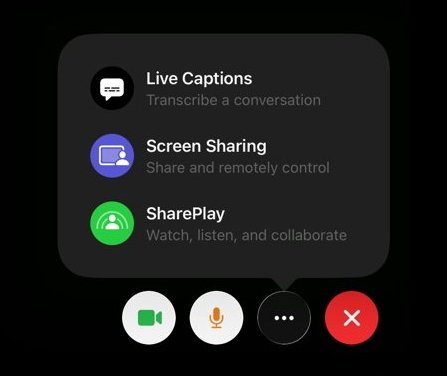
Text captions can tolerate slight lag without disrupting the flow of a call
Longer meetings, lecture-style calls, or situations that demand constant visual attention don't play to the feature's strengths.
Accuracy limits and what Apple optimizes for
Translated captions prioritize meaning over literal accuracy, with Apple's models focused on conveying intent instead of exact phrasing. Prioritizing intent works well for casual conversation where clarity matters more than precision.
Idioms, slang, regional dialects, and rapid back-and-forth exchanges can still cause problems. Captions may lag slightly or simplify phrasing to keep the conversation moving.
The system helps with general understanding but doesn't belong in legal, medical, or other high-stakes conversations.
Hardware requirements and why Apple draws hard lines
Translated captions require Apple Intelligence capable hardware, and unsupported devices never show the option in FaceTime. The feature stays hidden even when those devices run the same operating system versions.
On iPhone, support starts with iPhone 15 Pro and iPhone 15 Pro Max. Standard iPhone 15 models and older phones are left out due to performance limits. iPad support includes iPad Pro models with M1 or newer chips.
iPad Air models with M series processors also qualify. iPad mini models using A17 Pro make the cut as well. However, older iPads built on earlier A series chips don't have enough processing headroom.
Mac support is limited to Apple Silicon systems only. Intel based Macs can't run Apple Intelligence features, including live translation, without serious tradeoffs in performance or battery life.
Why the experience works better on iPad and Mac
Screen size really affects how comfortable translated captions are, especially during long calls when you need to keep looking at the screen. On an iPhone, captions have to share space with the video, controls, and you holding the phone, which can make long chats feel exhausting.
It's like trying to juggle too many things at once, and your eyes just get tired. So, having a bigger screen can make a big difference in how easy it is to follow along.
On iPads and Macs, captions have more visual space, so they stay readable without covering faces. Longer conversations much more comfortable as a result.
What Apple still hasn't solved
Despite its strengths, FaceTime translation remains limited in a few important ways. Group calls aren't supported, and the list of available languages is still narrow.
Both participants also need to speak supported languages for captions to appear. Saving or exporting translated transcripts isn't possible right now.
The lack of transcripts reduces usefulness for follow-ups and reference, especially for accessibility users. Apple's approach reflects caution rather than neglect, leaving open how quickly those gaps will close as expectations keep rising.