Installing an iOS public beta on your iPhone? Always do this first
If you're interested in installing an iOS beta on your device, you need to protect your data first with an important step that's easy to forget.
You have a few ways to keep an extra copy of your iPhone data, with iCloud being the easiest. Having your contacts and photos in the cloud means you have less to worry about if something goes wrong. Still, not every app syncs with iCloud.
That's why you need a proper backup. Aside from syncing data like notes and contacts, iCloud can also create a full backup of your device, which happens automatically when you have this feature turned on. To check if it's enabled, open Settings, tap your name at the top, then choose iCloud > iCloud Backup. Make sure the Back Up This iPhone toggle is enabled.
While this is great under normal circumstances, iCloud backups aren't the best option for beta users because they're automatically updated from time to time. After you install the iOS beta on your iPhone, iCloud will eventually save a new backup based on that beta version. And if you need to downgrade for any reason, your new beta backup made won't work with the older, stable version of iOS.
Instead, before installing a beta, you should archive a backup using a computer. First, connect your iPhone to your computer, where you may be asked to enter your iPhone's passcode to establish a trusted connection between them. On a Mac, look for your device name in Finder's left sidebar. On Windows, use the Apple Devices app.
On either platform, open the General tab after clicking your phone's name. Select the Back up all of the data on your iPhone to this Mac/computer button. Check Encrypt local backup to include sensitive info like saved passwords, Apple Health data and Wi-Fi settings. You'll need to enter a password to protect this encrypted backup; keep it somewhere safe because you can't restore the backup without this.
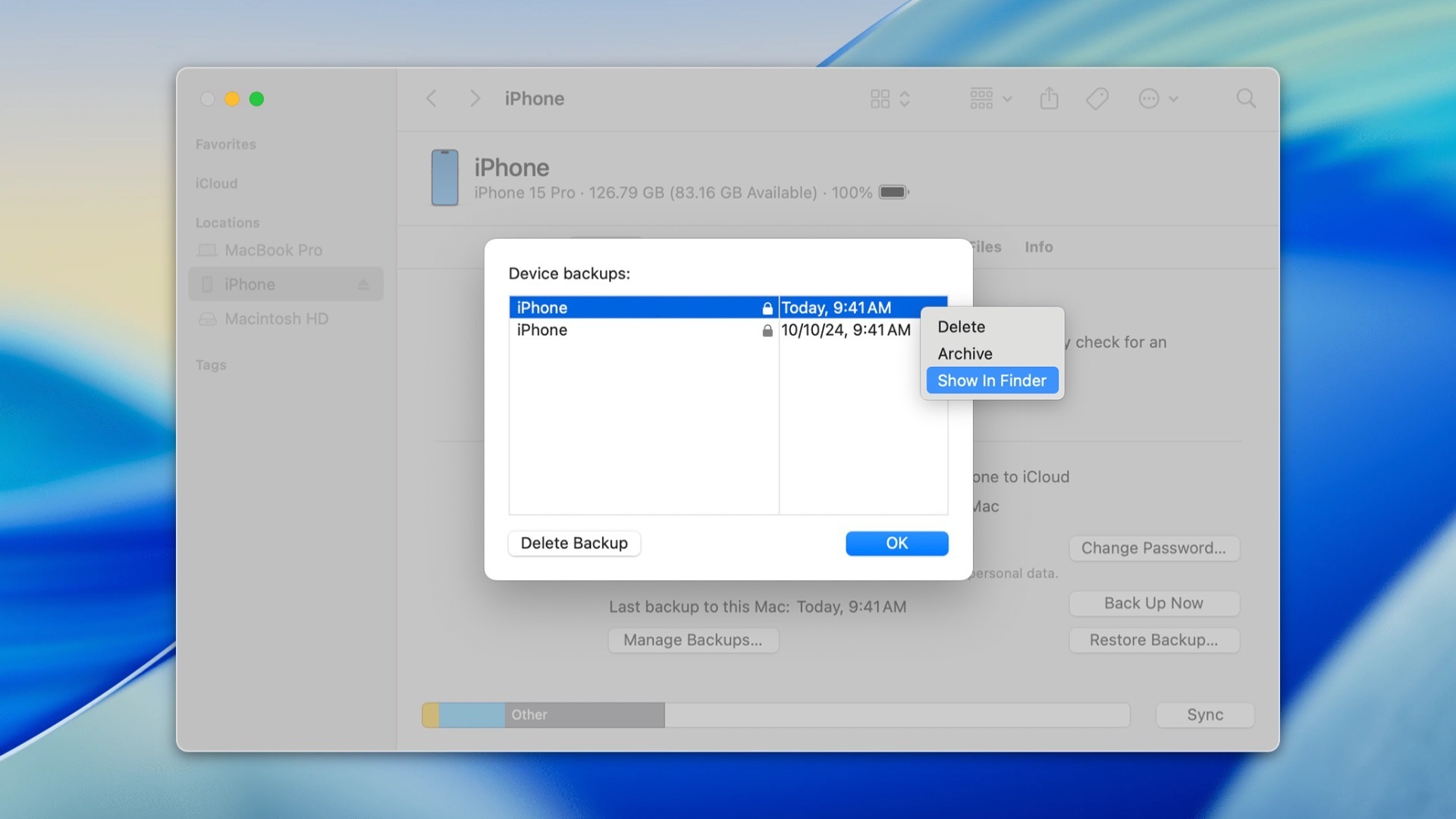
Once that's done, choose Back Up Now. The more data you have on your iPhone, the longer the process will take. Once the backup is complete, select Manage Backups, right-click the latest backup in the list and select Archive.
 Apple
Apple
Doing this will leave that specific backup untouched, even if you create a new backup later. Now you'll have a copy of everything on your iPhone from before you installed the beta, which will work if you return to the prior iOS version.
Originally published on Engadget
![It’s John Ternus’ turn to surprise us [Cult of Mac podcast 31]](/_next/image?url=http%3A%2F%2Ftech4you.club%2Fmedia%2Farticles%2Fcovers%2Fcover_QgIlnph.webp&w=3840&q=75)