Wait a minute… Is Siri on the Mac good now?
It only took a decade, but with this week’s launch of macOS 27 Golden Gate, Siri has finally come to life on the Mac. It’s still in beta, and it’s not perfect, but the update represents a much improved and highly integrated experience that takes into account personal context while prioritizing privacy.
Watch my full video as I walk through the top macOS 27 features: Siri AI edition, and be sure to subscribe to 9to5Mac on YouTube for more videos.
Spotlight integration
In macOS 27, Siri is no longer confined to a dedicated shortcut or a small menu bar item. Apple has elevated Siri into one of the most visible areas of the operating system in Spotlight search. You can still trigger voice search by holding the F5/microphone key, or by using the Hey Siri voice command, but Apple clearly thinks this new approach is where it’s at.
Most Mac users rely on Spotlight for searching and launching apps, opening documents, calculating values, and browsing the web. Spotlight is where Mac users go to do things, and thus, it’s a natural fit for Siri.
Video: macOS 27: Siri AI Top Features
Subscribe to 9to5Mac on YouTube for more videos
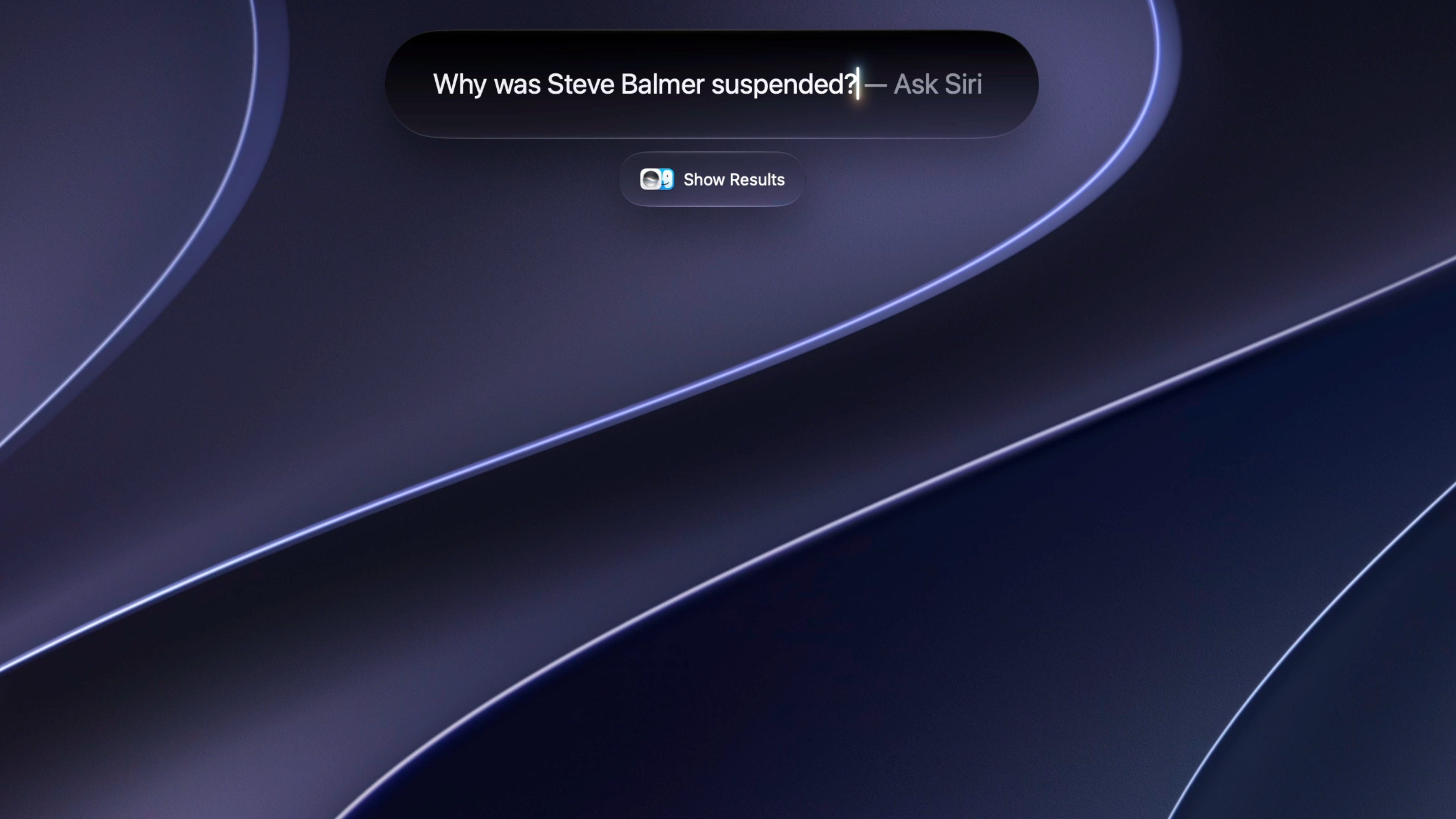
In macOS 26, “Ask Siri” sat as a lower option in the list. For example, typing “why was Steve Balmer suspended from the NBA” would prompt absurd choices like iCloud Drive, Finder, or the Web before reaching the Siri option at the bottom of the list. In macOS 27, Ask Siri is the leading choice. This shift makes Siri readily available at any point through the Mac’s most familiar keyboard shortcut: Command+Space.

When you open Spotlight in macOS, a new prompt appears: Search or Ask. You can continue searching as before, with results appearing below, but you can also send queries to Siri by pressing Return. Siri’s answers now expand within Spotlight itself, contributing to a more unified feel.
Finally, a dedicated Siri app
A major issue with previous versions of Siri was that even helpful answers vanished once a request ended, as though the topic had never been raised. This made each interaction feel like starting from the beginning. Even the ChatGPT integration in last year’s macOS 26 Tahoe shared this lapse in memory.
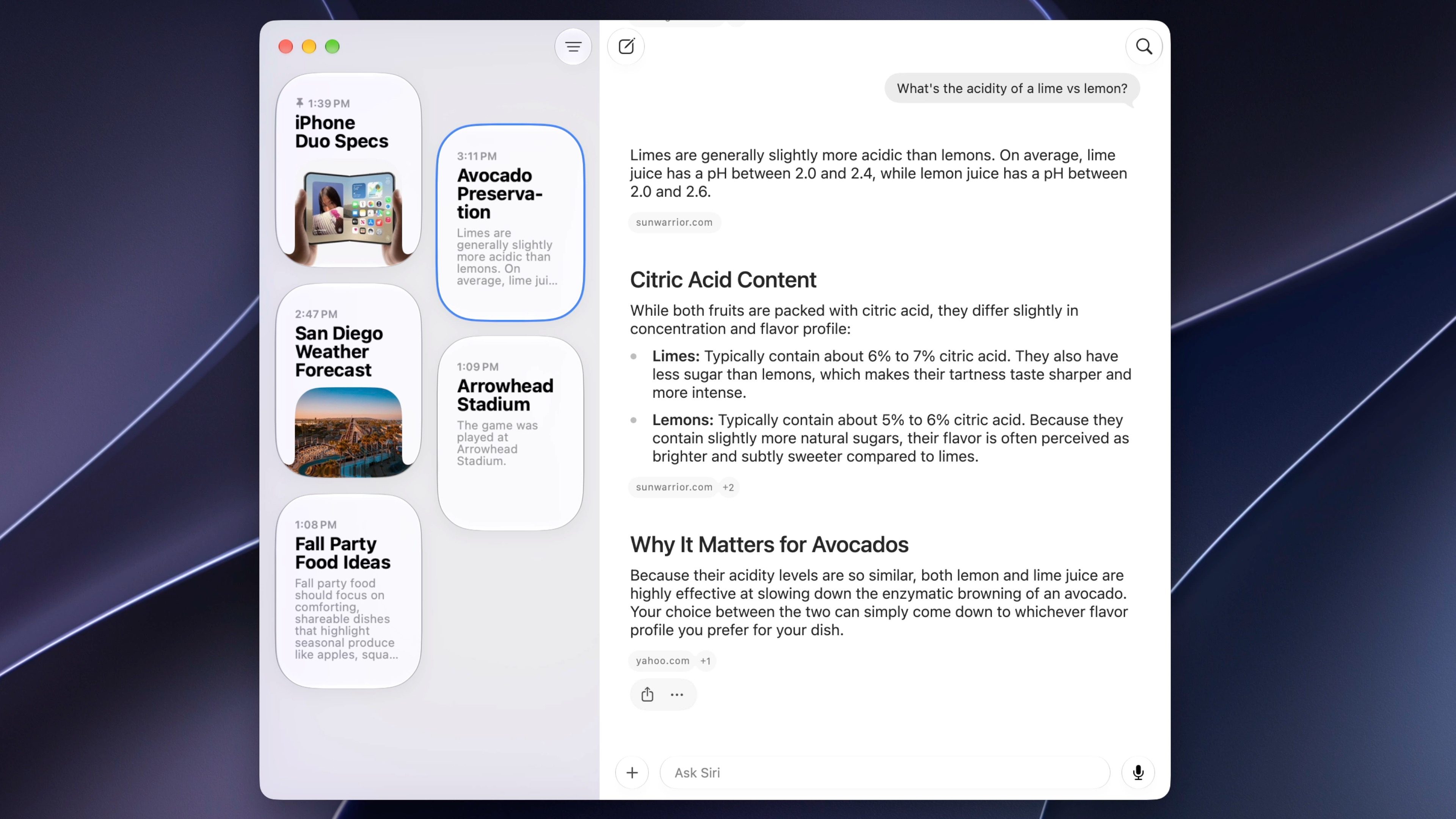
Apple has mostly resolved this matter in macOS 27 through a new dedicated Siri app. When you submit a Siri query, it is stored in the app for later review. You can open the current query in the full app by selecting the expand button in the upper right corner of the Spotlight query. Apple also offers the choice to pin certain conversations for convenient access.
A dedicated Siri app allows you to open it at any time and retrieve a prior query. This new direction offers several key benefits:
- Siri queries are no longer brief, one-time events that vanish once finished; they remain in the app within a wider exchange, allowing you to continue those discussions.
- Thanks to iCloud sync, every conversation with Siri AI across your devices appears in the Siri app. This allows a dialogue on an Apple Watch, iPhone, or Apple Vision Pro to remain accessible on any other Siri AI-capable platform. In effect, Siri feels less confined to individual devices and more like a service available regardless of the hardware you use.
In Settings, a dedicated Siri panel offers several sections for adjusting how the app behaves. You can set it to open recent conversations or begin a new one, choose how long conversations are retained, and pick how many lines appear in each preview.
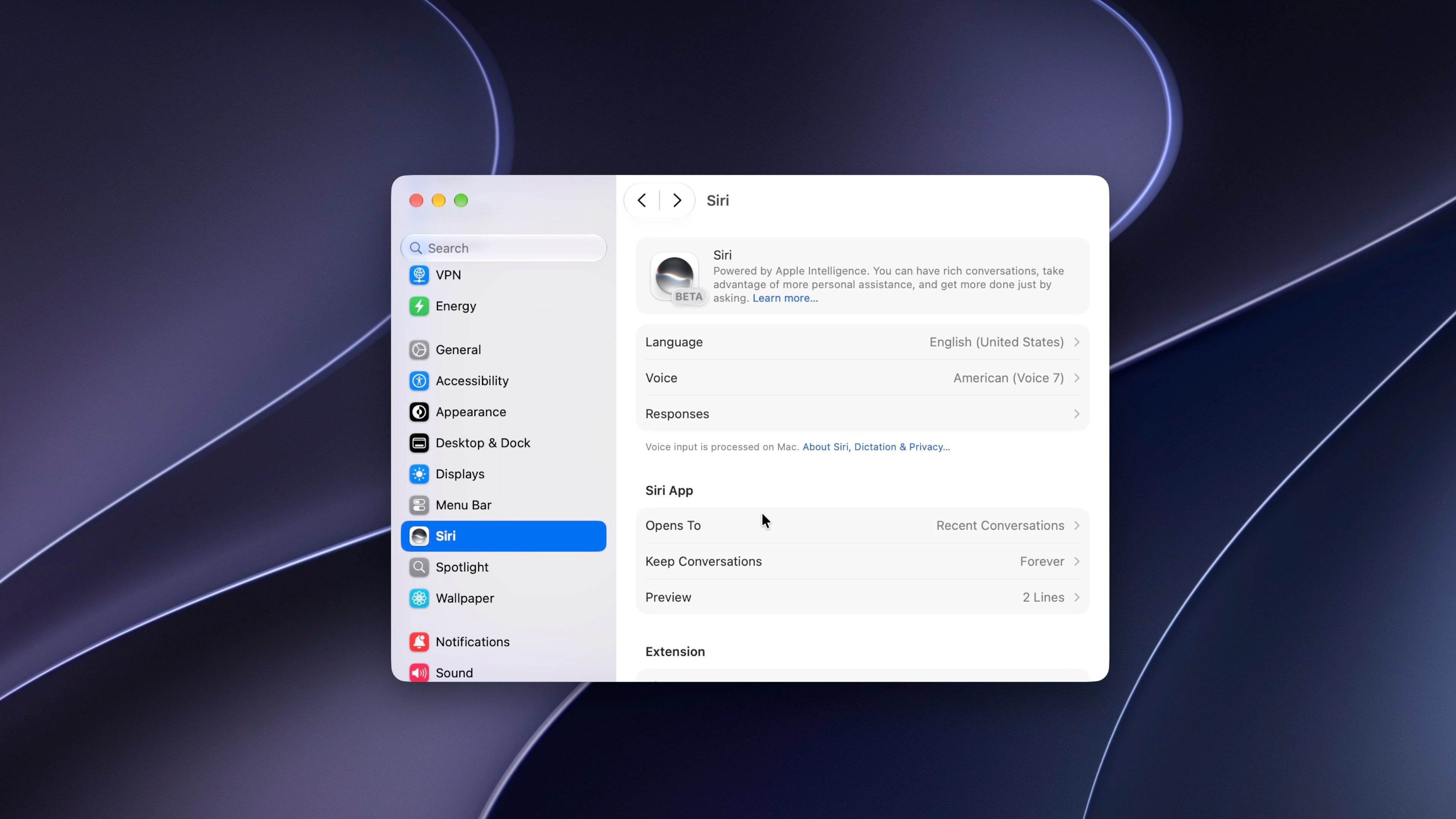
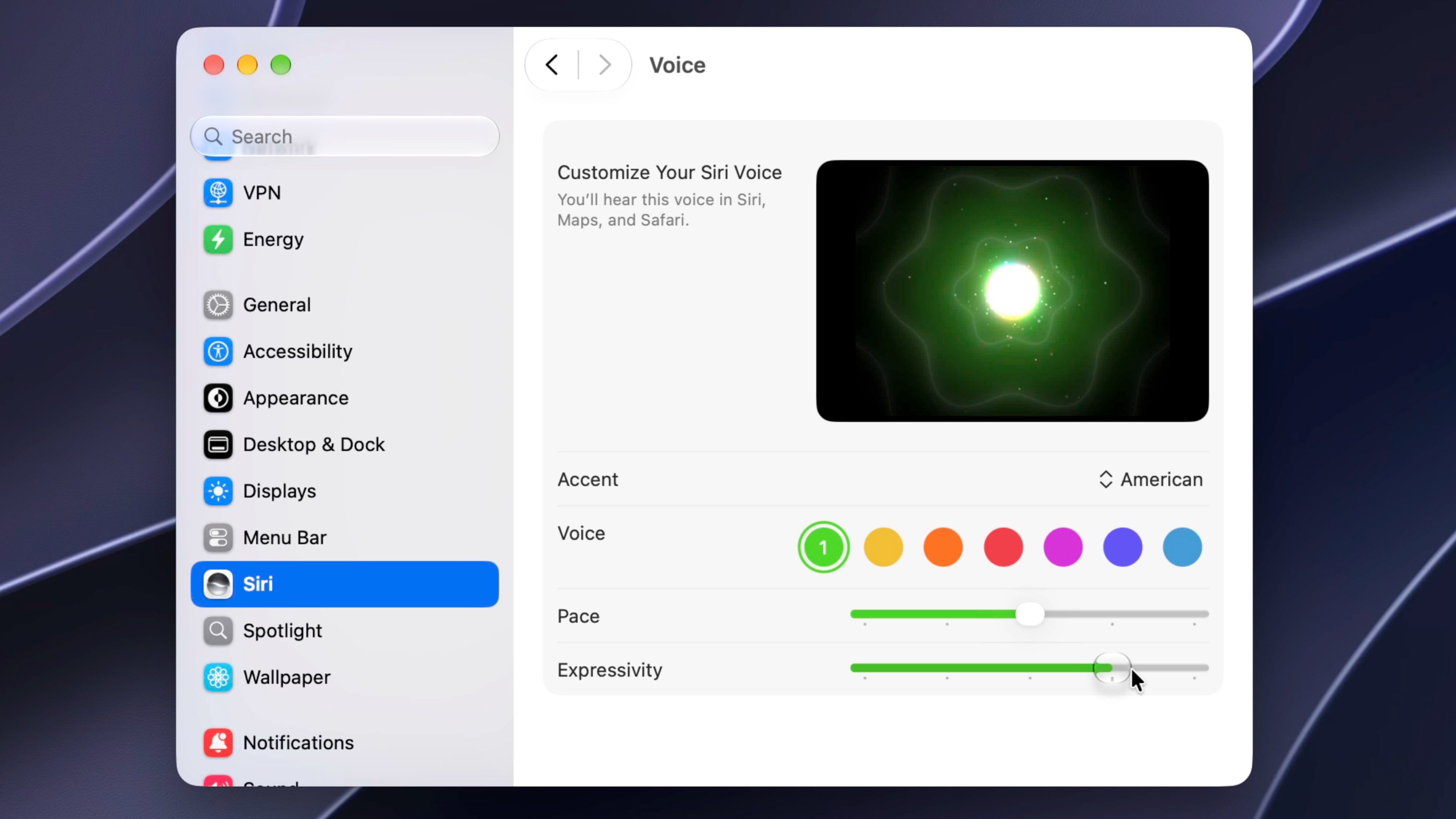
On Apple Silicon devices equipped with M3 chips or newer with at least 12GB of memory, you can also choose a particular voice and modify features such as expressivity and pace to tailor Siri to your preference.
Natural conversations and open-ended questions!
With the old Siri, follow-up questions were possible but restricted in scope. With the new Siri, you can easily ask follow-up questions and maintain back-and-forth exchanges as long as you remain in a current conversation. This makes Siri feel more alive and dynamic because it can draw on cues from earlier parts of the dialogue and respond accordingly.
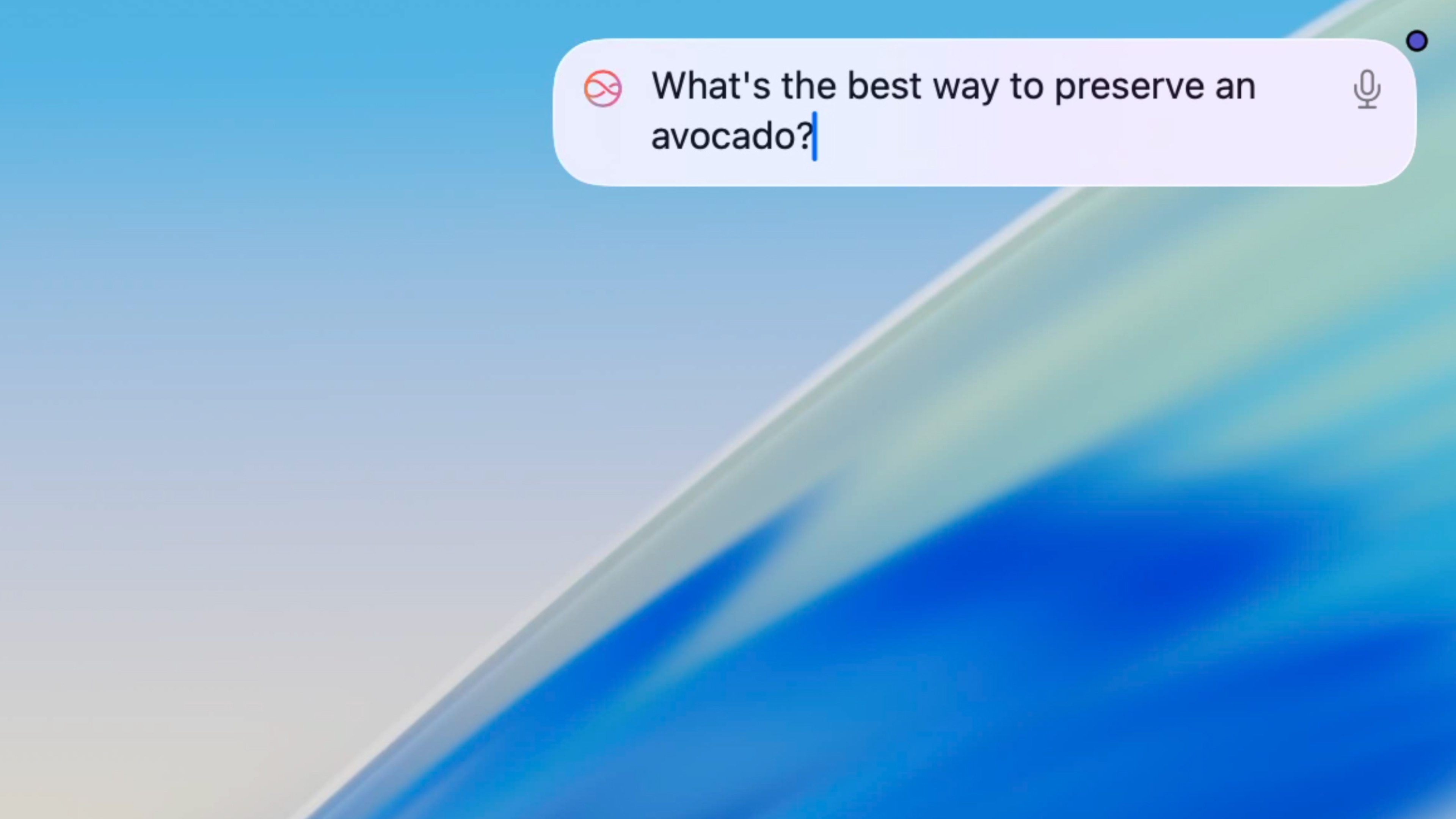
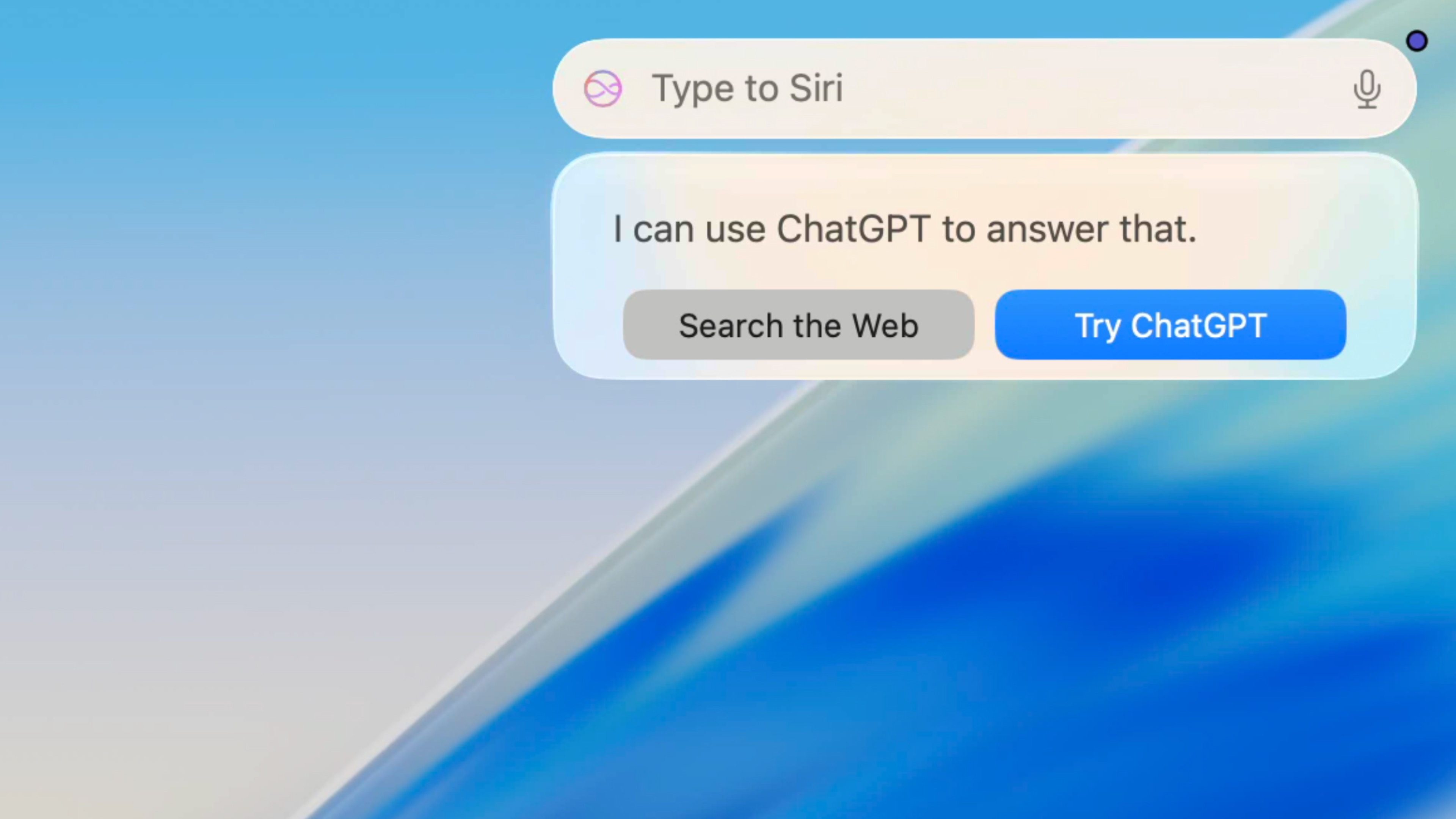
Earlier versions of Siri felt like talking to a machine that required precise syntax. If your wording was off, the request might fail or yield incorrect details. The updated Siri now handles open-ended questions, such as “What’s the best way to preserve an avocado?”, with ease. In macOS 26, Siri would shift to ChatGPT for answers, but in macOS 27, it responds directly.
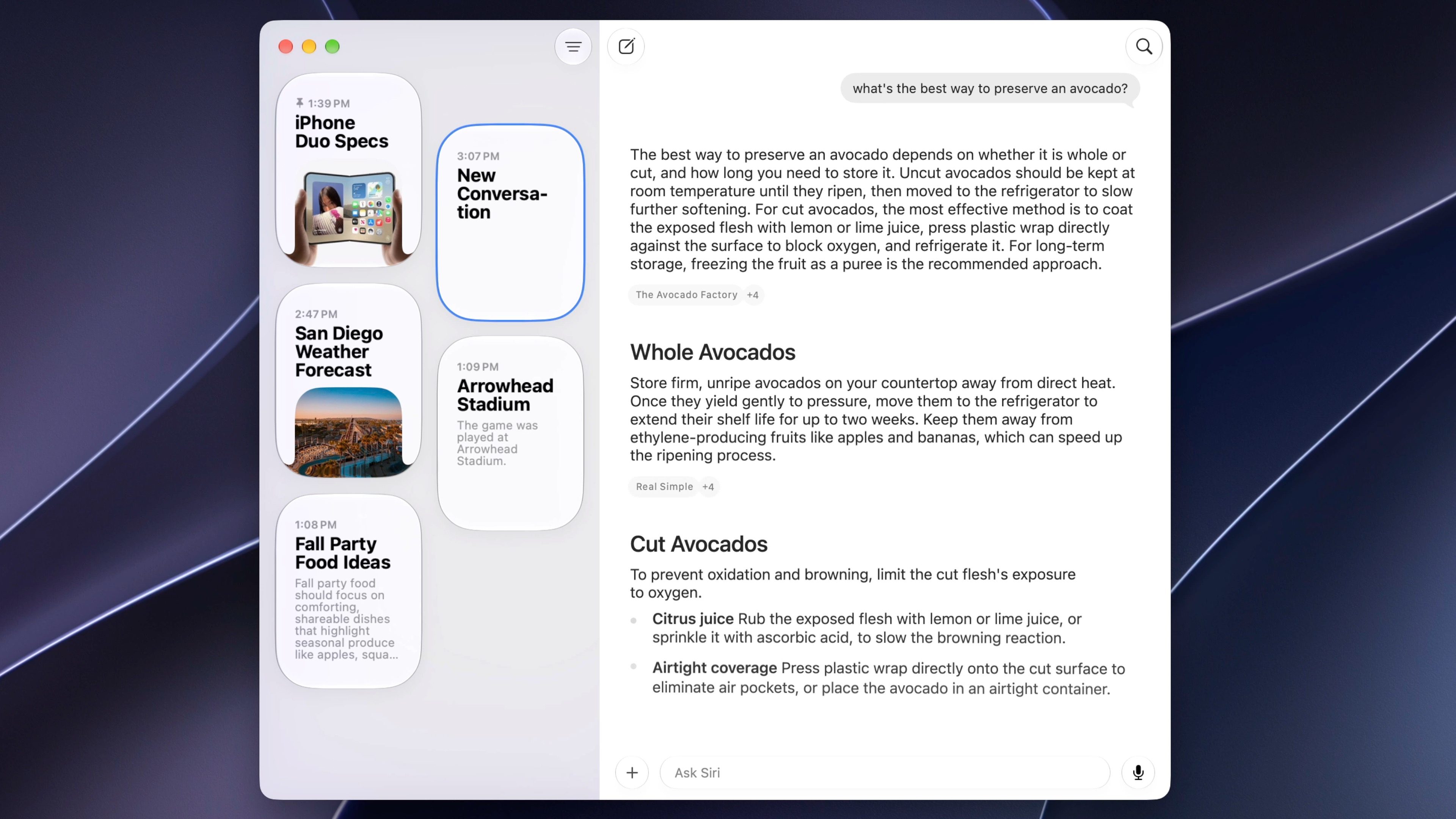
Overall, I’ve noticed it’s much simpler to speak or type and hold a conversation without worrying about exact phrasing. And because Siri retains context from previous exchanges within the conversation, you can now share back-and-forth banter that feels more natural and human-like.
Broad world knowledge
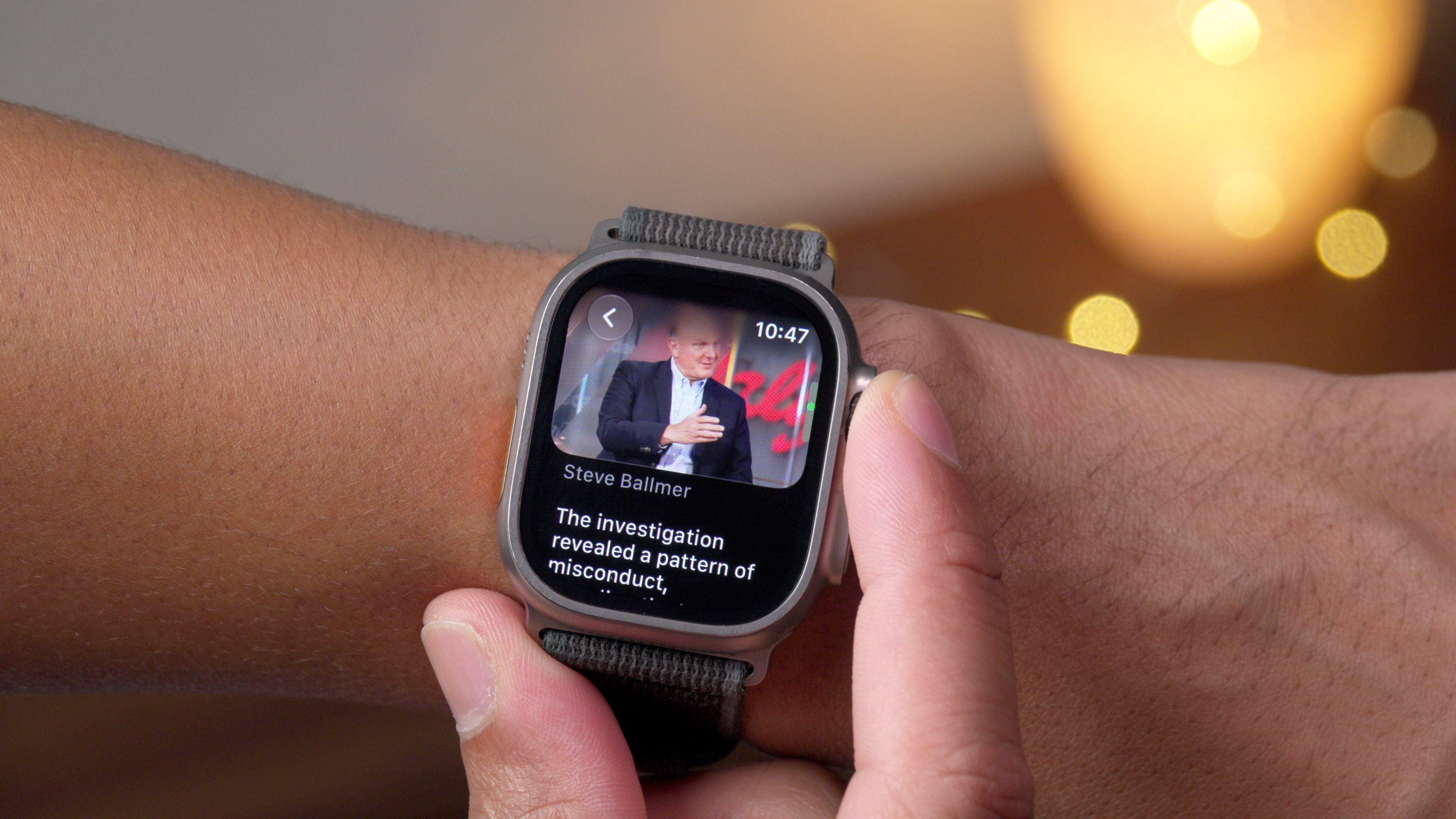
Siri can now draw on broad world knowledge to reference current online information. For example, I might ask Siri “Why was Steve Balmer suspended from the NBA?,” and it will provide the relevant details about the Clippers and the salary cap circumvention involving Kawhi Leonard. Previously, Siri would have redirected me to ChatGPT to try to find the answers.
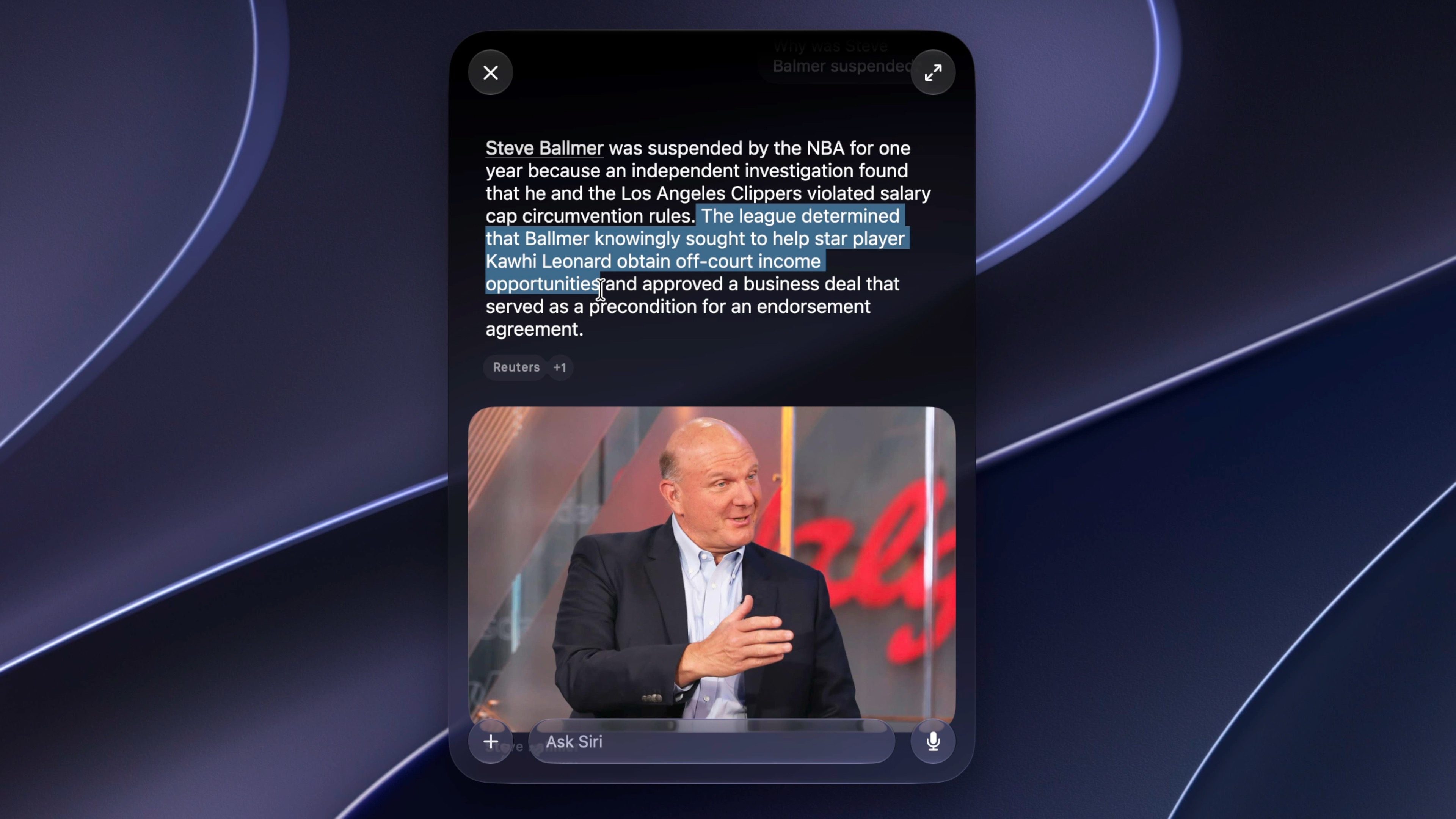
This adjustment effectively balances Siri with other AI assistants such as Claude or ChatGPT. Siri can now share knowledge across nearly any topic, supply research details, and assist with brainstorming, all drawing on recent web information.
Personal context
Currently, Siri cannot cross reference exchanges stored in the dedicated app from a different session; it lacks a “memory” like Claude and ChatGPT, which develop profiles for later use. Siri does, however, use context from everything you have said in the present conversation.
A workaround involves using a note in the Notes app to assemble a personal profile. You can add details to notes that you want Siri to consider in future queries.
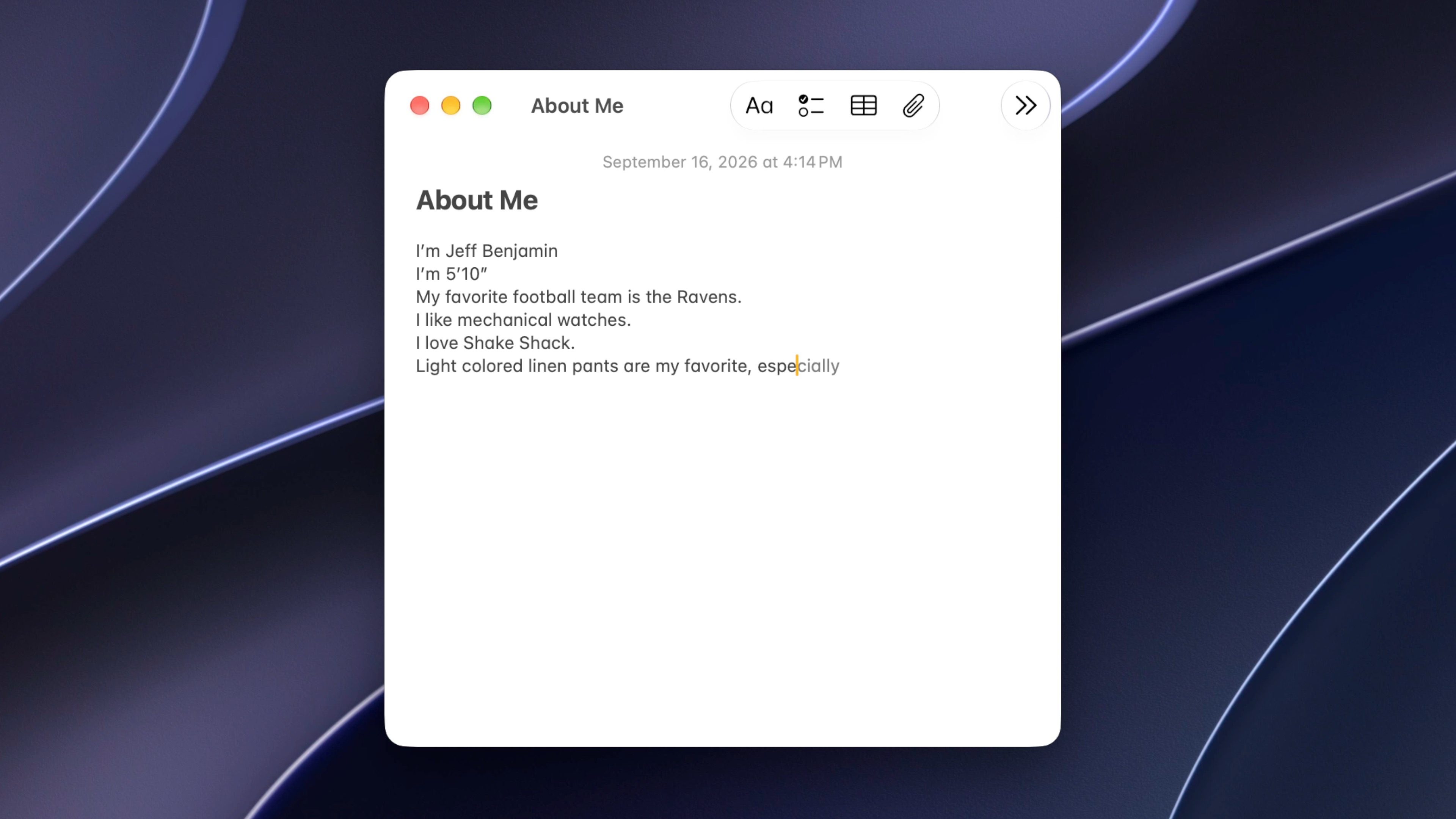
What gives Siri AI its strength and distinguishes it from rivals is its capacity to draw on personal context from the content inside the apps you use like the aforementioned notes example. Siri can readily gather context cues from photos, email, text messages, notes, calendar entries, and other sources, then answer your request using information located within those areas.

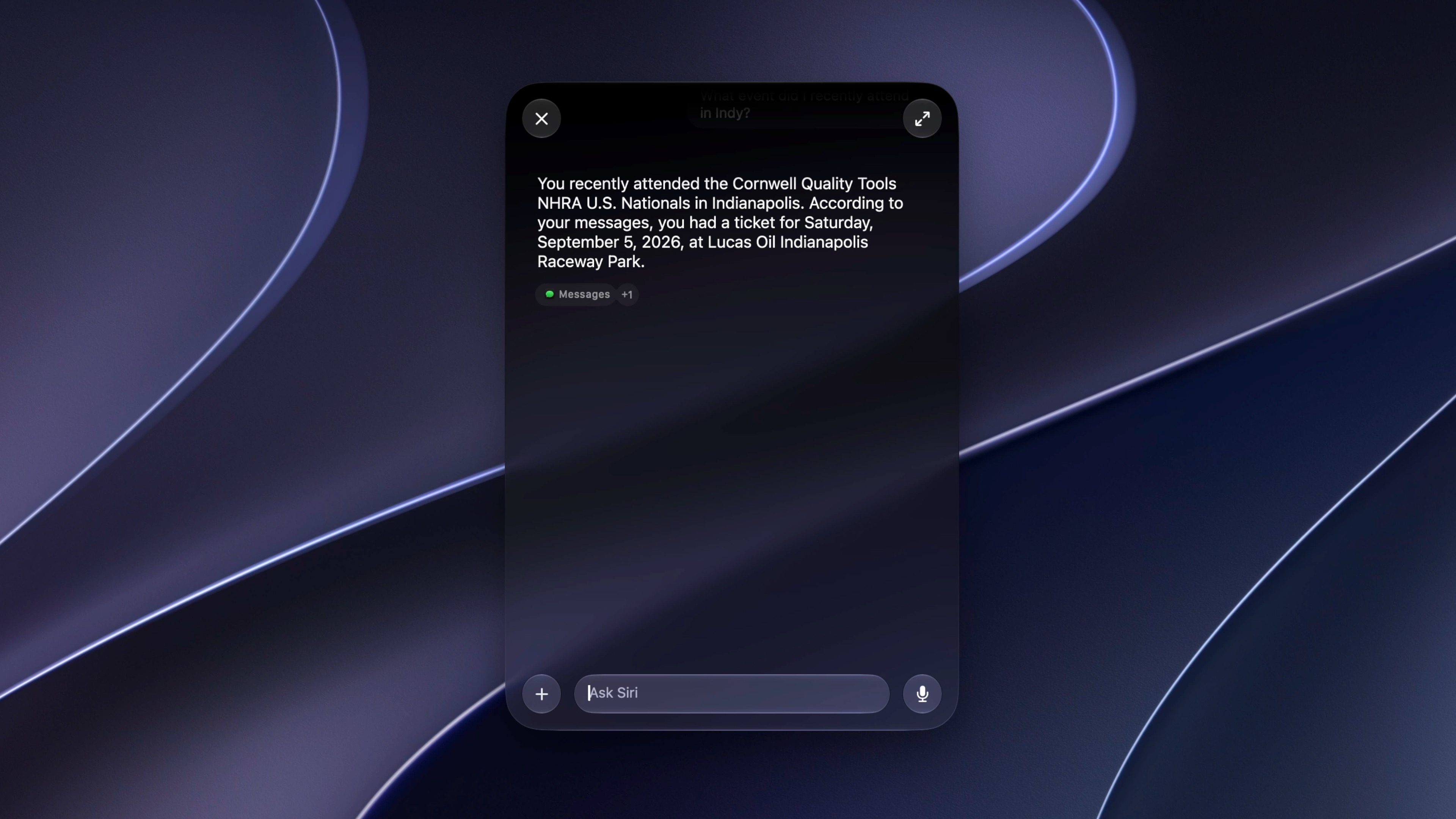
Here are a few example queries that I used to pull information from other apps:
- What event did I recently attend in Indy?
- Show me the photos of the cat with the yellow collar within the last month.
- I’m looking for my contact lens order number from October 2024.
- What basketball coach were we just talking about on a group chat?
- Show me my photos from Santa Barbara.
Actions, Visual Intelligence and on-screen awareness
In macOS 27, Siri uses Apple’s Shortcuts framework to perform tasks inside apps. You could ask Siri to add a song from a now-playing YouTube video to your music library. You might highlight text and request a reminder. You can also edit an image in the Photos app with precise Siri commands.
Building on the actionability of the new Siri, new Visual Intelligence features allow the assistant to view your screen and act on details through the screenshot interface. By pressing Shift-Command-5 and selecting the Visual Intelligence button, you can highlight any content and run either a Siri query or an image search on the selected information by clicking the nearby Siri button.

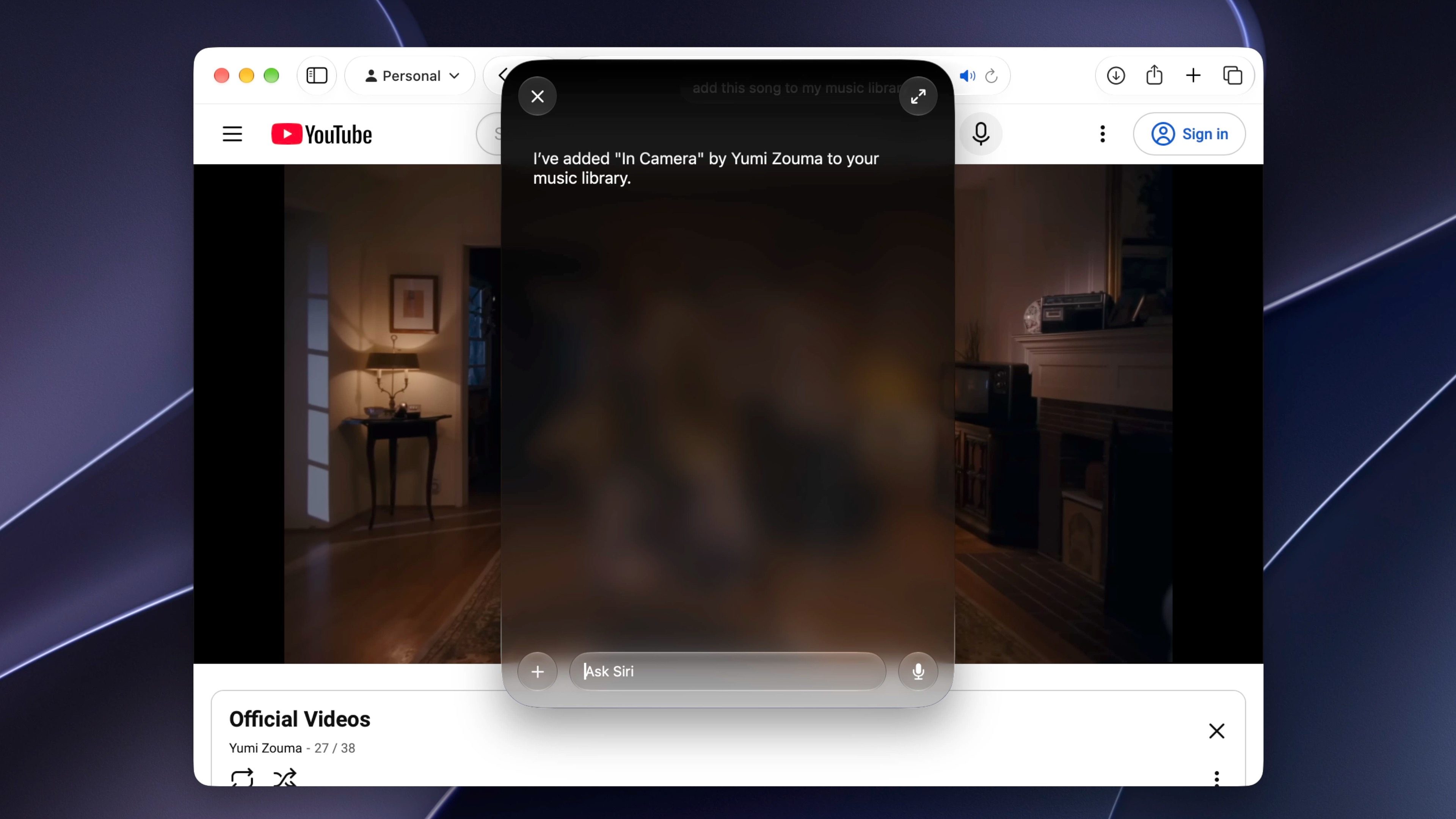
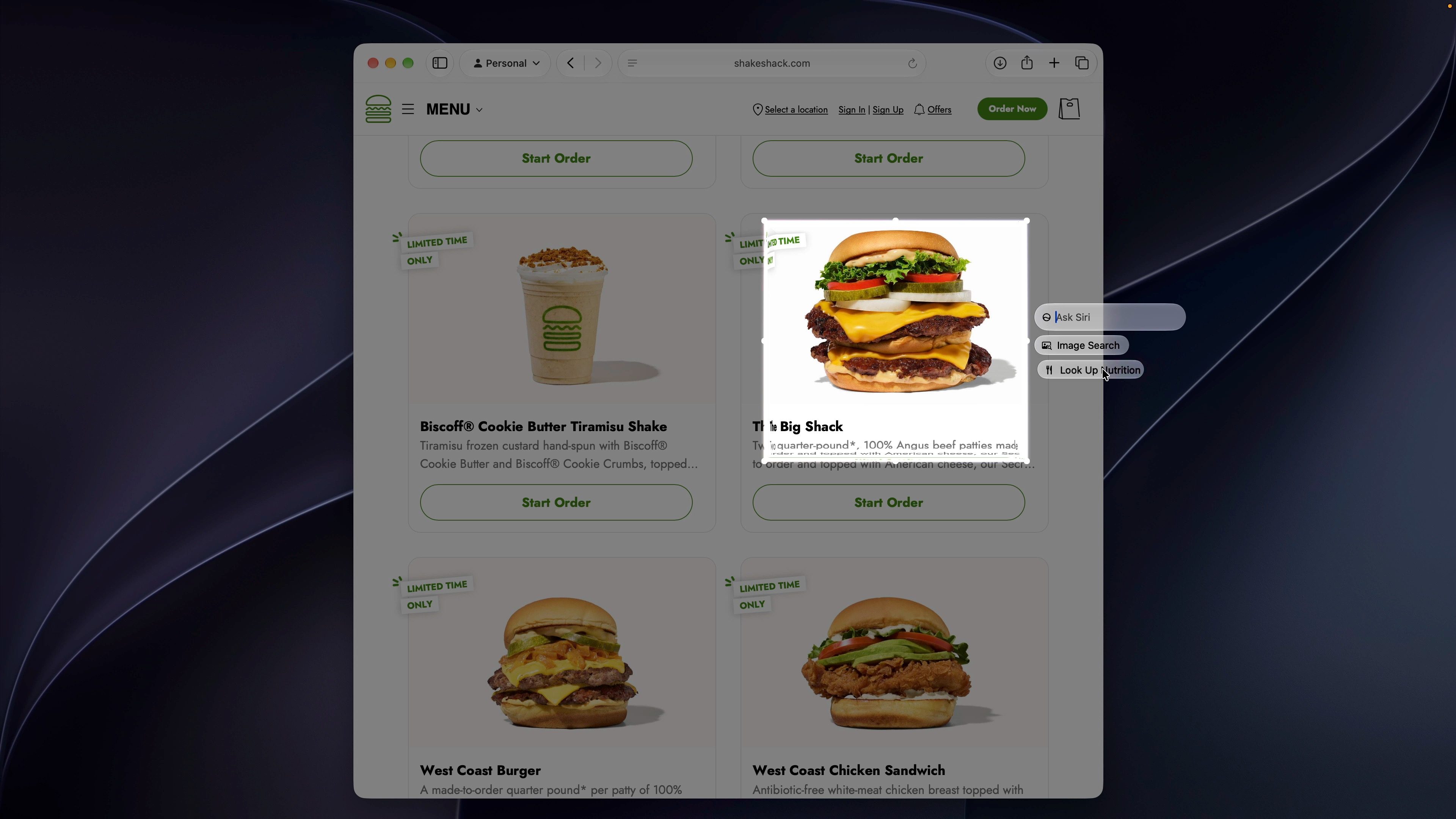
Shift–Command–Space selects and adds your active window’s context, allowing you to ask Siri or act on what appears on-screen.
Shift–Command–6 opens a crosshair tool that lets you choose a particular area for Siri AI to examine or search.
Here are a few example queries that you can use with on-screen awareness:
- What’s the nutritional value of this?
- Summarize this article
- Add this to my music library
- What actress is this?
- Give me directions here
Write with Siri anywhere
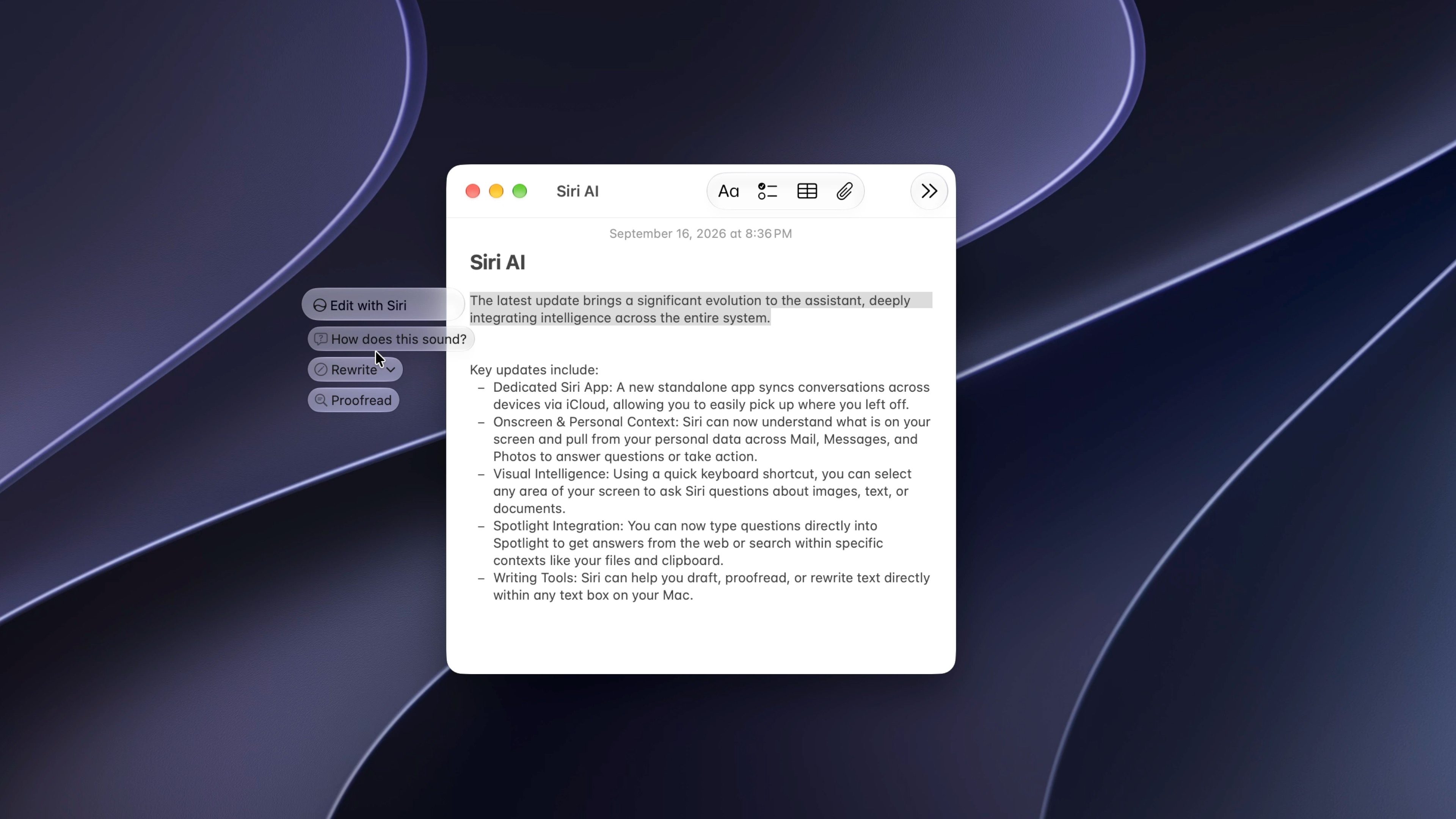
Siri can draft content from the start or provide feedback on existing text across most applications. You can open the right-click menu, choose Ask Siri, and type your prompt. Siri AI also aligns tone and style in apps such as Mail and Messages to maintain a consistent voice.
9to5Mac’s Take
Indeed, Apple finally did it. Siri is good, and not just on the iPhone, but on the Mac as well. Apple’s long-tenured assistant is finally good enough to use on purpose, and not just by accident. With its dedicated app, attention to personal context, broad world knowledge, and conversational chats that support open-ended questions, Siri is no longer a joke of an assistant, but a powerful tool that Mac users should be proud to have. It’s unfortunate that it took this long given that Apple was a pioneer in this segment, but better late than never, no?
Jeff’s favorite Mac accessories:
FTC: We use income earning auto affiliate links. More.