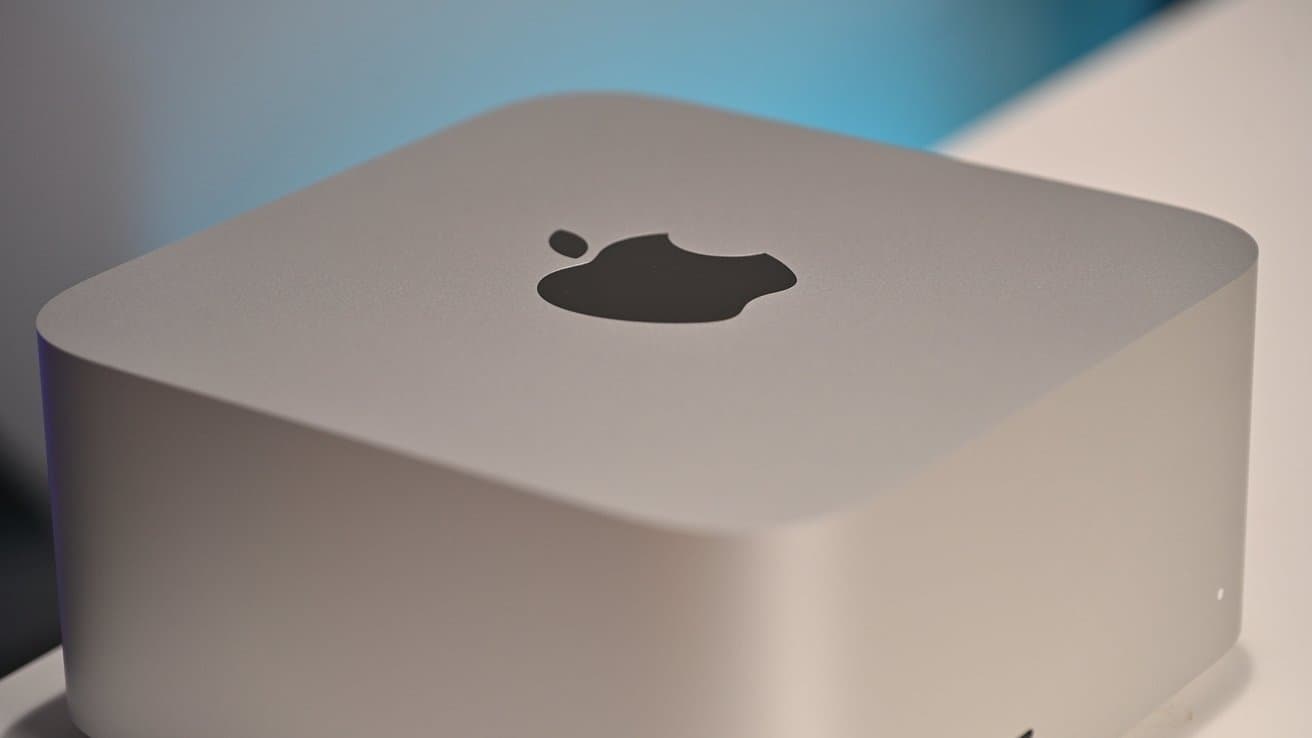
Apple kept the new M6 and M5 Pro Mac mini at three external displays, but increased the maximum refresh rate, and gave M5 Pro support for connecting all three through one Thunderbolt port.
The Mac mini models were introduced August 25 and will be available September 22. M6 replaces M4 in the standard model, while M5 Pro succeeds M4 Pro in the higher-performance configuration.
Both chips support one display at up to 8K at 60Hz, 5K at 120Hz, or 4K at 240Hz. They also support variable refresh rates, HDR, and multichannel audio.
The differences emerge as more monitors are connected. Apple's published specifications show that M5 Pro maintains higher limits across two or three displays, while M6 assigns lower limits to the additional screens.
The models are not shipping yet, so the configurations represent Apple's stated support rather than results confirmed through independent testing.
M6 Mac mini display support
The M6 Mac mini supports as many as three external displays through its rear Thunderbolt 4 and HDMI ports. The Thunderbolt connections provide native DisplayPort 1.4 output over USB-C.
With two monitors connected, one can reach up to 8K at 60Hz, 5K at 120Hz, or 4K at 240Hz. Apple lists the second at up to 5K at 60Hz over Thunderbolt or 4K at 60Hz over HDMI.
M6 supports two three-display configurations.
- Two displays at up to 6K at 60Hz or 4K at 165Hz, plus one Thunderbolt display at up to 5K at 60Hz
- Two displays at up to 6K at 60Hz or 4K at 165Hz, plus one HDMI display at up to 4K at 60Hz
The third display therefore runs at a lower maximum than the other two. Its ceiling depends on whether it uses Thunderbolt or HDMI.
The comparable M4 models supported two 4K displays at 144Hz alongside a third at 60Hz. M6 raises the first two screens to 165Hz without increasing the three-display limit.
M5 Pro Mac mini display support
M5 Pro also supports three external displays, but its Thunderbolt 5 connections provide native DisplayPort 2.1 output. The connection supports up to 80Gbps bidirectionally and up to 120Gbps when bandwidth is directed primarily toward displays or other high-data devices.
Thunderbolt 5 previously arrived on the M4 Pro Mac mini. M5 Pro uses the connection to support more demanding display combinations.
With two monitors, one can reach up to 8K at 60Hz, 5K at 120Hz, or 4K at 240Hz. The second can run at up to 5K at 120Hz or 4K at 200Hz.
 Apple separately says M5 Pro can connect as many as three displays through one Thunderbolt port.
Three connected displays can each reach up to 6K at 60Hz or 4K at 165Hz. The previous M4 Pro Mac mini supported the same three 6K displays at 60Hz, but its three-display 4K limit was 144Hz.
Apple separately says M5 Pro can connect as many as three displays through one Thunderbolt port. The specifications don't state that every maximum three-display combination is available through every dock or daisy chain.
Expect the best results with a Thunderbolt 5 dock.
Only the rear ports support monitors
Both Mac mini models include one HDMI port and three rear Thunderbolt ports with DisplayPort output. M6 uses Thunderbolt 4 at up to 40Gbps, while M5 Pro uses Thunderbolt 5 at up to 120Gbps.
The two front USB-C ports support USB 3 data transfers at up to 10Gbps, but Apple doesn't list them as display outputs. Monitors and video adapters must connect through the rear Thunderbolt or HDMI ports.
A monitor with USB-C or Thunderbolt input can connect directly to a compatible rear port. DisplayPort monitors need a USB-C-to-DisplayPort cable or adapter, while HDMI monitors can use the built-in HDMI port or a compatible USB-C-to-HDMI adapter.
The Mac, monitor, cable, and adapter must all support the requested resolution and refresh rate. A lower-bandwidth component can leave the display dark or force macOS to use a lower mode.
Docks and daisy chains keep the same limit
Apple says M6 can connect as many as two displays through one Thunderbolt port when used with supported hardware. Its third display needs another video-capable connection.
M5 Pro can connect as many as three displays through one Thunderbolt port. A compatible Thunderbolt dock or display chain can therefore consolidate the setup without raising the Mac's three-display ceiling.
A dock with four video connectors does not give either Mac mini native support for four monitors. The dock must also support macOS and the intended resolution and refresh rate because several HDMI or DisplayPort connectors do not guarantee several independent desktops.
Daisy-chaining sends the connection through a downstream Thunderbolt port on another compatible display. Apple recommends connecting the highest-resolution display first when several monitors share a Thunderbolt connection.
Variable refresh rates require the right connection
Both Mac mini chips support variable refresh rates with compatible Adaptive Sync displays. macOS can match the monitor's refresh rate to changing frame output instead of holding it at one fixed rate.
Apple recommends connecting an Adaptive Sync display through Thunderbolt, USB-C, or another DisplayPort-enabled cable. Its support document advises against using HDMI for Adaptive Sync and warns that some applications may flicker or stutter.
Users can select Variable or Adaptive from the Refresh Rate menu under System Settings and Displays. Apple displays with ProMotion show ProMotion instead of those labels.
 Connecting the display directly to the Mac can determine whether a hub or dock is causing the problem.
HDR and multichannel audio also depend on the monitor or television and the selected connection. Support in the Mac does not add either feature to a display that lacks it.
macOS manages each display separately
System Settings and Displays provides controls for each detected monitor. Users can arrange their positions, extend or mirror the desktop, choose the main display, change resolution, select a color profile, and set an available refresh rate.
Some third-party displays keep brightness, color, input, and HDR controls inside their own menus. macOS only exposes the settings reported by the display and connection.
If a monitor remains dark or loses a supported resolution, Apple recommends checking the power, cable, adapter, and connection at both ends. Connecting the display directly to the Mac can determine whether a hub or dock is causing the problem.