Passkey vs. password: What's the difference and which is better?
Passwords are less secure than passkeys, even if you use a password manager. Here's why and how to get started with passkeys.
Passkey vs. password: What's the difference and which is better?
Passkeys solve many of the problems with passwords, but they aren’t used everywhere yet.
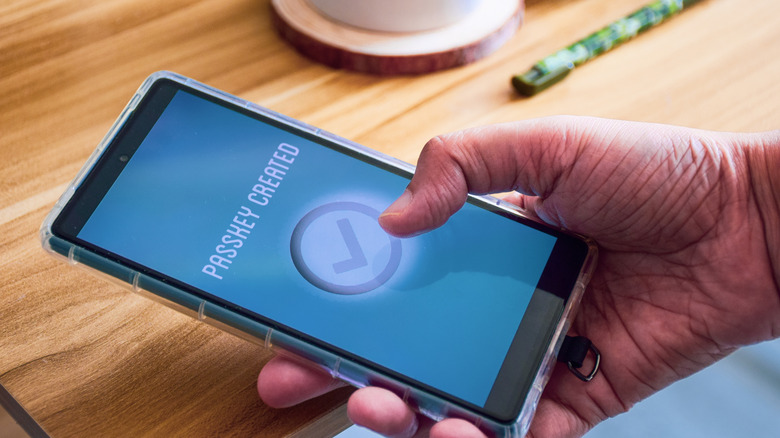
You've likely been prompted to add a passkey to some of your accounts. Passwords are familiar but have many issues, while passkeys offer solid improvements but aren't supported on all sites.
Despite being an upgrade from the old standard in many ways, passkeys have their own quirks to understand. Because they're tied to a device or software instead of something you remember, you must take care not to get locked out of where you've stored them. It's also not as simple to share one in the same way you would give a password to a friend. But for most people, passkeys are well worth using over passwords — especially if you aren't already using a password manager to secure your logins.
Once you understand how they work, moving your online logins to passkeys will save you tedious steps every day. The most important aspect is how you store them; thankfully, most major operating systems and password managers support this option.
How passkeys compare to passwords
First, let's discuss how each one functions. A classic password is a "secret code" of text that authenticates your account. Websites don't (or shouldn't) store these in plain text; that's incredibly insecure because a data breach would expose all login info. Instead, a one-way function is applied to your password that creates a scrambled version, known as a hash. When you enter the correct password, the hashed version is checked against what's in the database, and you log in successfully. There are additional security measures, like "salting" (adding a random string of data to the hash) to make unique hashes of identical passwords, but those are the basics.
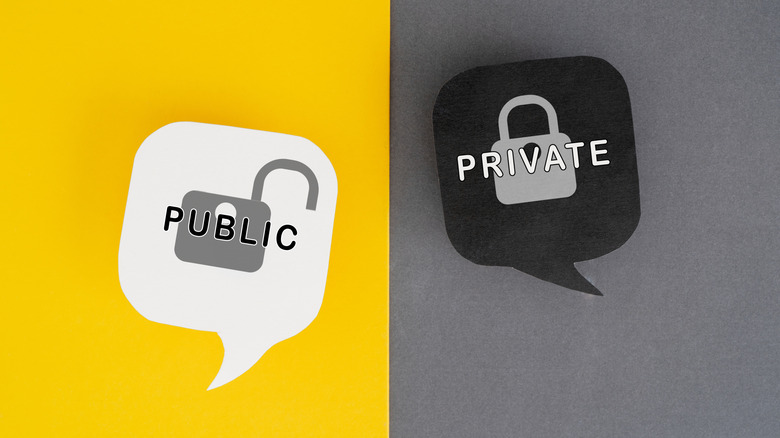
Passkeys don't require you to remember any text. They rely on two keys: a public key the website stores and a private key held on your device. When you try to log into your account, the website asks you to confirm using the passkey stored on your phone or PC. These keys are kept in a secure part of your phone's storage and use your device's existing authentication method (like Face ID, Windows Hello PIN or fingerprint scanner). You don't have to remember anything, except your device's PIN if biometrics fail.
If public and private keys feel abstract, think of them like a locked mailbox. Anyone can drop mail in the public slot (a letter asking you to prove who you are), but only the owner with the key can unlock it (to "sign the letter" authenticating yourself). Seeing the mailbox doesn't give you any clues to what the key is. And in the case of passkeys, there are two additional layers: The key on your device is safely kept behind biometrics, and it's engineered to never work with a fake mailbox (phishing site).
This is another reason to set strong lock screen security on your phone or computer. While biometrics are the best mix of convenience and security, you don't want a PIN of "1234" being the gate to all your logins.
Weaknesses of passwords that passkeys solve
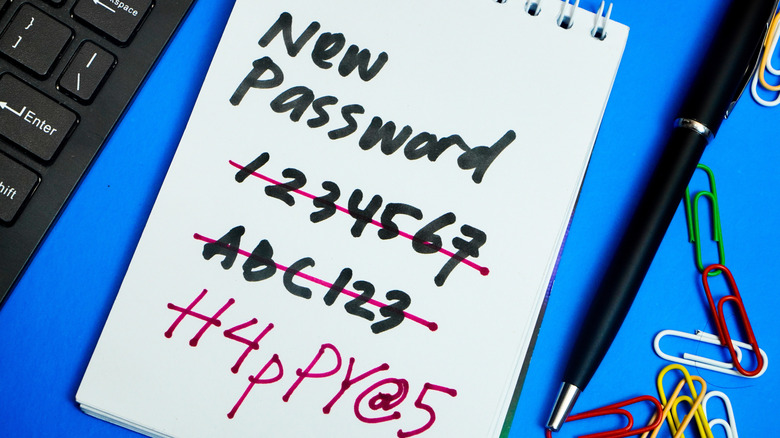
You've likely dealt with the flaws of passwords for many years. Because it's a burden to create and remember unique, strong passwords for every service, many people use the same poor passwords across sites. Malicious actors can trick you into handing over your password or entering it into a fake website. And even though the data is (hopefully) scrambled in storage, attackers still have methods to decode or utilize what they recover from data breaches.
Password managers help with a lot of these problems, but they aren't perfect. You can store weak credentials in the manager, paste strong passwords into an imposter site, or forget your master login. Passkeys fix more of the root issues. You can't create a "weak" passkey because the standard is inherently strong. Importantly, they also cannot be used on the wrong site. Creating a passkey inherently ties it to a specific domain, so even if you open an imposter page, you can't "hand over" your credential like you would a password. This also means reusing them isn't possible.
Passkeys also pass the "something you have" and either "something you know" or "something you are" security checks simultaneously. Because they require a trusted device plus a PIN or face/fingerprint, there's less need for a second step like traditional two-factor authentication. And when data breaches occur, passkeys offer nothing to steal since public keys are already just that: public.
Get started with passkeys
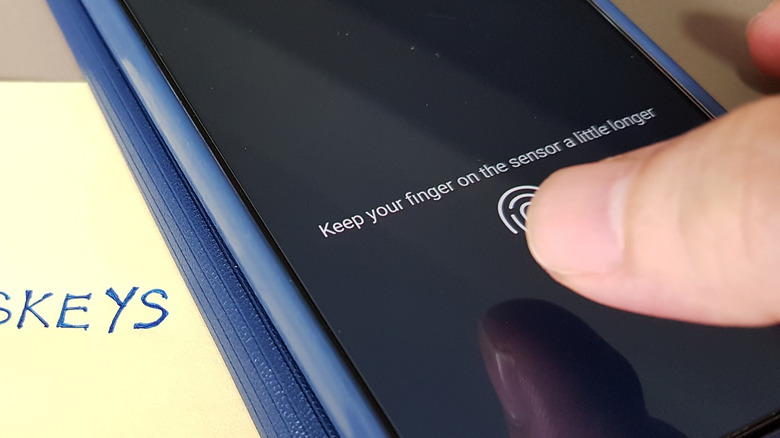
If you haven't tried passkeys yet, open the settings page for any online account and look for a Security or Login section. Services that support passkeys will guide you through creating one after using the appropriate toggle.
When making one, you must choose where to store it. By default, macOS and iOS will store them in Apple's Passwords app. Android uses Google Password Manager, while Windows 11 keeps them on your device under Settings > Accounts > Passkeys. Linux doesn't have native support yet. However, I recommend keeping your passkeys in a good password manager instead, especially if you use devices across ecosystems.
Having all your passkeys in Apple Passwords is a hassle when you need to sign in on your Android phone, for instance. Some services allow you to scan a QR code on the device containing your passkey to sign in on another, but this isn't efficient. Sharing passkeys with trusted people is only feasible with shared vaults in password managers, and having the software synced to multiple devices prevents loss if a device stops working. A dedicated password manager is still a comprehensive tool for your online security, since many services don't offer passkeys yet. If you want to go hardcore, you can also store passkeys on a physical security key like a YubiKey.
Once you create a passkey, you can use it for future logins. When trying to sign in, you'll see a prompt to use it by authenticating with your device, which only takes a moment. Depending on the service, the passkey might replace your password or supplement it. Make sure you've set a strong password in the latter case, since your account is only as strong as the weakest login method.
Originally published on Engadget