Apple's accessibility settings are often overlooked, but many of them double as practical workflow tools that can speed up everyday tasks across iPhone.
When it first launched in 2007, the iPhone became an immediate target for criticism. Its touch-based interface was seen as exclusive of users with no or low vision.
However, when 2009 rolled around, Apple was ready to start adding in features that were geared towards low-and no-vision users. This included VoiceOver, Zoom, and color inversion.
Most people didn't care about the feature, but for users without perfect eyesight, this told them that Apple was at least trying. This would mark the start of Apple's first-party approach to increasing the usability of the iPhone.
In 2010, FaceTime — while not an accessibility feature — gave the hard-of-hearing and no-hearing community the ability to communicate via sign language. 2010 also saw the introduction of LED flash alerts.
When the iPhone 4s came out, it included something never before seen on the iPhone: a voice assistant. While Siri isn't explicitly an accessibility feature, voice commands are often utilized by those with physical disabilities or low vision.
When iOS 6 was released in the fall of 2012, Apple brought a slew of new accessibility features. However, this time they weren't geared towards those with low vision or hearing.
Instead, Apple was offering solutions for those who had physical disabilities. Assistive Touch gave users with motor delays the ability to bind gesture-based actions to a single digital button that could be tapped instead.
It wasn't all good, though, as MacStories points out. In 2013, iOS 7 was released with a major redesign that made it more difficult for visually impaired users to interact with.
It quickly course-corrected, adding in new features like Button Shapes, Reduce Motion, and On/Off labels. It also introduced Increase Contrast, Bold Text, and refreshed Larger Text.
Accessibility features have improved over the years
These were far from the only tools that were added in, but for a time after, most of the upgrades were cosmetic or revolved around improving existing features.
But, as it turns out, these features aren't just useful for some people — they can be useful for everyone. Accessibility features can make using your iPhone more streamlined and less involved, helping you to improve your workflow.
Here are some of our favorite features and how to incorporate them.
Back Tap
Probably the most underrated iPhone feature, Back Tap essentially gives you two entirely new buttons on your iPhone. Designed to initially help users who may not be able to easily swipe or pinch, Back Tap has nearly endless options.
You could go the simple route and assign it to launch apps or perform common gestures like scrolling up or down. You could also create a shortcut and use it to do just about anything your phone is capable of.
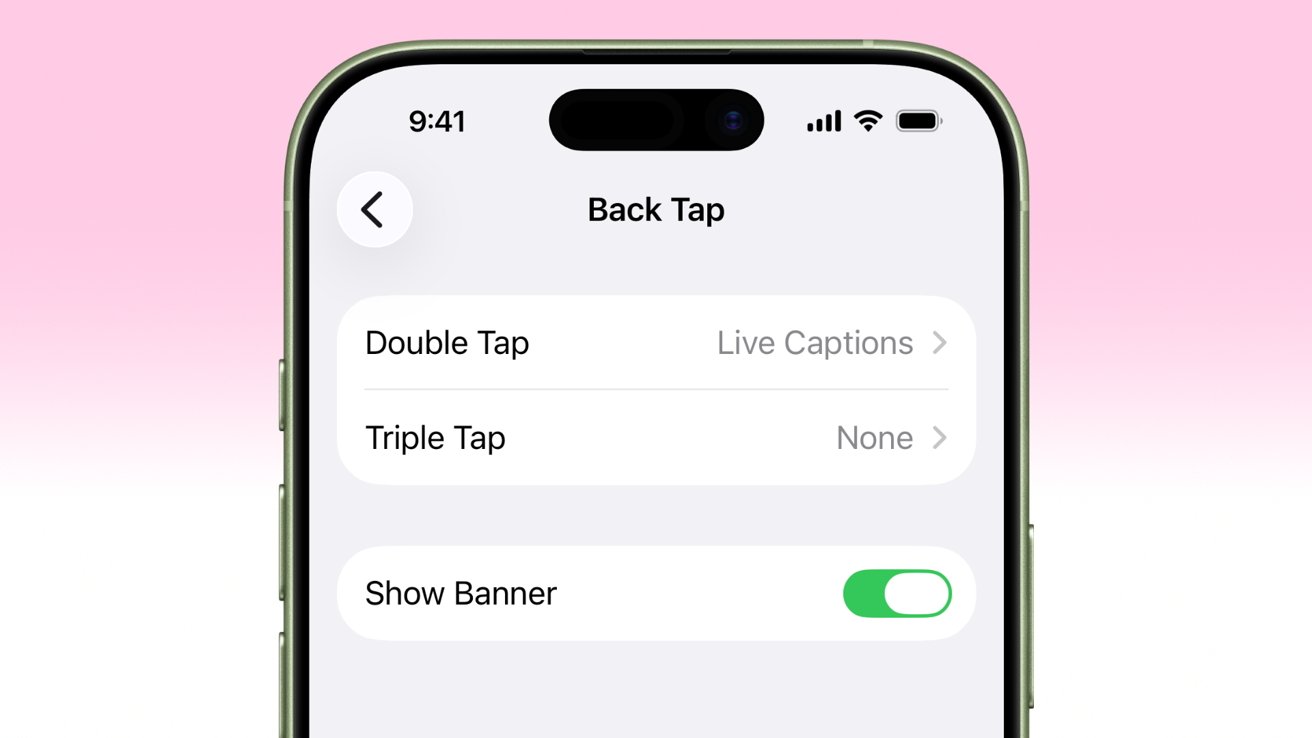
Set up commands for Back Tap
I like using it for automating home lighting scenes. A simple double press can activate my favorite scene, while a triple tap can turn the lights off entirely.
- Open Settings
- Tap Accessibility
- Tap Touch
- Tap Back Tap
From there, you'll be able to select what a double-tap or triple-tap does.
Voice control
Using voice control is a game-changer if you're someone who finds your hands full or otherwise occupied. It takes a little getting used to if you want to use it in your workflow, but it's worth the effort.
Voice control allows you to control UI elements without touching your screen, and it also makes it easier to hit any elements that are hard to tap. Personally, I think it's ideal if you need to use your phone while cooking or crafting, but the sky's the limit, really.
- Open Settings
- Tap Accessibility
- Tap Voice Control
Once in the submenu, you'll be able to follow the instructions to set up Voice Control. There's even a handy tutorial if you need help familiarizing yourself with the features.
Assistive Touch
If you've ever dropped your phone and smashed the screen in, you may have already utilized Assistive Touch. Assistive Touch is a draggable button that allows you to replace certain actions, like opening Control Center or taking a screenshot, with a one-button tap.
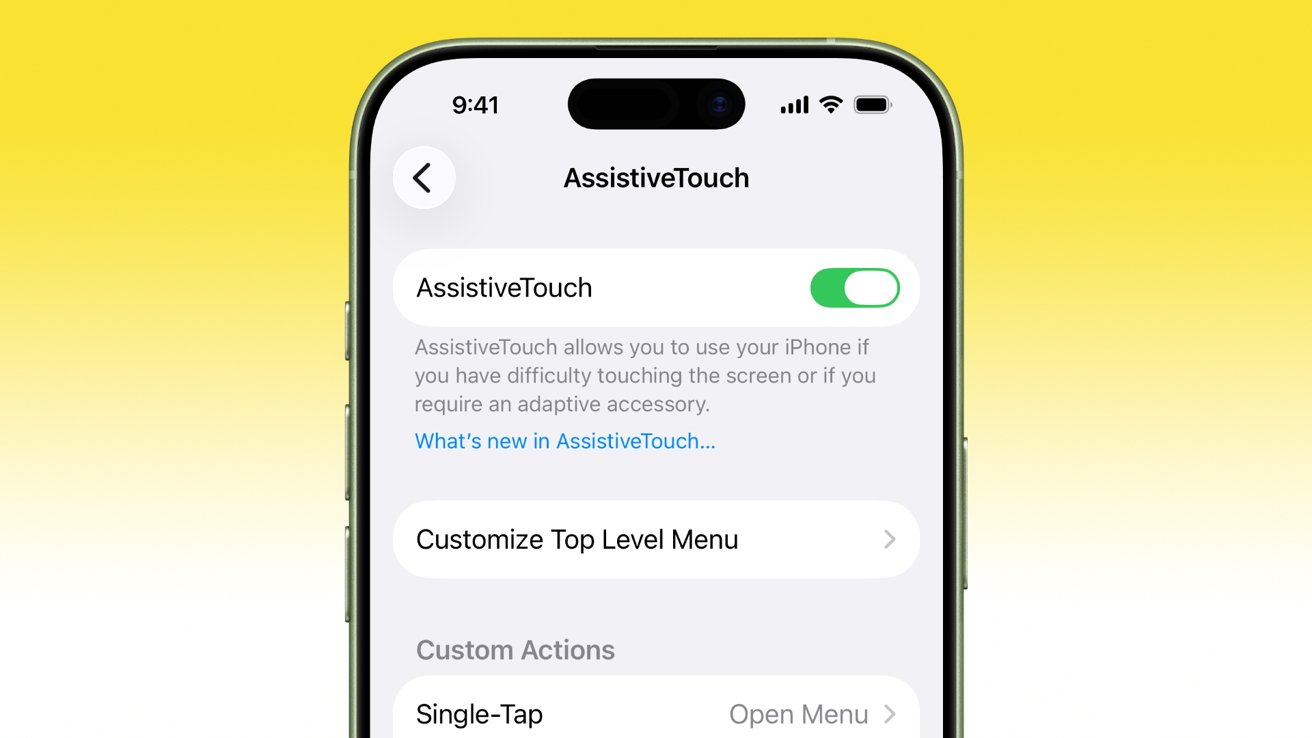
Assistive Touch is likely the most robust accessibility feature on iPhone
- Open Settings
- Tap Accessibility
- Tap Touch
- Tap Assistive Touch
- Toggle on Assistive Touch
Like back tap, there are multiple options for Assistive Touch. This is one of the most customizable features by far.
Live Captions
Live Captions allow you to create captions out of thin air, which honestly feels a bit like a magic trick. It's not a perfect technology by any means, but it still is pretty nice to have on deck.
While working, it gives you a good way to follow content without needing to have your volume up or your headphones in. If you have an auditory processing disorder, which is common with both dyslexia and ADHD, it also doubles as a good way to make sure you don't miss any fine detail.
- Open Settings
- Tap Accessibility
- Tap Live Captions
You can toggle on and off Live Captions on this page. You can also set whether call captions are kept for one minute or one hour after a call.
Flash for Alerts
If you tend to be far away from your phone or work in an area where sound alerts may be inappropriate, you can always utilize the Flash for Alerts feature. Once enabled, your iPhone will either flash the screen, the LED flash, or both upon receiving alerts.
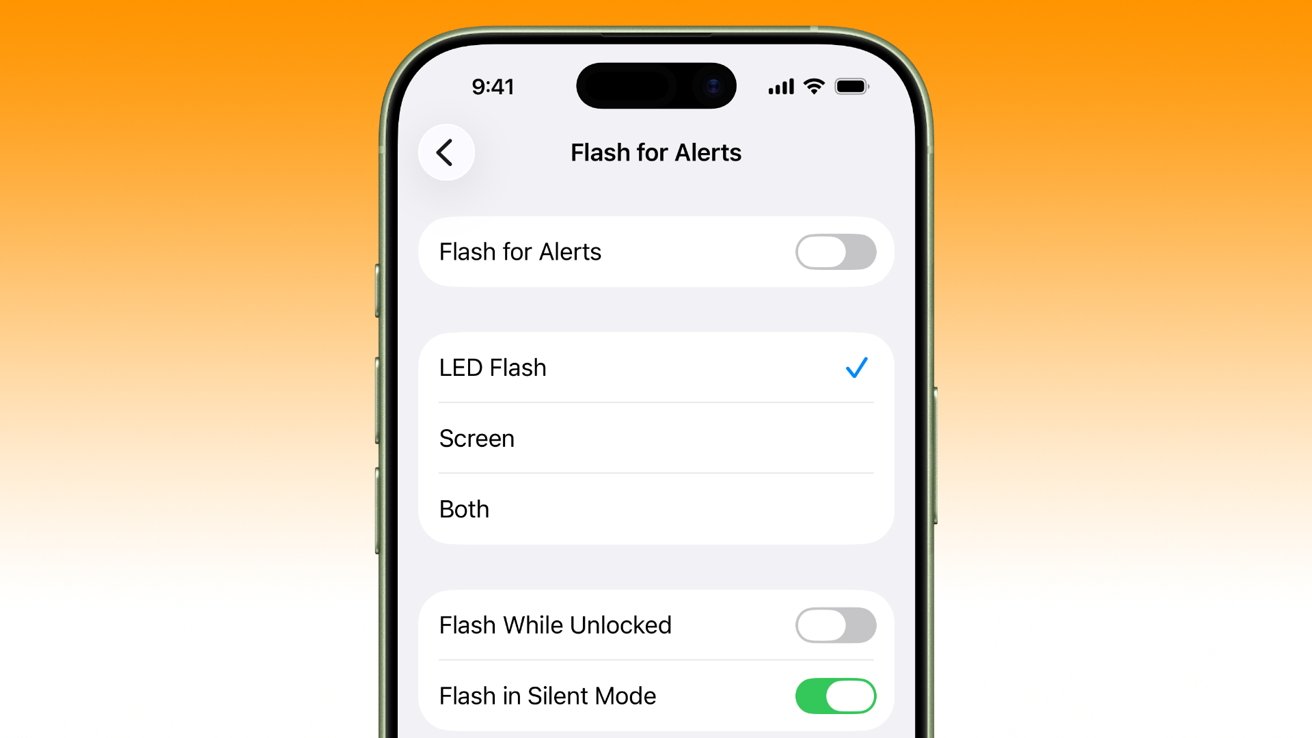
Flash for alerts
- Open Settings
- Tap Accessibility
- Tap Audio & Visual
- Tap Flash for Alerts
- Toggle on Flash for Alerts
Once toggled on, you'll be able to customize which flash option you would like to use. As a reminder, this may not be appropriate in all places — especially if you are not hearing impaired.
Speak Screen via Read & Speak
In contrast to live captions, you can also turn your iPhone into a really solid narrator. Speak Screen is one of those tools that seems like it wouldn't be terribly useful until you start using it.
You can use it to listen to long articles or reports, rather than sitting down to read them. This is a perfect solution to catching up on work while traveling or starting your day a little earlier on your morning commute.
- Open Settings
- Tap Accessibility
- Tap Read & Speak
- Tap Speak Screen
Once enabled, you can trigger a voice to read your screen by swiping down with two fingers from the top.
Magnifier
This is an honorable mention, even though it's not expressly an accessibility option anymore. Since iOS 14, Magnifier has become a standalone app and is seen more as a utility.
If you find yourself struggling to see small text or physical objects, Magnifier is an excellent tool to have on hand. It allows you to use your iPhone camera in place of a traditional magnifying glass.
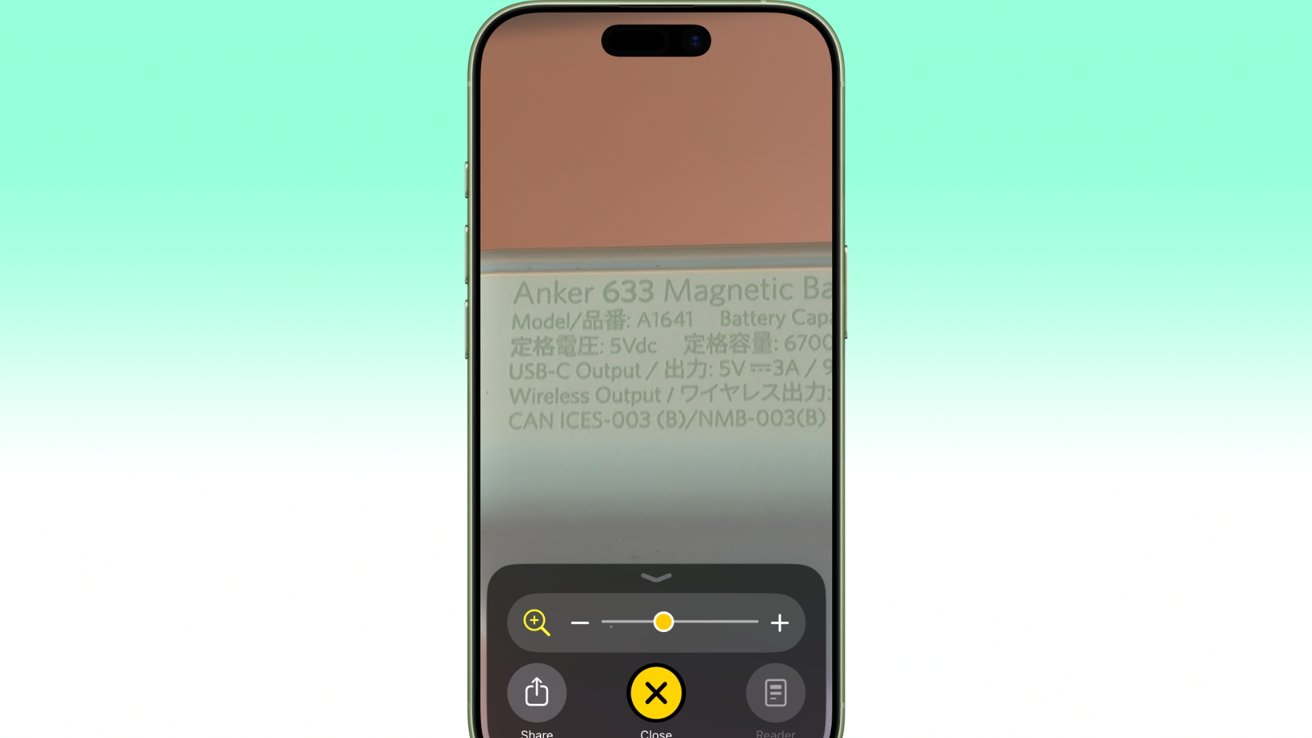
Use magnifier to look at fine detail and small print
There's a dedicated community of iPhone users who seem to love it for reading the print on printed circuit boards. It's also just handy to keep on deck if you find yourself without your glasses.
Pairing the magnifier with another accessibility option, like back tap or assistive touch, makes it even more useful.
You may already have Magnifier installed on your phone. If not, you can download it from the App Store.