You’re happily listening to music on your AirPods when the audio suddenly gets yanked away by a Bluetooth speaker. Don’t get frustrated. Make a quick tweak to your iPhone settings, and it’ll never happen again.
Here’s what to do.
Great iOS feature helps your AirPods and Bluetooth speaker get along
This iOS update fixes a longstanding annoyance by giving you a smarter way to prioritize your preferred headphones. Change a single setting, and you can make your iPhone audio work the way you want it to. And that means no more diving into your phone’s Bluetooth settings every time your AirPods audio gets hijacked.
It’s undeniably irritating when the song or podcast you’re listening to on your AirPods abruptly stops playing in the earbuds and instead starts blasting out of a wireless speaker against your will. But there’s a good reason for it: Apple set up rules for your iPhone’s audio handling, and for many people, the default setting works just fine.
iPhones follow a “most recently active” audio-route logic. When a new Bluetooth audio device powers on or signals that it’s available, iOS treats it as the freshest output option. The iPhone thinks “the user probably wants to use this,” and starts sending audio to it, even if you’re actively using your AirPods.
In many situations, this makes sense. But not always. Sometimes other people turn on a Bluetooth speaker nearby so they can use it, and — surprise! — your iPhone switches to it. This can be especially frustrating if you and a housemate share a Bluetooth speaker but frequently listen to different things at the same time.
Or perhaps you just climbed into a car. Most modern automobile audio systems automatically connect and take over when the driver turns on the ignition. The car just assumes that’s what everyone wants. But that might not be the case if you’re a passenger.
How to access iPhone’s ‘Keep Audio with Headphones’ setting 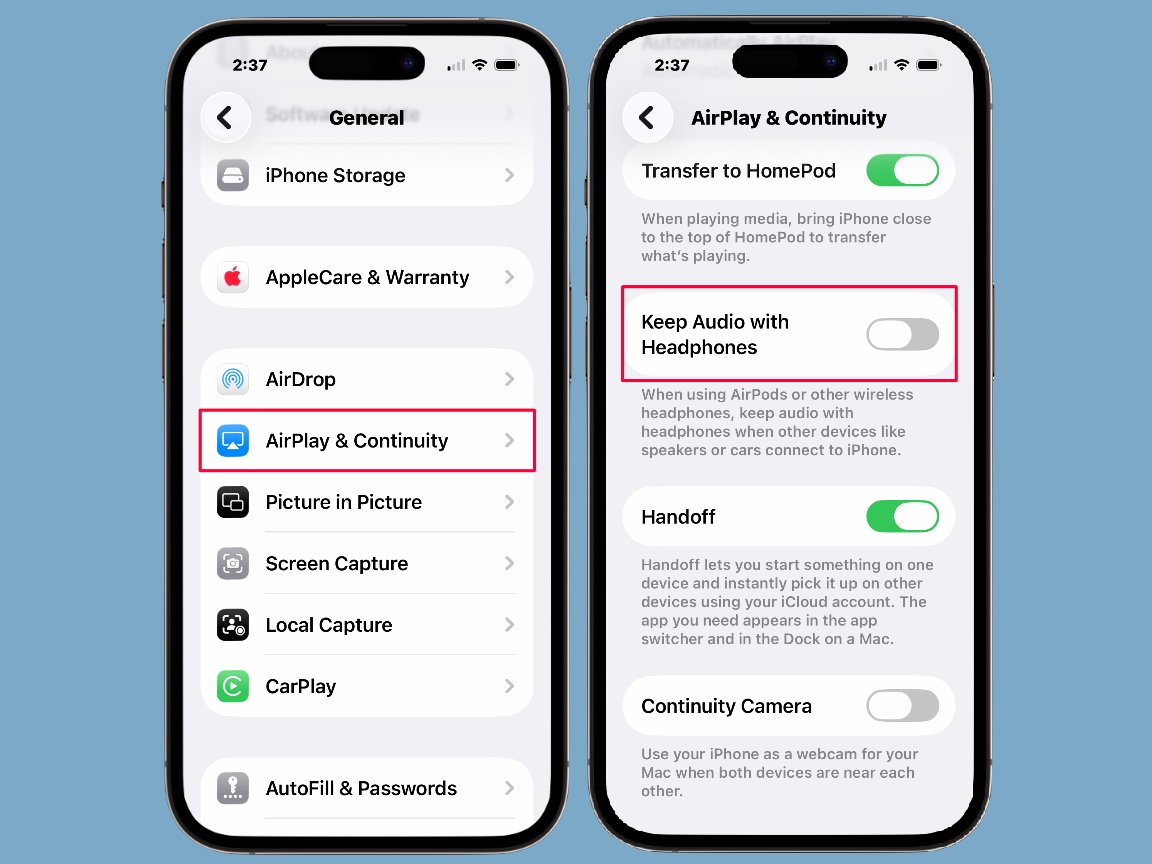
A setting, added in iOS 26.1, gives you more control over routing audio to AirPods or a Bluetooth speaker.Apple understands your frustration — and served up a workaround in iOS 26.1. If you’re running that operating system or newer, you can toggle a single switch, and your iPhone will keep streaming to your AirPods, no matter what Bluetooth speakers come along.
To get started, open the Settings app on your iPhone. Tap General, then scroll down to AirPlay & Continuity. Tap on it.
You will find the option you want there: Keep Audio with Headphones. It’s off by default. Toggle it on.
As Apple says, flip this switch because you want this behavior: “When using AirPods or other wireless headphones, keep audio with headphones when other devices like speakers or cars connect to iPhone.”
And there, you’re finished. Or maybe you want to make the same change on your iPad next. Whichever, happy (frustration-free) listening.
We originally published this post on how to stop a Bluetooth speaker or car audio system from hijacking AirPods on November 7, 2025. We updated it on July 26, 2026.