The new Photos app in iOS 27 clearly did not get the memo that this was a small year of bug fixes and performance improvements. While it is faster and more stable, there are tons of excellent new features top to bottom. Sorting through the largest photo libraries will be easier than ever in iOS 27.
Here are all the new features you can look forward to — or, if you’re daring, try out now.
All 11 new features in Photos
Photos is one of the most essential apps on your phone. It’s the system’s built-in app for browsing the pictures and videos you take. Any shots you take on your iPhone sync to your Mac and iPad, too, where you can browse your library on a big, expansive screen.
Any improvements to the Photos app are a welcome change. After updating to iOS 27, due this September, all sorts of common tasks will be nicer and easier. Here’s how.
Table of Contents:
- Save video frame as a photo
- Star ratings
- Custom keywords
- New collections for your own photos and IDs
- Sync Immediately setting
- Many improvements to shared albums
- Put your pet — or yourself — in your Photo Shuffle
- Customizable slideshows you can save for later
- Keep track of your selection
- Better performance
- Improved search
- More new features in the OS 27 updates
Save video frame as a photo
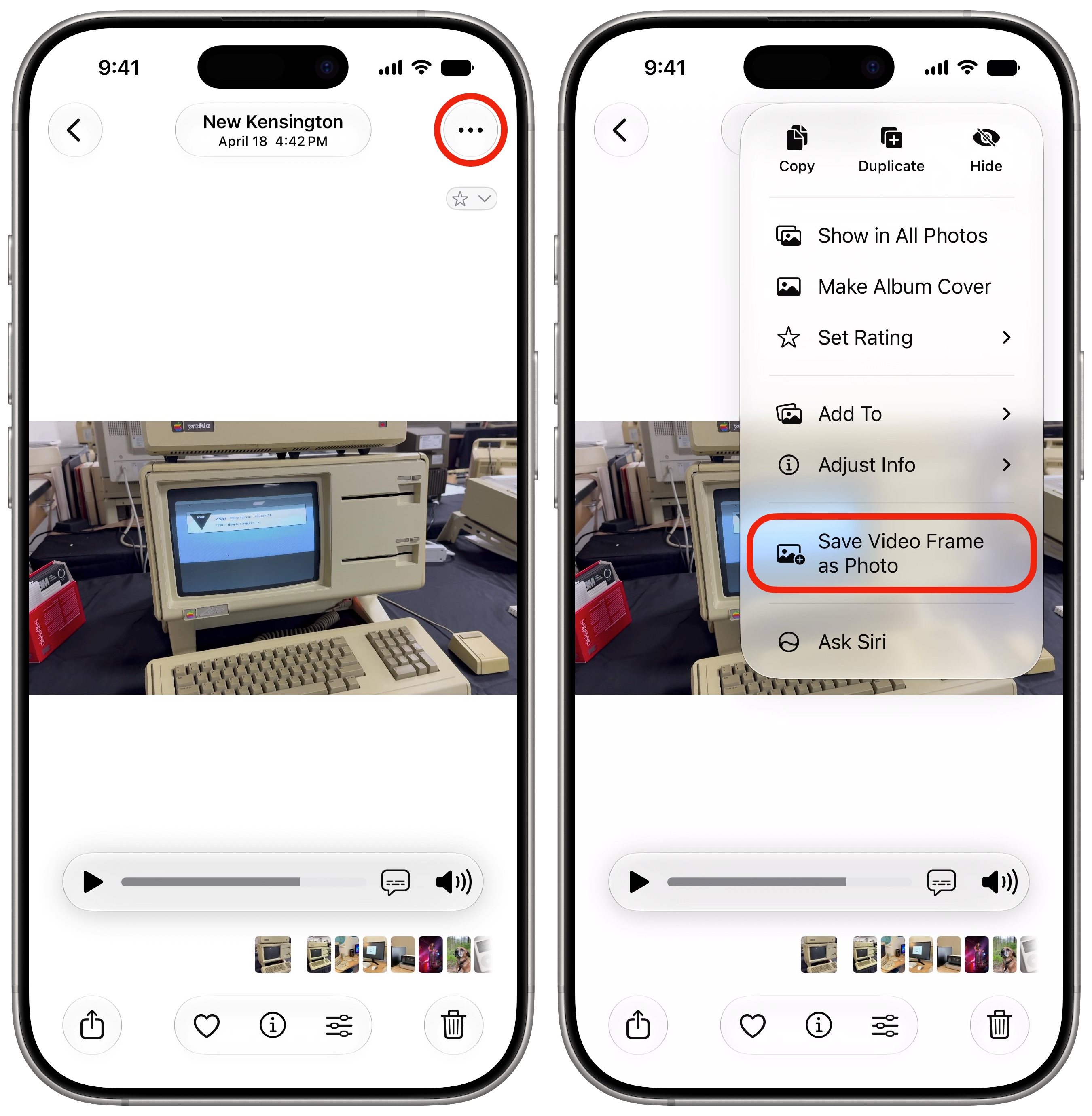
Screenshot: D. Griffin Jones/Cult of Mac
There’s now a better way to take a photo out of a video after the fact. If you pause a video at the right moment, you can tap the More (⋯) button, then tap Save Video Frame as Photo.
This is much better than taking a screenshot of a video. It’ll save the photo at its full resolution. If it’s a 4K video, you’ll get a 3840 × 2160 photo, rather than an uncropped low-resolution image with black bars on either side.
I’ve already put this feature to great use — hardly three weeks in!
Star ratings
Two long-time features of Photos on the Mac now come to iPhone and iPad. You can star rate your photos 1 – 5 for much more granular sorting and filtering. Marking a favorite is only a single binary. But you can rate the “pretty good, but not quite all-time great” photos four stars. Or the comically bad pictures that you still want to hold onto one star.
To enable star ratings, tap on the Collections tab, then tap your photo in the upper right and enable Show Ratings Controls. You should see a little ★ in the upper-left corner of any starred photo. To rate a photo, tap and hold on it (or tap the ⋯ button), tap Rating, then pick 1 – 5.
Custom keywords
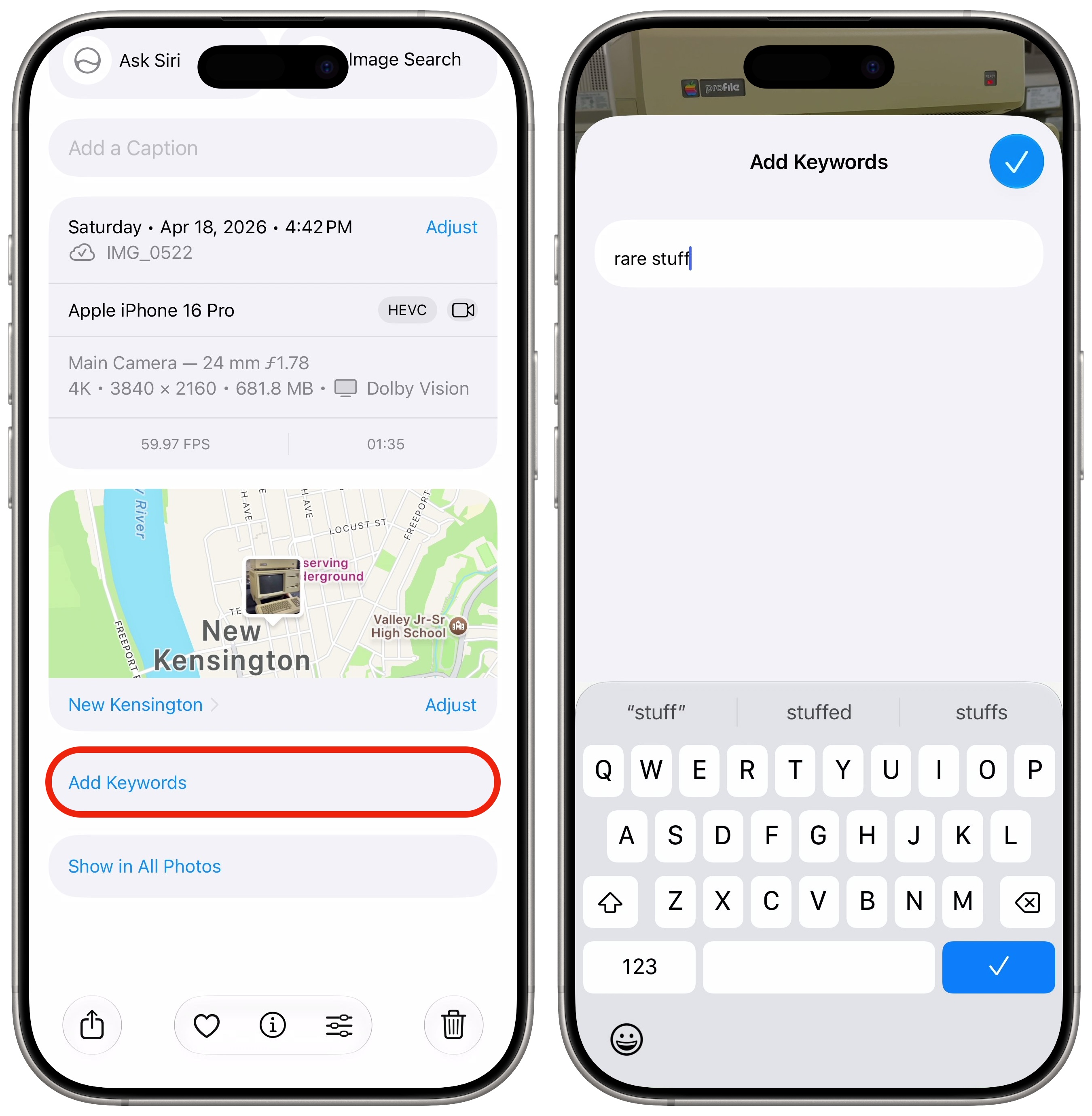
Screenshot: D. Griffin Jones/Cult of Mac
With keywords, you can tag photos of a similar type. Apple’s advanced search feature can visually identify tons of things, but it may not know the context of a picture. For example, you can create a “gifts” tag with pictures and videos of kids and family members opening presents. Or a “for sale” tag to record things you’ve sold online.
Tap the ⓘ (or swipe up) on a picture, then scroll down and tap Add Keywords. Type whatever you want — and it’ll autocomplete similar keywords. You’ll be able to search by entering in a keyword, too.
New collections for your own photos and IDs
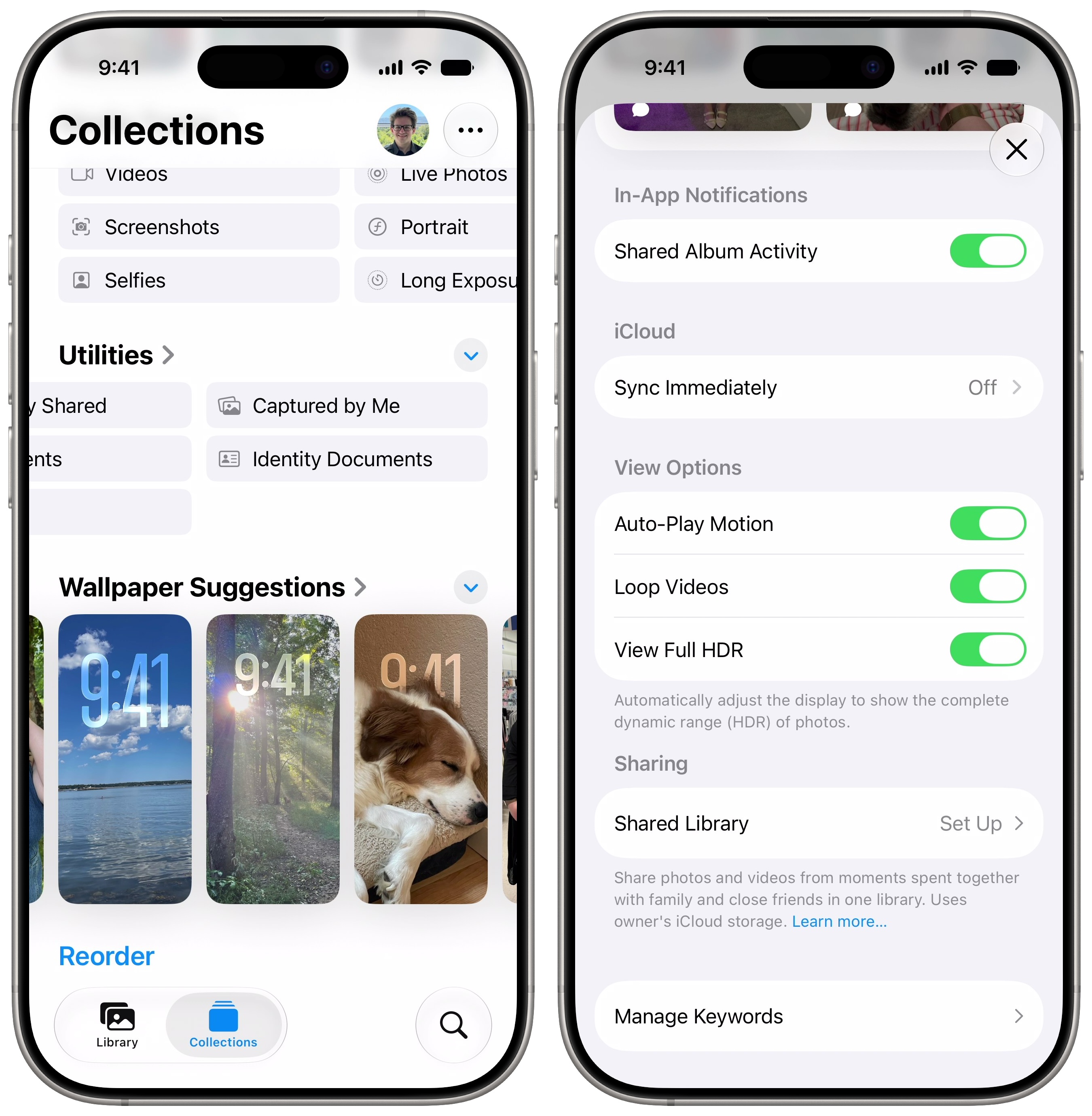
Screenshot: D. Griffin Jones/Cult of Mac
Collections are quick ways to find a specific type of photo. In the Collections tab, scroll all the way to the bottom until you get to the Utilities section. Scroll through the list, and you’ll see two new collections.
Captured by Me shows you all the pictures you’ve taken yourself, not including anything sent via Messages, AirDrop or a shared photo library.
Identity Documents shows things like driver’s licenses, IDs, social security cards and passports.
Sync Immediately setting
If you want all the pictures you take today to be immediately available in iCloud, so you can share an iCloud link or see them on your Mac and iPad, you can temporarily force it to sync new pictures immediately.
From the Collections tab, tap on your photo in the upper right, then tap Sync Immediately > For Today. If you’re taking a lot of pictures, this will negatively impact your battery life and use a lot of cellular data — that’s why your phone typically syncs overnight on Wi-Fi. But there may be the days where you need speed above all else.
Many improvements to shared albums
Shared albums are a convenient way for everyone to get the pictures from a group vacation or day trip. And there are tons of improvements to the experience in iOS 27.
- You can upload photos and videos in their full resolution.
- React to items using any emoji.
- You can choose who is allowed to add, delete or comment on photos.
- Invitations can be sent with a link over Messages (or any other app).
- Filter the contents of an album by photos or videos, and who uploaded them.
- A shared album can expire after a period of time, so it doesn’t crowd your photo library forever.
- Android and Windows users can contribute photos to an album.
- Easily save items to your personal photo library.
- Tap Activity to see a timeline of new photos and videos.
Put your pet — or yourself — in your Photo Shuffle
The Photo Shuffle Lock Screen is one of the most popular wallpapers, now with two additional features. You can pick one of your pets to feature — if you’re the type to pick favorites. (I know I am!) Alternatively, you can now have pictures of yourself in a Photo Shuffle, if you’re your own favorite. (I know I’m not!)
Customizable slideshows you can save for later
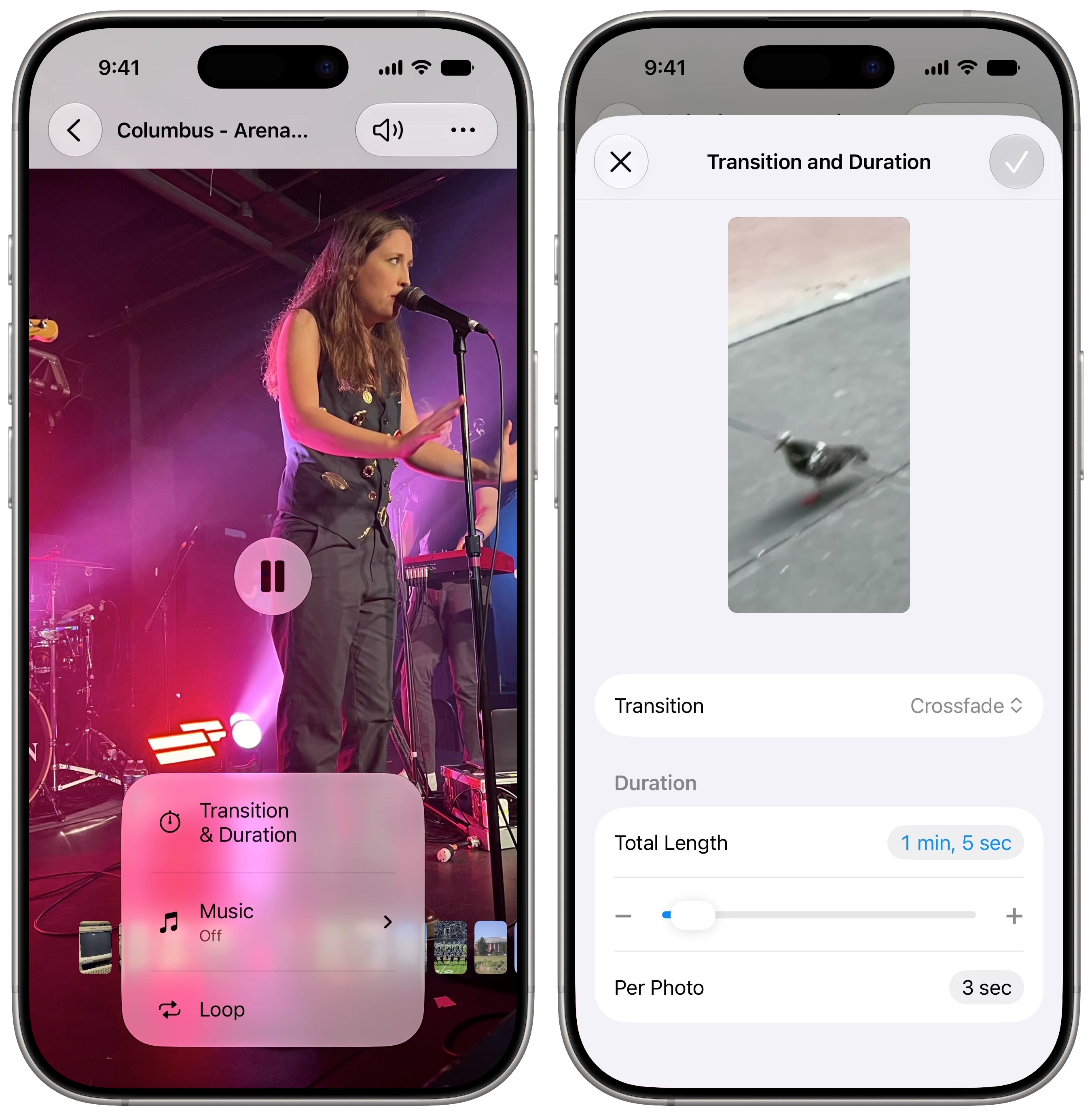
Screenshot: D. Griffin Jones/Cult of Mac
Slideshows you make of albums or people have additional customization options. Tap More (⋯) then Start Slideshow, and tap the screen to show the controls. Tap Customize at the bottom, then tap Transition & Duration. You can pick which kind of transition to use, along with how long each photo stays on screen.
Tap More (⋯) then Share, and you can save any slideshow as a video in your library. Under Options, you can choose to mute the music, whether to keep it in portrait, landscape or square, and the aspect ratio.
Keep track of your selection
When you tap Select in the upper right and pick a bunch of photos and videos, it’s easy to lose track of what you selected. Tap Show Selected at the bottom of the screen to review or deselect some items.
Better performance
There are tons of performance improvements in iOS 27. All these tasks will run a little smoother and faster when you update:
- Pictures you take will appear in your camera roll faster.
- Photos upload to iCloud faster.
- Text recognition is faster.
- The Collections tab loads faster.
- Tapping on the Photos widget loads faster.
Improved search
Apple says that search has improved as well. You should get better pictures of people and pets in your results, and you can search using additional metadata to narrow them down.