What is considered good speed for home internet and how can you test it?
The speed of your downloads, uploads and ping are affected by several variables. Let's measure your internet speed and see if we can improve it.
What is considered good speed for home internet and how can you test it?
The internet speed you need depends on your situation, so it’s vital to measure it accurately.
It can be difficult to choose the right home internet speed package. You don't really have to think about speed with mobile plans or figure out equivalent usage for other utilities like electricity. If you don't have enough speed, everyday browsing becomes a hassle, but if you get too much, you're overpaying for no noticeable benefit.
While there's no exact formula for how much internet speed you should get, since much depends on your scenario, we can establish some baselines for what's considered "good" home internet speed. Then you can match your needs to the closest package your ISP offers.
Understanding internet speeds

Internet speed consists of two main values: download (moving data from the internet to your device) and upload (moving data from your home to the internet). These are measured in megabits per second (Mbps) or gigabits per second (Gbps) — notice the lowercase "b" for "bits." Since we measure files in bytes (capital "B"), not bits, it's easy to overestimate a connection's speed if you miss this.
There are eight bits in one byte, so you should divide an internet speed by eight to get an idea of realistic file download times. For example, a 300 Mbps connection is equivalent to 37.5 MBps. At that speed, a 5GB game update would take about two minutes and 13 seconds to download.
For cable connections, the upload speed is much lower than the download speed. Cable connections have a limited amount of bandwidth, and because most people download much more than they upload, companies allocate most of the room for downloads. As an example, Comcast plans in my area offer between 300 Mbps and 2 Gbps in download speeds, while all except the top plan offer a "typical upload speed" of 117 Mbps. Fiber connections typically match their upload speed to the download speed because fiber doesn't have the physical bandwidth limitations of cable.
There's one other important data point when measuring your internet speed: ping (also called latency). This is a measure of how long it takes data to reach its destination and return to your device. It's measured in milliseconds (ms), and lower ping is better since that indicates a faster response time. Ping is most relevant for real-time connections like gaming and video calls, where delays mean what you see on-screen doesn't match what's currently happening.
How much speed do I really need?
File size calculations are straightforward, but it's more nebulous to figure out how much speed you need for streaming, working from home or similar. We can check the requirements pages for major services to get an idea. Netflix recommends at least 5 Mbps for 1080p streaming and 15 Mbps for 4K, while Disney+ recommends 5 Mbps for HD, 8 Mbps for live content and 25 Mbps for 4K UHD. Dolby Vision and similar HDR streams can require even more. Zoom says you need around 4 Mbps up and 3 Mbps down for 1080p video calls.
None of those requirements are burdensome on their own. However, unless you live alone, you also have to consider what else is happening in your home. A 50 Mbps connection is fine for one device streaming 4K video. But if you're watching Netflix at the same time your spouse is on a video call, your desktop PC is downloading game updates and your child is playing a game online, there's not much bandwidth to go around.
A good minimum for one or two people is 100 Mbps. If you have a larger family, work from home or regularly download (or upload) large files, 300 Mbps is a better target. That's enough for several people to do what they want without clashing. Consider 500 Mbps or above if you're a power user; when in doubt, get a little more speed than you think you'll need. HighSpeedInternet's quick quiz can help give you an idea.
Unfortunately, available speeds heavily depend on the ISPs in your area, so where you live plays a big role. In 2024, the FCC updated the baseline for "broadband" (which is a generic term for fast, always-on internet access) to be 100 Mbps down and 20 Mbps up. Cable and fiber internet will thus offer at least these speeds, but if you're in a rural area, your only options might be 5G home internet or satellite connections like Starlink. These generally offer slower speeds and higher latency than cable or fiber, but are better than archaic DSL. When shopping for a new plan, check the Broadband Facts labels, which are Nutrition Facts-style labels now required on all mobile and home internet plans.
How to test your internet speed
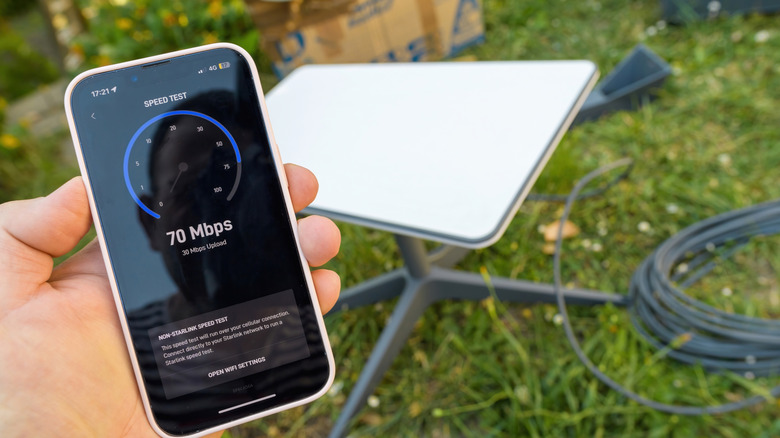
If you aren't sure of your current internet plan, check your online account with your ISP for the details. From there, a variety of websites let you check your actual speed against what you're paying for. The most well-known is Speedtest.net, which does a simple test to show your download and upload speeds, along with your ping while idle, downloading and uploading. If you're interested in more details, Cloudflare's speed test shows measurements for various file sizes to give more context. It also shows stats like Jitter (the consistency at which data packets arrive) and Packet loss (how much information is lost in transmission).
If you're most interested in latency, Meter.net's ping test will check your ping with over 100 servers across the world, including a World ping test that runs them all at once. Your ping depends on what you're connecting to and is thus higher for farther-away servers, which is why a normal speed test can show low ping while you experience higher latency in a certain game. For example, Overwatch's US servers are only in Los Angeles and Chicago. If you're near Washington, DC, you'll have lower ping in a game with East Coast servers (like Rocket League) than you'll ever have in Overwatch.
The time of day can affect your speed test (the more people online in your area, the less bandwidth there is to go around), so it's a good idea to check it several times at various points to get an average. Other activity on your home network applies too; you'll see slower speeds if someone else is downloading an 80GB game.
Know the other factors that affect your speed

It's very likely that your tests will show slower speeds than your internet package. Using Wi-Fi is the most common reason for this, as wireless connections can't match the speed of wired Ethernet. Your Wi-Fi speed will drop (and ping will increase) as you get farther away from your router; it's affected by obstacles like walls, and interference from other wireless devices can also reduce its performance. Using a low-end router that has poor range and doesn't support the latest wireless standards will exacerbate this issue.
When you're browsing on your phone or connecting smart bulbs to your network, Wi-Fi's drawbacks aren't a problem. But for devices where you want to take full advantage of your speed or minimize ping (like your work PC for stable video calls or game console for online play), wired connections are superior. Thankfully, there are ways to add a wired connection without running a cable.
Keep in mind that using a VPN will usually reduce your connection speed and increase ping, as there's additional overhead in routing data through the VPN's servers.
Finally, your modem and router must also support the internet speed you receive; if you're paying for 800 Mbps but your modem only supports 400 Mbps, you'll never get the full speed. Those using an ISP-provided router shouldn't have to worry about this, since your provider hopefully gives you a model matching your plan. But if you own your equipment, double-check that it isn't a bottleneck. Some tweaks can help speed up your router, but there's only so much an older or cheap one can do.
Originally published on Engadget