You probably don't need two routers — do this instead
For better coverage or more wired connections, mesh, access points and Ethernet switches usually make more sense than a second active router.
You probably don't need two routers — do this instead
Two routers can work in some specific situations, but there are other devices that work better to achieve most network needs.

Adding a second router can seem like an easy fix for weak Wi-Fi. Put another box at the other end of the house, connect it to the first router, and you've got another wireless network. The trouble starts when both devices are left in router mode, because each can create and manage its own private network.
Most homes only need one device doing the actual routing. If you need better coverage or more connections, the cleaner approach is usually to extend the network the existing router already manages, rather than creating another routed network behind it.
Two routers can create a network behind a network

A home router creates your local network, then uses Network Address Translation (NAT) so its connected devices share a connection with the internet. The job of a router isn't just to broadcast Wi-Fi; it sorts the incoming and outgoing traffic on your network so all information arrives at the right place. When you connect a second router in normal router mode behind the first, the second device creates another private network while also performing NAT. This arrangement is known as double NAT.
That doesn't necessarily make normal web browsing or streaming noticeably slower. Double NAT has no major effect on network performance for most cases. Problems are more likely to appear with tasks that depend on connections reaching a particular device, including online gaming, port forwarding and Universal Plug and Play (UPnP).
Running two private networks can also make it harder for devices to find each other. For example, a computer connected to the first router and a printer connected to the second may end up on different networks, even though they're in the same home. This adds unnecessary complication.
Use mesh or access point mode for better Wi-Fi
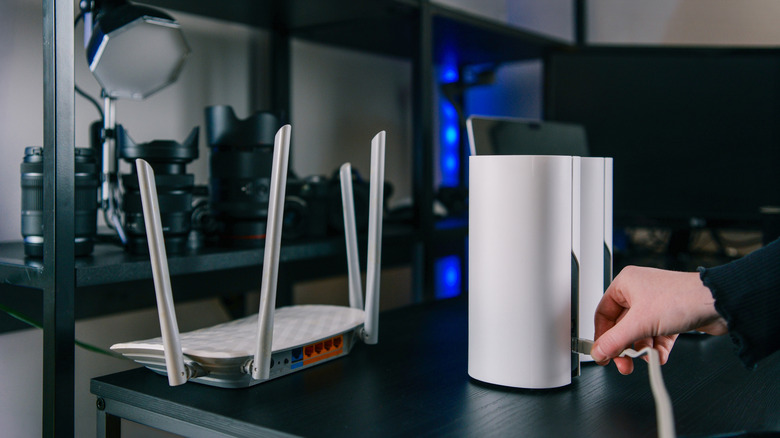
If coverage is your problem, a mesh Wi-Fi system is built for extending one network throughout a home. Its nodes work together, rather than each creating an independent routed network. This makes mesh a much cleaner solution than placing another router in a weak-signal area.
You may also be able to reuse a router you already own for this task. Many models include access point (AP) mode, which has the device simply act as a Wi-Fi connection point while the primary router continues managing the network. In AP mode, most routers will disable features such as firewall and IP sharing because the main router handles those functions.
If you already have Ethernet in the room with weak Wi-Fi, an router acting as an access point can use that wired connection to extend your network there. This is a viable alternative to dedicated Wi-Fi extenders.
Meanwhile, if Wi-Fi coverage is fine and you're simply out of Ethernet ports, use an Ethernet switch instead. These add wired connections to the existing network without creating another routing layer.
Bridge an ISP gateway if you want your new router in charge
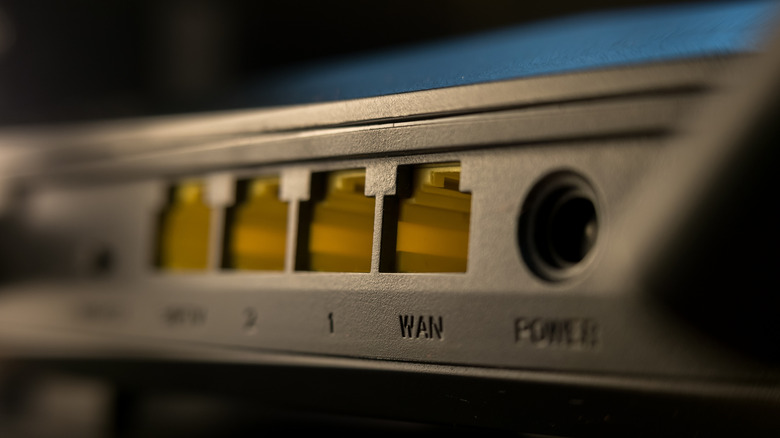
Internet providers often supply a gateway, combining the modem or fiber connection with router functions and Wi-Fi in one box. Connecting your router to that gateway doesn't automatically stop the ISP equipment from routing traffic, so leaving both devices in their default modes can produce double NAT.
If you want your own router or mesh system to control the network, check whether the ISP gateway supports bridge mode. Bridge mode stops the gateway from acting as a router, leaving your own router to manage the network instead. That also avoids double NAT. The exact procedure varies by provider and hardware, so this isn't a setting to change from generic instructions. Check the ISP's documentation first, particularly because bridge mode can affect other functions supplied by its gateway.
The other option is to keep the ISP gateway as your main router and put your own router or mesh system into access point mode. In that setup, the ISP gateway still handles routing, while your secondary device mainly provides Wi-Fi coverage. The downside is that some router-specific features on your device may stop working, which is a particular pain since many routers offer more features than ISP-provided models. TP-Link, for example, says AP mode disables functions such as NAT forwarding, VPN, QoS and some parental controls.
The decision depends on which device you want to manage the network. If you bought a new router specifically for its routing features, bridging the ISP gateway makes more sense. If you're satisfied with the gateway and just want better wireless coverage, AP mode is the simpler arrangement.
Two active routers only make sense in specific setups

There are reasons to run two routers at the same time, but they usually involve deliberately creating two separate networks. A networking hobbyist might use a second router for a home lab, for example, keeping experimental devices and services away from the main home network.
A second router can also be useful when testing new networking hardware or settings. Someone trying a different router, VPN configuration or custom network setup may want to experiment without changing the connection used by everyone else in the house. These are intentional setups where having two networks is part of the goal, rather than an accidental side effect.
That's different from turning an old router into an access point or mesh node. In those setups, the extra device helps extend the network, while your main router remains in charge. For most homes, that's the simpler arrangement when the goal is better Wi-Fi rather than a completely separate network.
Originally published on Engadget