The Apple Health app on your iPhone makes it easy to track your medications — and help you remember to take them on time. It offers many advanced options and covers all kinds of medicines.
You can set up schedules, log your activity and even get advice on drug interactions. Let me show you how to get started.
How to track medications on iPhone
Your iPhone already logs your steps, sleep and workouts — but it can also help with something far more important: remembering the medications you take every day.
The feature is easy to overlook because it’s buried inside the Health app. But for anyone juggling multiple prescriptions, supplements or daily pills, it can replace handwritten notes and calendar alerts. With just a few taps — or a quick scan of a pill bottle — your iPhone and Apple Watch can become a smarter way to stay on top of your health routine.
Table of contents: How to track medications on iPhone
Add your prescription
Screenshot: D. Griffin Jones/Cult of Mac
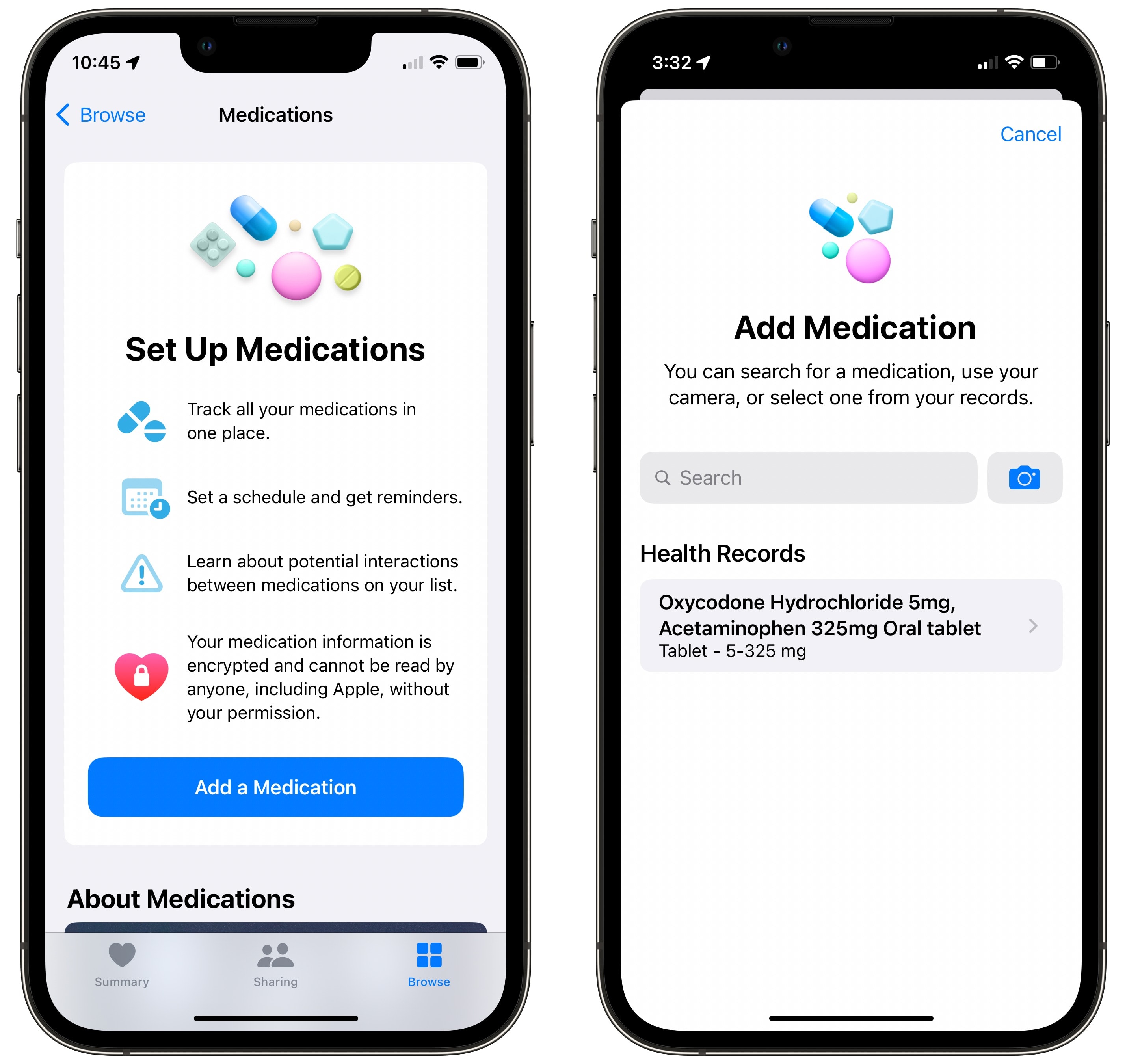
To get started tracking medications on your iPhone, open the Health app and tap the Browse tab at the bottom right. Scroll down to Medications and tap Add a Medication.
If you have a connected health care provider, you can select a prescription from your records. You can also type it in to look it up or tap the camera icon to scan the bottle.
Screenshot: D. Griffin Jones/Cult of Mac
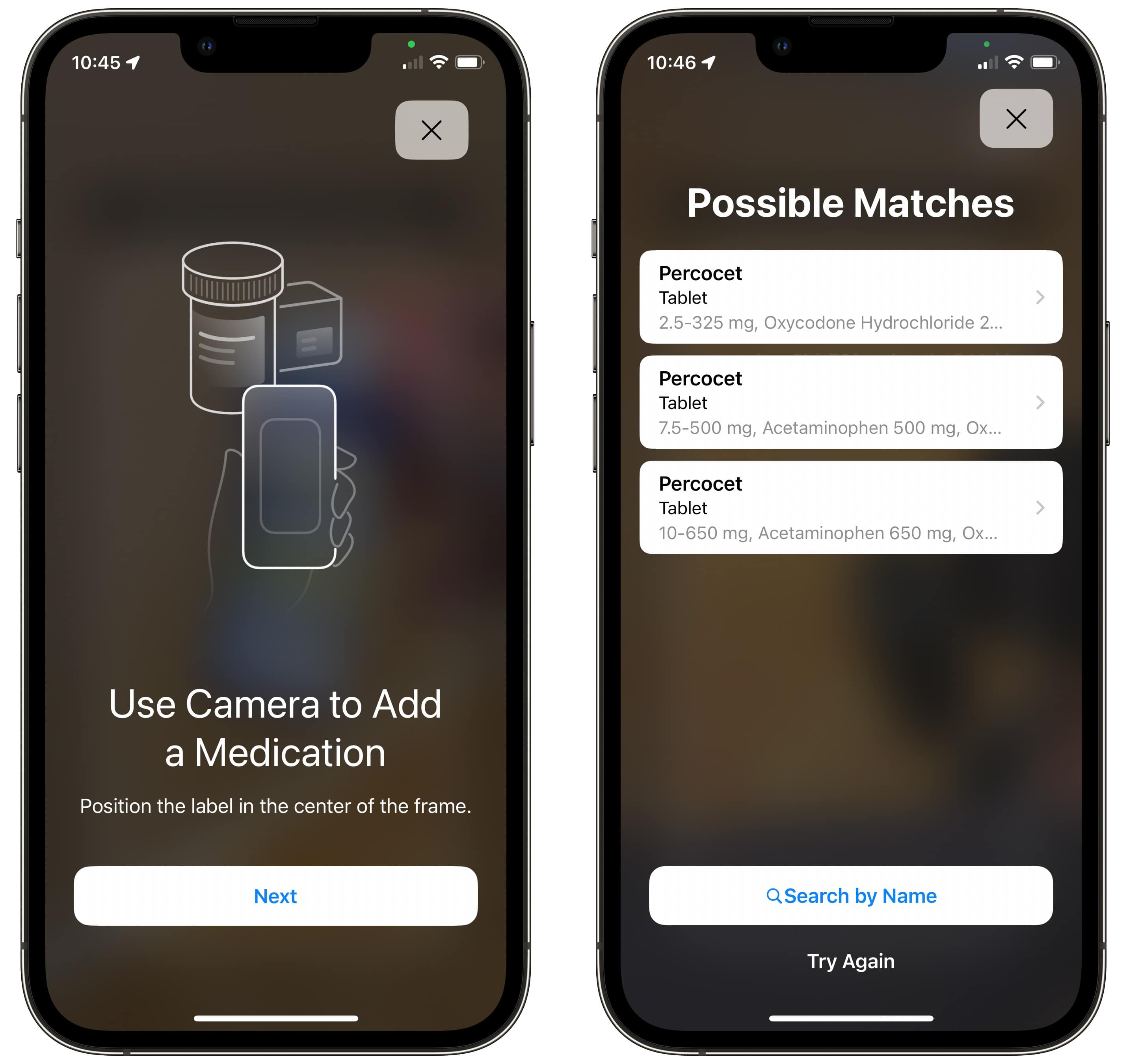
If you want to use the camera, tap Next to get started. Hold the bottle steadily inside the square. Make sure the part of the label with the name of the drug is visible. The app might present you with a couple of different matches — make sure you select the right one.
You might need to answer a few questions based on the drug, like medication type or strength.
Set a reminder schedule
Screenshot: D. Griffin Jones/Cult of Mac
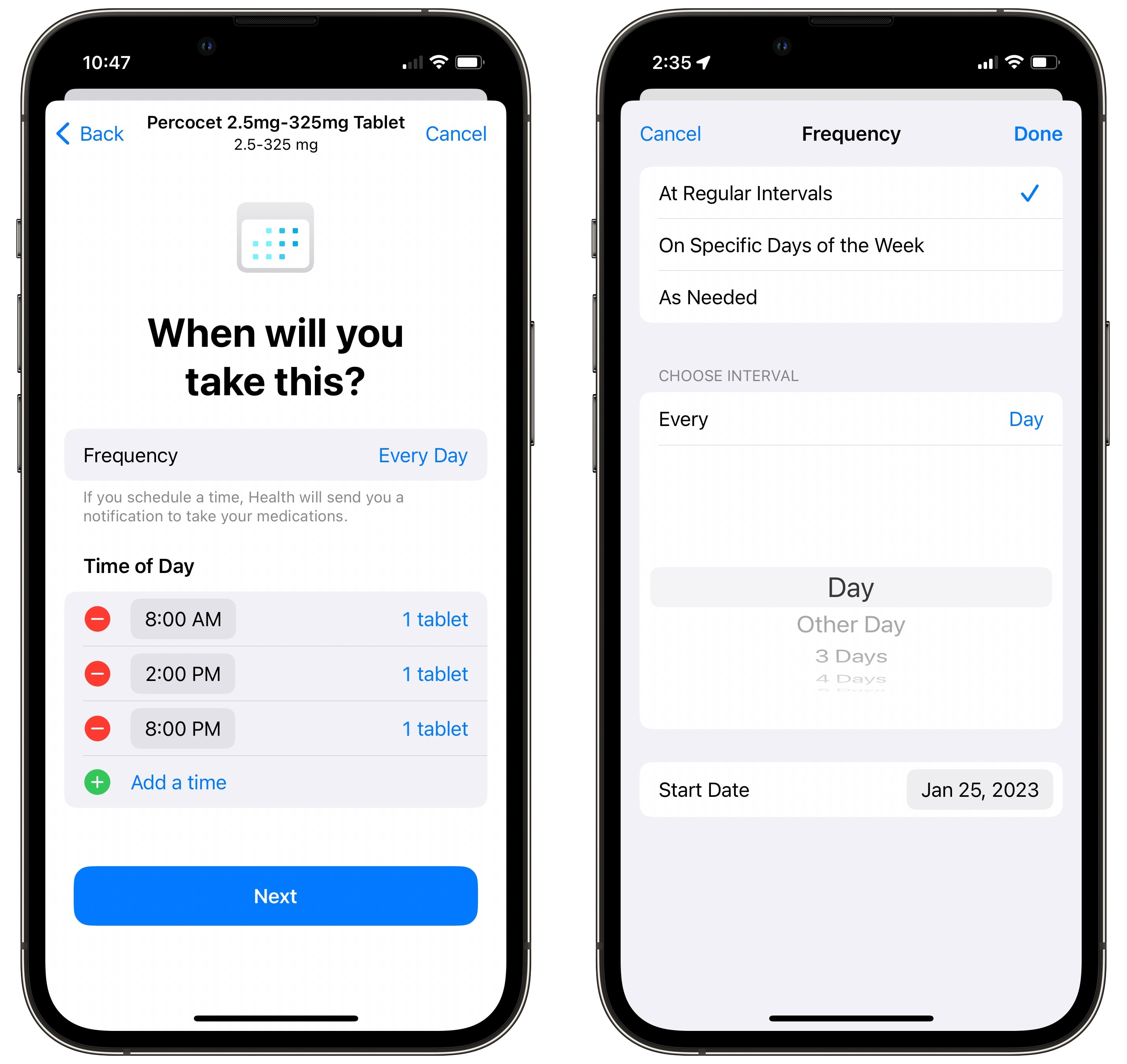
Next, set up a schedule to track your medications on your iPhone. Add a time of day and the prescribed dosage. Tap Add a time if you take the drug multiple times a day. Tap Frequency if you need to switch from Every Day to specific days of the week, a schedule of once every X days, or as needed. (You can always go back and edit this later.)
Screenshot: D. Griffin Jones/Cult of Mac
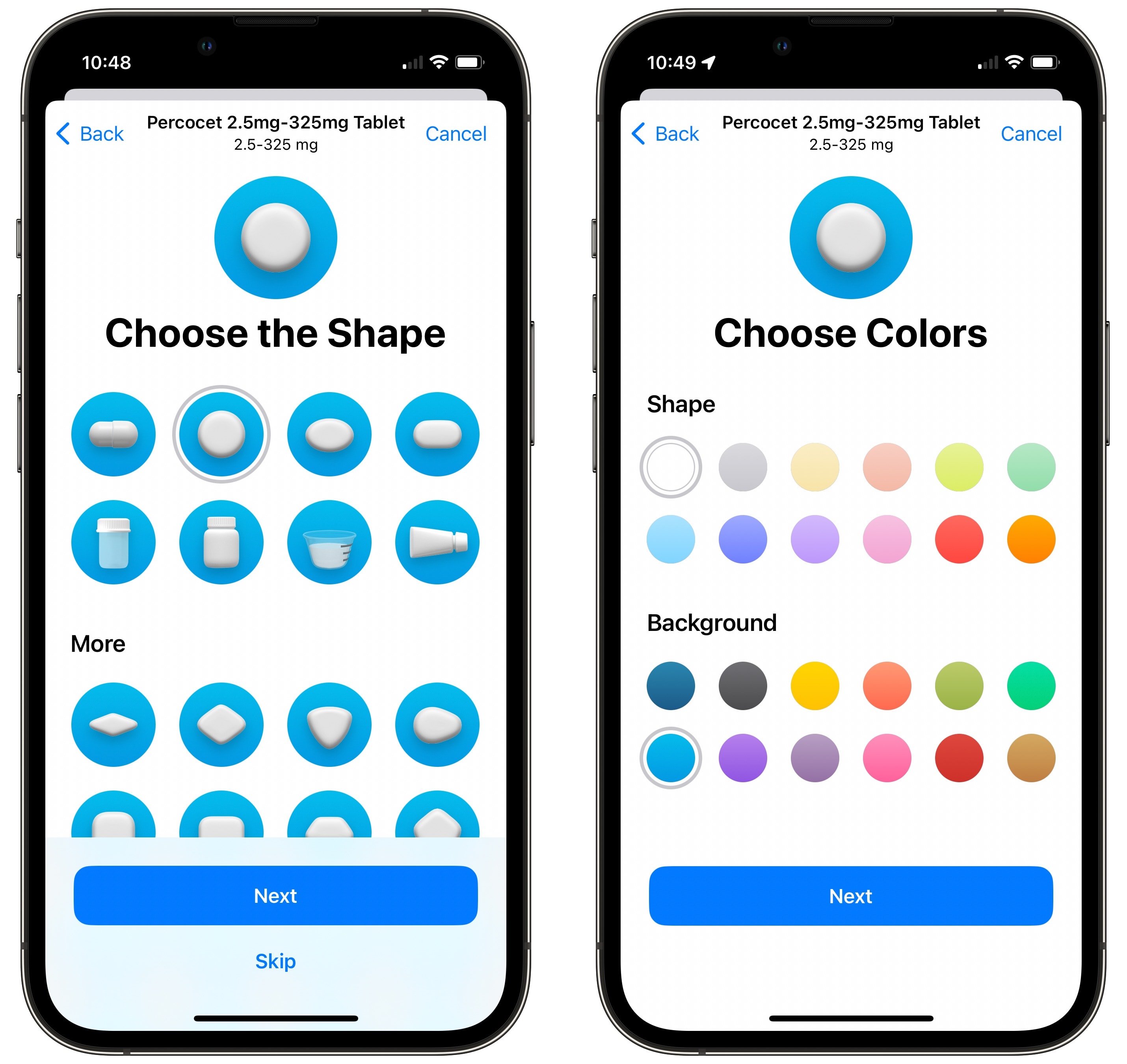
After that, you can choose a pill shape to help you recognize the medicine. The Health app shows all kinds of tablet shapes, plus bottles, injections, needles, eyedroppers, powders and more.
You can also pick a color for the medicine and a background color. (I recommend picking a background color that matches the container it’s in.) If you pick the old-fashioned two-piece capsule shape, you can pick a different color for the left and right sides. What a time to be alive.
Screenshot: D. Griffin Jones/Cult of Mac
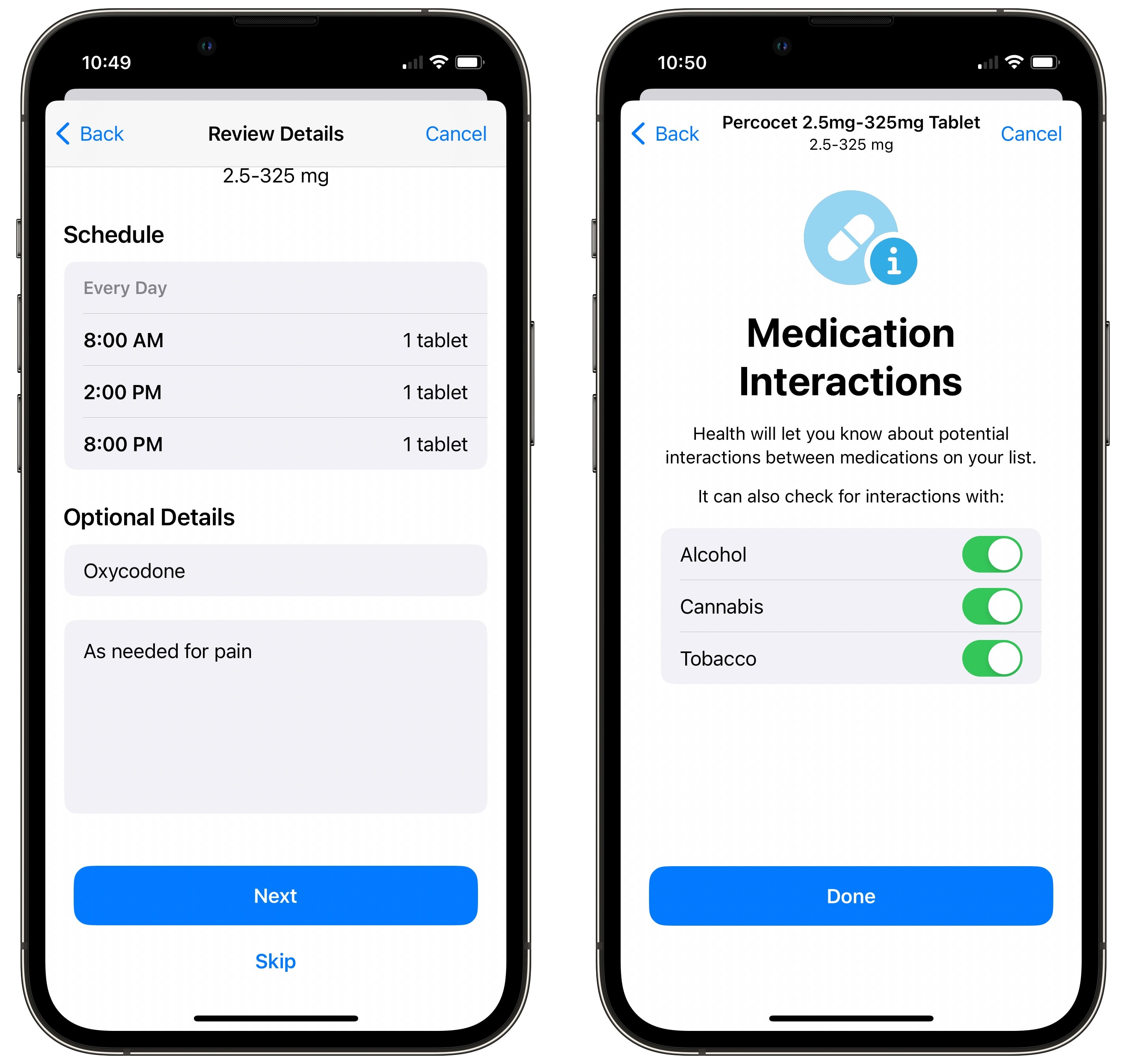
Now, you can review the details. Give your medication a more descriptive name — if you take an off-brand drug, I recommend typing in the name exactly as printed on the label to avoid confusion.
If this is your first time adding a medication to track on your iPhone, you’ll be asked whether you want to check for interactions with alcohol, cannabis or tobacco. Check these if you use them.
Track your medications and your log
Screenshot: D. Griffin Jones/Cult of Mac
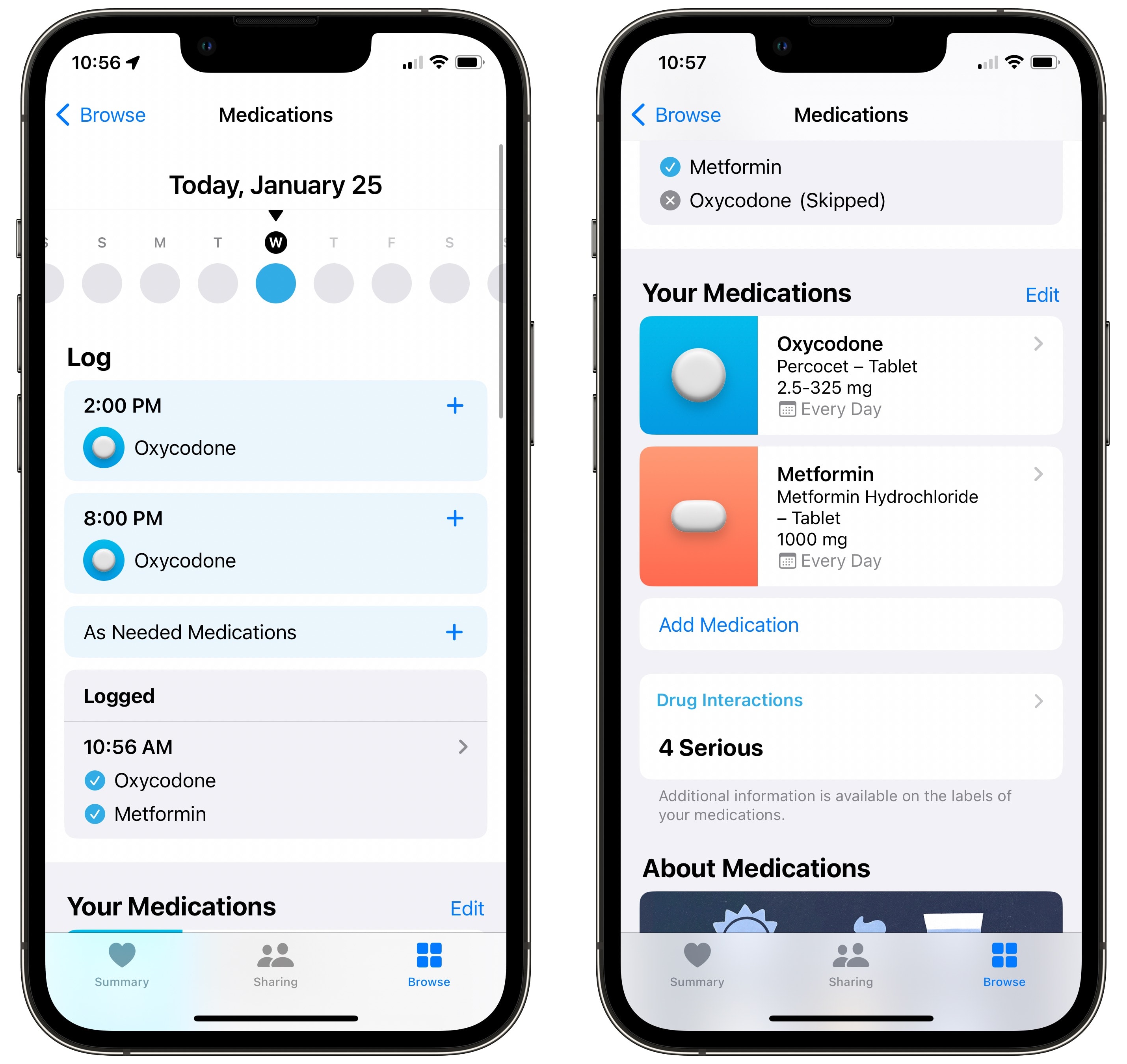
Finally, you’ll be taken back to the Medications screen. You’ll see a date picker along the top that you can scroll left and right to see your history or what’s coming up.
Scroll down to see the list of all your medications. Tap on any one of them to make changes to the schedule, dosage, icon, etc. Scroll down and tap Archive if you don’t take the drug any longer. You can also tap Delete to completely remove the drug from your medical history (I don’t recommend doing this).
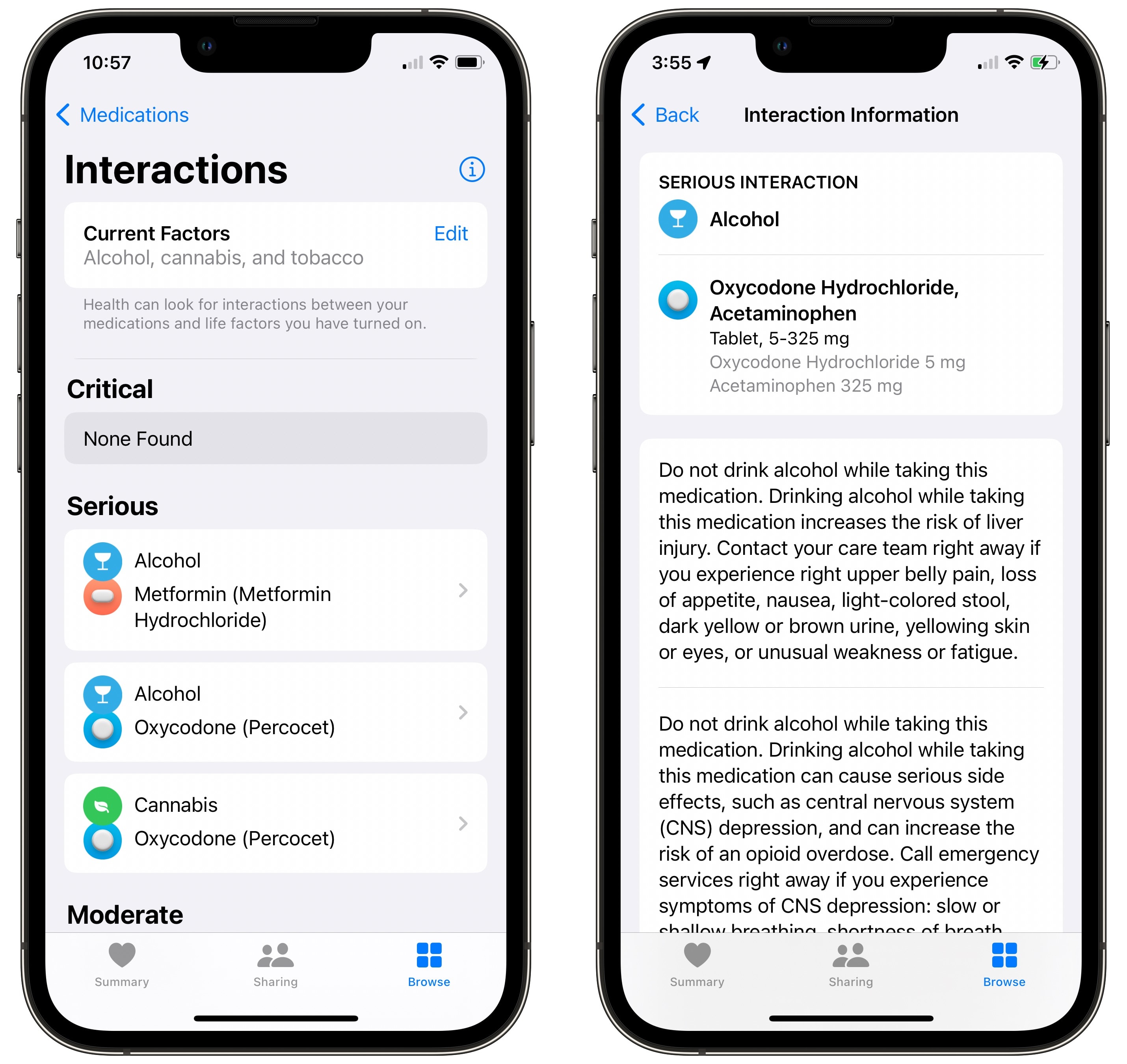
Screenshot: D. Griffin Jones/Cult of Mac
Tap on Drug Interactions to see if there are any risks associated with your medications.
Get medication reminders
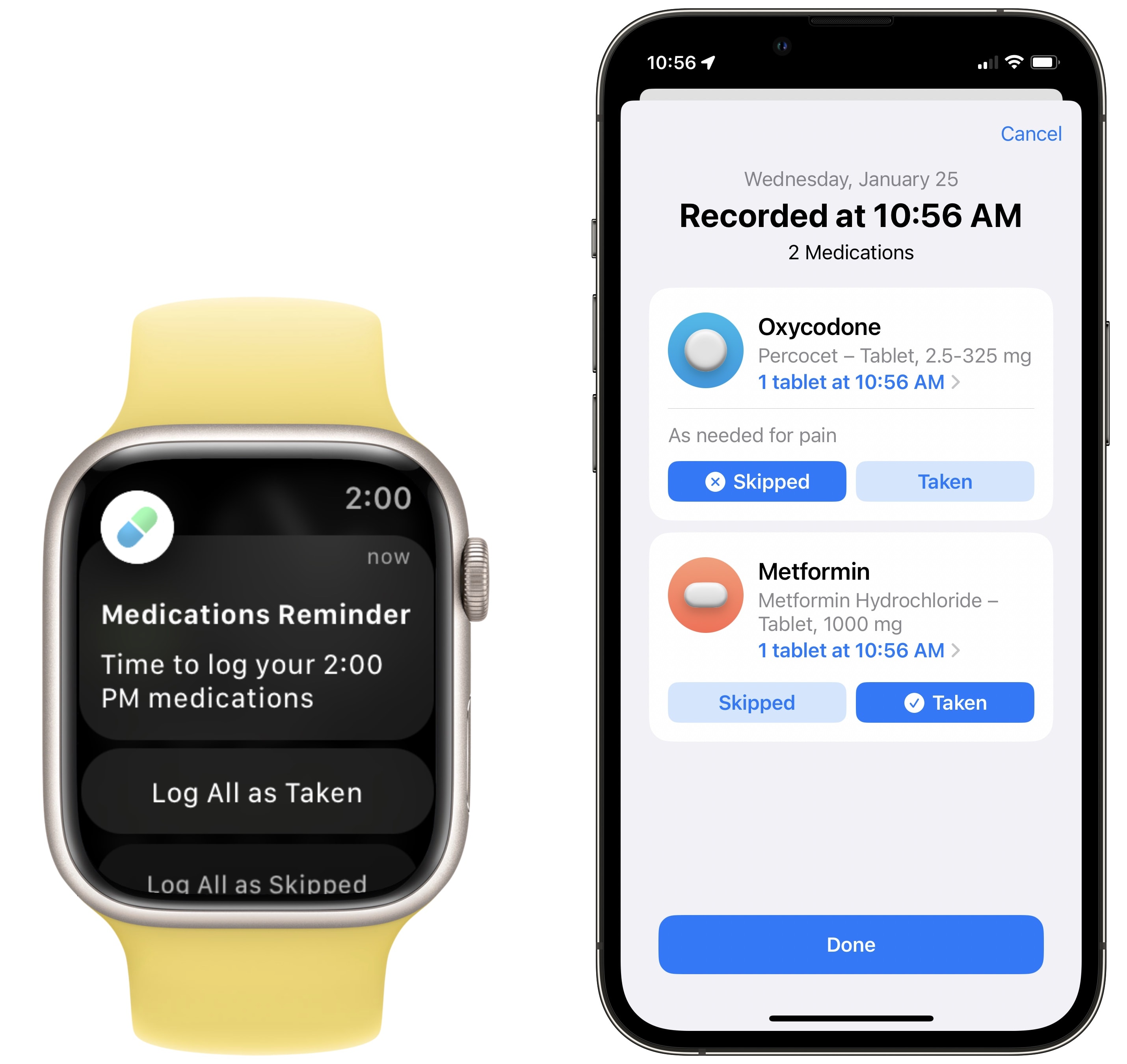
Screenshot: D. Griffin Jones/Cult of Mac
When it’s time for you to take your medication, you’ll get a push notification on your Apple Watch and iPhone. Tap Log All as Taken to mark them all as taken or tap Skipped to log that you didn’t take something. On your iPhone, make sure you tap Leave On on the notification to make sure you keep getting alerted about these medications.
Boost with follow-up reminders and critical alerts
If you receive a lot of iPhone notifications, it’s possible the medication alerts will get lost to time in the sea of crap accumulating in your Notification Center. Luckily, an additional option can make sure your medication reminders don’t slip through the cracks.
Open Health > Browse > Medications and scroll down to the bottom. Tap Options and enable Follow Up Reminders. If you don’t respond to a medication notification within 30 minutes, you’ll get a reminder.
If you want an even more powerful backup, you can enable Critical Alerts. This will play a sound out of your iPhone’s speaker, no matter if it is on silent or in a Focus mode. You can selectively enable Critical Alerts for every medication you take.
We originally published this article on how to track medications on iPhone on February 16, 2023. We updated it with new information.