Things to know before using your MacBook outside
Keep an eye on the temperature when using your MacBook outside.
Things to know before using your MacBook outside
Keep an eye on the thermomoter.
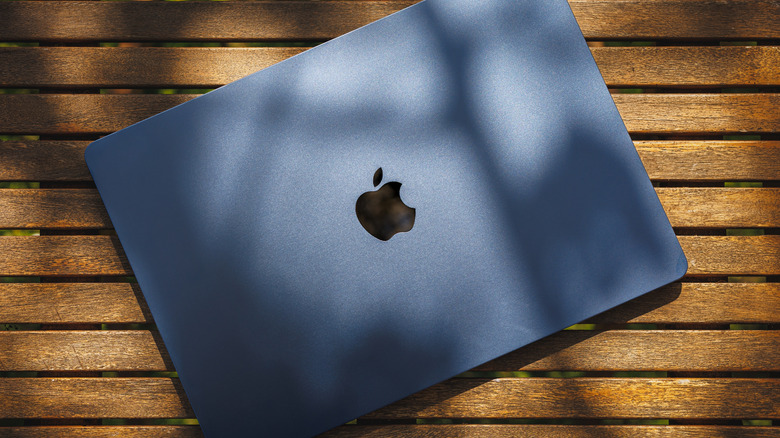
Taking a MacBook outside is usually as simple as moving from a desk to a patio table, but outdoor conditions are much harder to control. Heat and direct sunlight can affect both the laptop itself and how comfortable its screen is to use. You don't need special outdoor gear, but you do need to know Apple's temperature limits and give the MacBook a dry, stable surface with room to shed heat.
Keep your MacBook within Apple's temperature limits

Apple recommends using its Mac laptops when the ambient temperature is between 50 and 95 degrees Fahrenheit, or 10 to 35 degrees Celsius. That's a wider range than most people will encounter indoors, but the upper limit is easy to approach on a hot summer day. Apple also specifically warns against leaving a MacBook in a parked car, where temperatures can climb beyond its recommended range.
The important word in Apple's guidance is ambient. The 95-degree limit refers to the air around the laptop, not how hot its aluminum enclosure might become while sitting in direct sunlight. Apple doesn't publish a separate direct-sunlight limit for MacBooks, so it makes sense to move into the shade rather than treating a temperature below 95 degrees as an all-clear for using one in full sun.
There's a longer-term reason to avoid excessive heat, too. Ambient temperatures above 95 degrees Fahrenheit can permanently reduce battery capacity, meaning the battery may not last as long on a charge afterward. Charging a device in high temperatures can cause additional damage.
Heat also matters differently depending on the MacBook you have. All Apple Silicon MacBook Air models use passive cooling rather than a fan, dissipating heat through the chassis. MacBook Pro models use active cooling for sustained, demanding workloads. Either way, giving the laptop shade and room around it to shed heat is preferable to making its cooling system work against direct sun.
Direct sunlight can make your MacBook's screen harder to use

Heat isn't the only reason to look for shade. Bright outdoor light and reflections can make a MacBook display much harder to read, which usually leaves you reaching for the brightness controls.
How much brightness you have to work with depends on the model. Current MacBook Air displays are rated for 500 nits of brightness, while current MacBook Pros can reach up to 1,000 nits of SDR brightness outdoors. A nit is a unit used to measure display luminance, so a higher figure generally means the screen can produce more light.
That extra brightness comes with a tradeoff when you're away from an outlet. Dimming a MacBook display to the lowest comfortable level helps you maximize battery life. However, if sunlight forces you to keep the display near maximum brightness, expect the battery to run down faster than it would at a lower setting indoors.
So, before pushing the brightness all the way up, try changing your position. Turning the display away from reflections or moving a few feet into shade can make the screen easier to see while allowing you to lower its brightness again. It also gets the MacBook itself out of direct sunlight, solving two outdoor problems with the same move.
Use a hard surface and keep your laptop away from moisture

Where you put a MacBook matters more outside than it does at a desk. Apple recommends placing its laptops on a stable work surface that allows good ventilation and specifically warns against using them on pillows, bedding or other surfaces that can interfere with airflow. A table or solid tray is therefore a better choice than setting the MacBook down on a blanket or cushion.
Weather presents the other obvious problem. Current safety guidance for both the MacBook Air and MacBook Pro says to protect the laptop, power adapter and charging cable from dampness, humidity and wet weather. It specifically lists rain, snow and fog. A light shower isn't something to work through just because the keyboard still looks dry.
If rain starts, disconnect the charger and other cables and move the MacBook somewhere dry. The same guidance applies to the power adapter, so an outdoor outlet or extension cord doesn't make charging a good idea when moisture is present.
Originally published on Engadget