You can check your Samsung Galaxy's health with a built-in test
If your Samsung phone is acting strangely, you can test just about any element of the phone's hardware using this test.
You can check your Samsung Galaxy's health with a built-in test
Try this before sending it in for repair or upgrading.
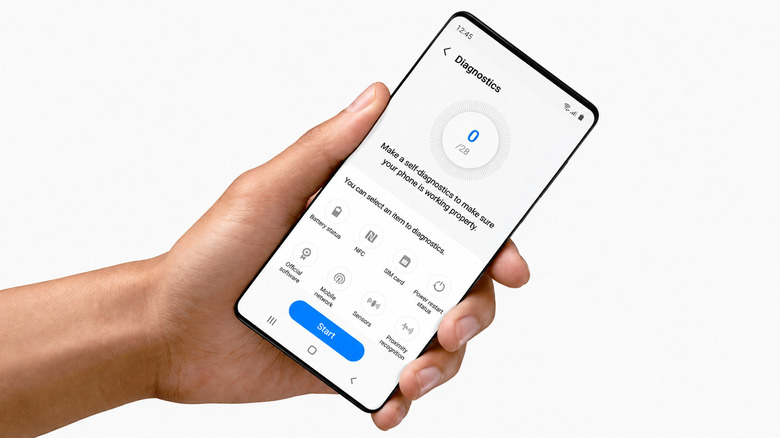
If your Samsung Galaxy has begun draining its battery too fast or dropping calls, or just seems to be on the wrong side of an update, there is quite a bit of hardware that you can check before downloading another app or going to a repair shop.
Samsung has a phone diagnostics suite in Device care. Go to Settings > Device care > Diagnostics and then tap on Phone diagnostics. From there, you can test individual components or tap Test all and go through the checklist.
According to Samsung, Device care diagnostics are available on Galaxy devices running Android 12 or later, though the specific menus and available tests vary by phone and software version. The diagnostics are also available via Samsung Members.
I completed the entire test on a Samsung Galaxy S26 Ultra, which gave me 22 checks to complete. But this is not a true measure of how "fast" your phone is. Think of it more as giving the hardware a physical.
Samsung checks a surprisingly large chunk of your phone
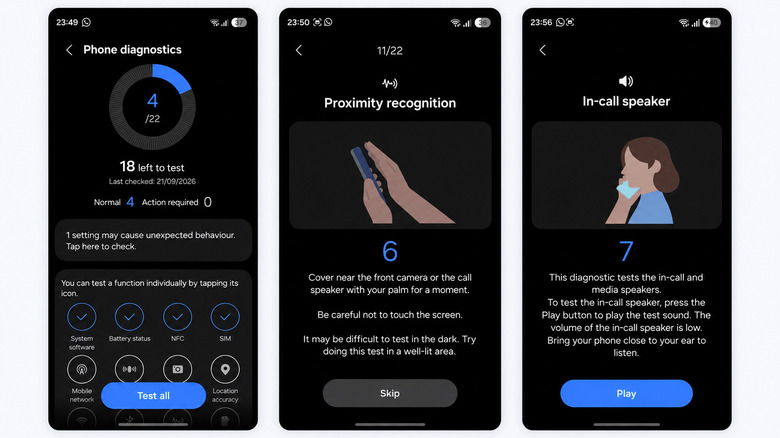
The diagnostics are much more than battery health. Samsung can test the touch screen, cameras, microphones, speakers, physical buttons, sensors, Wi-Fi, mobile network, Bluetooth, SIM card, NFC, USB connection, charging and fingerprint reader, depending on your Galaxy model. Models with features like an S Pen or wireless charging can get additional checks.
Certain tests are performed automatically, while others involve you. For instance, the proximity test requires you to cover the area around the front camera or call speaker with your palm. Another one plays audio via the in-call speaker and asks you if you can hear it. It's a bit more complicated than watching a progress bar act busy. If a test fails, Samsung says the app may offer troubleshooting suggestions or a related FAQ.
If you are checking the status of an older Galaxy, battery status is likely the most useful result. Samsung rates the battery as Normal, Weak or Bad. Weak indicates that its efficiency may have decreased due to long-term use or environmental conditions. Bad means that battery life has significantly degraded, and Samsung recommends getting service advice.
That's much more helpful than asking yourself if your battery just seems worse than it used to.
A healthy Galaxy can still feel slow
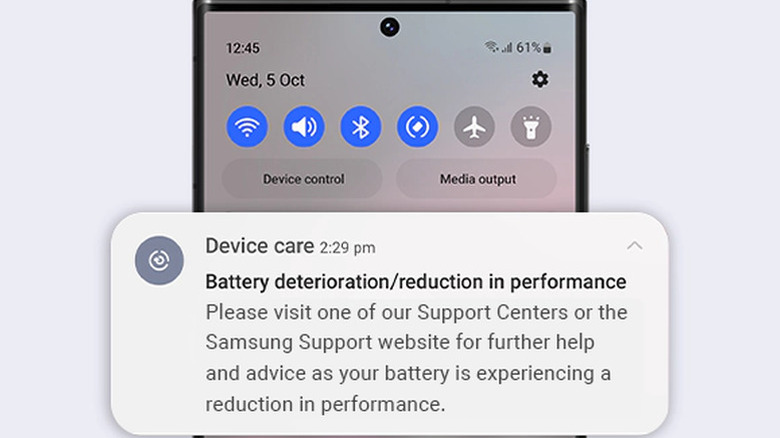
Just because your Galaxy passes all the diagnostics does not mean it will be as fast as it was on day one. Samsung's tests check whether components and functions are working correctly. They don't provide you with a CPU benchmark, let you know if your internet connection is crawling or tell you if your phone is performing well in games.
Those are different jobs. An internet speed test measures the connection your phone is using, so distance from the router, congestion and other network conditions can affect the result. A benchmark like Geekbench measures processor performance instead and is more useful for comparing your phone with similar phones.
Samsung's support guidance doesn't specify a benchmark score at which a three-year-old Galaxy is too slow. Age alone is not a good indicator, as a Galaxy A-series phone and an Ultra model started with very different hardware.
If the diagnostics pass and your phone is still slow, Samsung says outdated software, background apps, insufficient available memory or temporary system errors may be to blame. Google also says Android phones can begin to have problems when less than 10 percent of their storage is free.
Repeated failed diagnostic tests or a Bad battery result are stronger reasons to consider servicing the phone. If you do hand it over for repair, Samsung's Maintenance mode can hide photos, messages, contacts and other personal data while still allowing technicians to test the device.
Originally published on Engadget
![These are my favorite iPhone 18 Pro & Pro Max cases so far [Video]](/_next/image?url=http%3A%2F%2Ftech4you.club%2Fmedia%2Farticles%2Fcovers%2Fcover_7KnTHmx.jpg&w=3840&q=75)